Sylva can see and understand images — share a screenshot, diagram, photo, or document and ask questions about it right in your conversation.
Sharing Images with Sylva
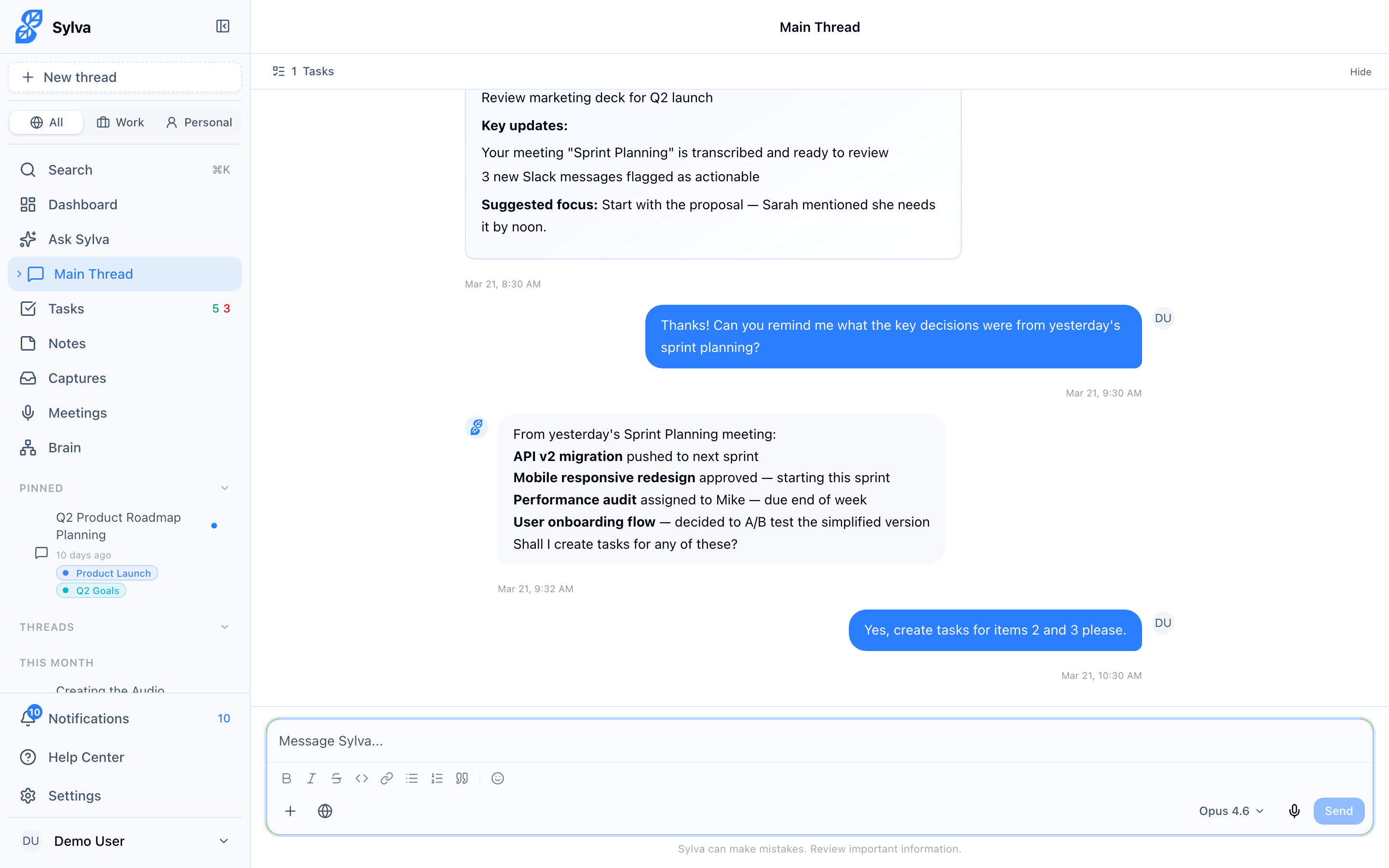
There are three ways to get an image into your conversation:
- Share target — Use your browser's or file manager's native Share menu and choose Sylva. The image loads directly into your chat, ready for you to ask a question. This works on mobile and desktop PWA
- Paste in chat — Copy any image to your clipboard and paste it (Ctrl+V / ⌘V) into the chat input. Sylva picks it up immediately
- Attach files — Click the attach button in the chat input to browse and select one or more image files from your device
All common image formats work:
- JPEG / JPG
- PNG
- GIF
- WebP
- SVG
What Sylva Can Do with Images
Once an image is in the conversation, Sylva analyzes it inline — the image goes directly to the AI as visual content, so there's no separate upload step or text extraction delay. You see the image in your chat and Sylva's response appears right below it.
Sylva can:
- Describe what's in the image — people, objects, scenes, UI elements
- Read and extract text — screenshots of emails, error messages, receipts, handwritten notes
- Explain diagrams and charts — architecture diagrams, flowcharts, org charts, data visualizations
- Solve problems — math equations, logic puzzles, code snippets captured as screenshots
- Compare images — share multiple images in the same conversation and ask Sylva to spot differences or summarize changes
Example Flows
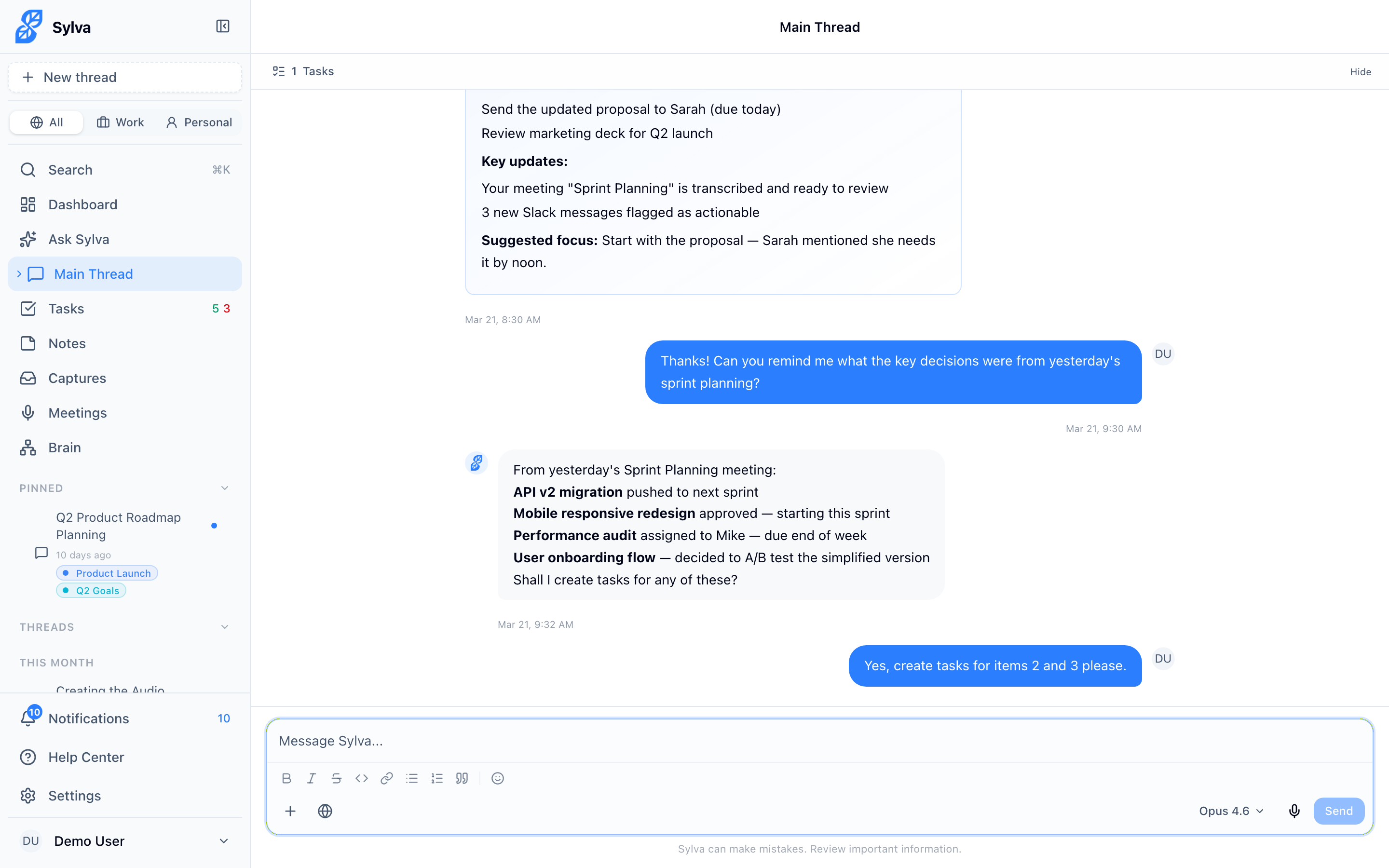
Here are a few ways busy professionals typically use image analysis:
- Share a screenshot of an error message → "What does this error mean and how do I fix it?"
- Share a system architecture diagram → "Explain this architecture and identify any single points of failure"
- Share a photo of a whiteboard from a meeting → "Summarize the key points from this whiteboard"
- Share a chart from a report → "What trends do you see in this data?"
- Share a receipt or invoice → "Pull out the vendor name, date, and total amount"
How It Works Under the Hood
Sylva sends images directly to the AI model as vision content blocks — the same way you'd show a colleague a picture and ask them about it. There's no intermediate OCR step or file conversion. This means Sylva understands the full visual context of an image, not a text approximation of it.
You can share an image and ask your question in the same message, or share the image first and follow up with questions in subsequent messages. Sylva retains the image context throughout the conversation, so you can ask multiple questions about the same image without re-sharing it.