Sylva's GitHub integration uses webhooks to pull repository activity — pull requests, issues, comments, pushes, and releases — directly into your captures, so you stay on top of code changes without leaving your workflow.
How It Works
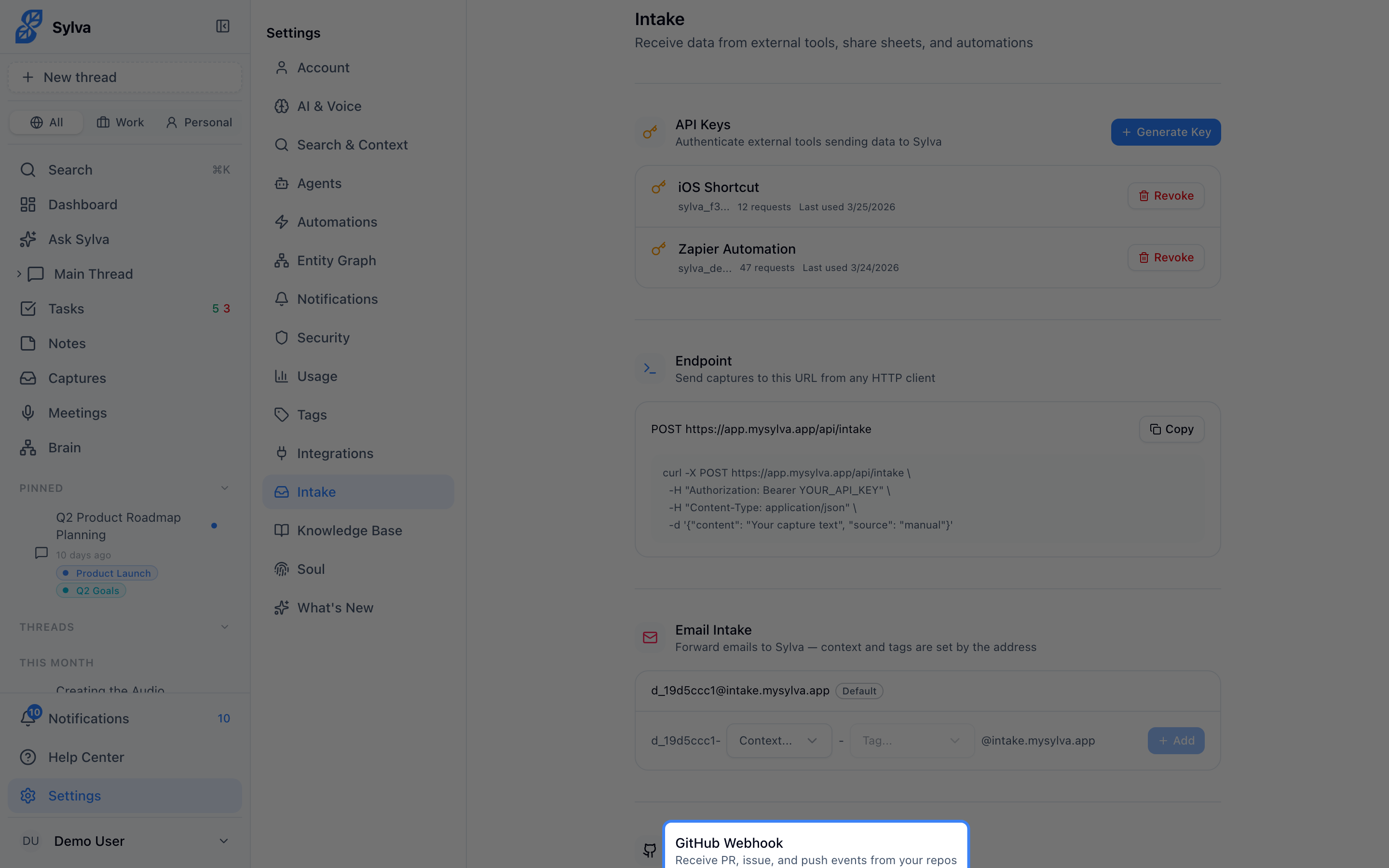
Unlike the Google integration (which uses OAuth to sync calendars and email), the GitHub integration is event-driven. You add a webhook to your GitHub repository, and GitHub sends real-time notifications to Sylva whenever something happens. Each event becomes a capture you can search, reference in conversations, and attach to tasks or meetings.
Setting Up the Webhook
Before you start, make sure the Intake API feature flag is enabled. Go to Settings > Admin and toggle Intake API on if it isn't already.
Once Intake is active:
- Open Settings > Intake in Sylva and scroll to the GitHub Webhooks section
- Copy your unique webhook URL by clicking the Copy button next to it
- In GitHub, navigate to your repository's Settings → Webhooks → Add webhook
- Paste the Sylva webhook URL into the Payload URL field
- Set Content type to
application/json - Under Which events would you like to trigger this webhook?, select Let me select individual events and check the following:
- Pull requests
- Issues
- Issue comments
- Pushes
- Releases
- Click Add webhook in GitHub to save
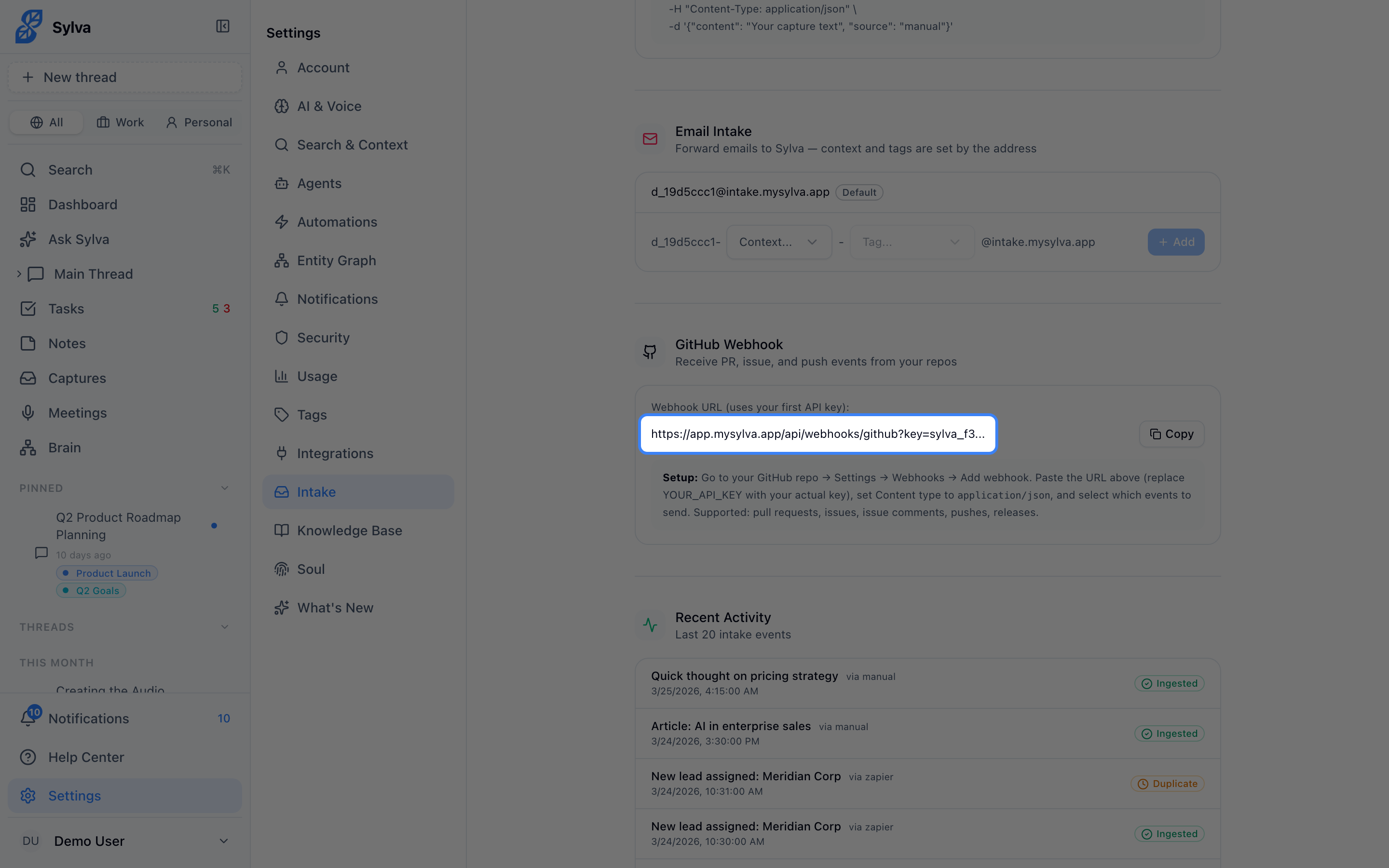
Repeat this for each repository you want to connect. Every repo gets the same Sylva webhook URL — Sylva identifies the source from the payload.
Webhook Secret (Optional)
If you want an extra layer of security, you can configure a webhook secret in both GitHub and Sylva. When a secret is set, Sylva verifies the X-Hub-Signature-256 header on every incoming request and rejects anything that doesn't match. This prevents third parties from sending fake events to your endpoint.
This step is optional. If you don't configure a secret, Sylva accepts all well-formed payloads sent to your webhook URL.
Supported Events
Each event type creates a capture with specific details:
- Pull request opened or merged — Title, author, branch names, and a link back to the PR
- Issue opened or assigned — Title, author, assignee (if any), and labels
- Issue comments — The comment body, the issue it belongs to, and the commenter
- Pushes — Branch name, pusher, and a summary of the commits included
- Releases published — Release name, tag, author, and release notes
Events that don't match these types are ignored — your webhook won't generate noise from unsupported activity.
How Captures Appear
GitHub captures are displayed with a GitHub icon alongside the repository name and event type as metadata, making them easy to distinguish from other capture sources like email, Slack, or the Chrome Extension.
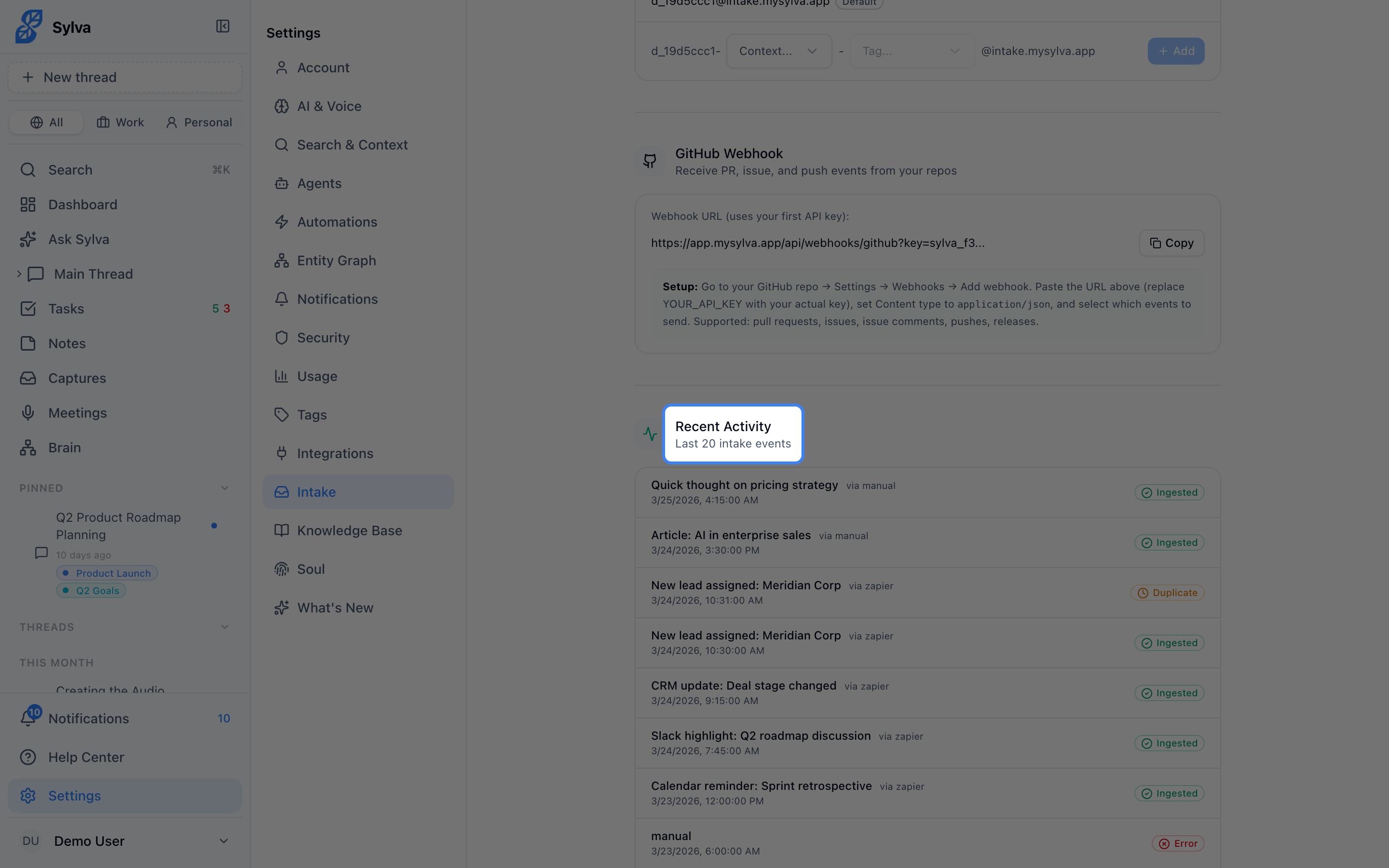
You can search for GitHub captures by repo name, event type, or content. They also show up in the Recent Activity log on the Settings > Intake page, where you can verify that events are arriving and spot any delivery errors.
Troubleshooting
If events aren't showing up in Sylva:
- Check the Intake API flag — Confirm it's enabled under Settings > Admin
- Verify the payload URL — Make sure you copied the full URL from Sylva with no extra spaces
- Confirm content type — GitHub must send
application/json, notapplication/x-www-form-urlencoded - Check GitHub's delivery log — In your repo's Settings → Webhooks, click your webhook and scroll to Recent Deliveries. A green checkmark means GitHub sent it successfully; a red icon means the request failed
- Review the secret — If you configured a webhook secret, make sure the value in GitHub matches the one in Sylva exactly