Connect your Google account to let Sylva work with your calendar, email, and files — all from within your conversations.
Connecting Google
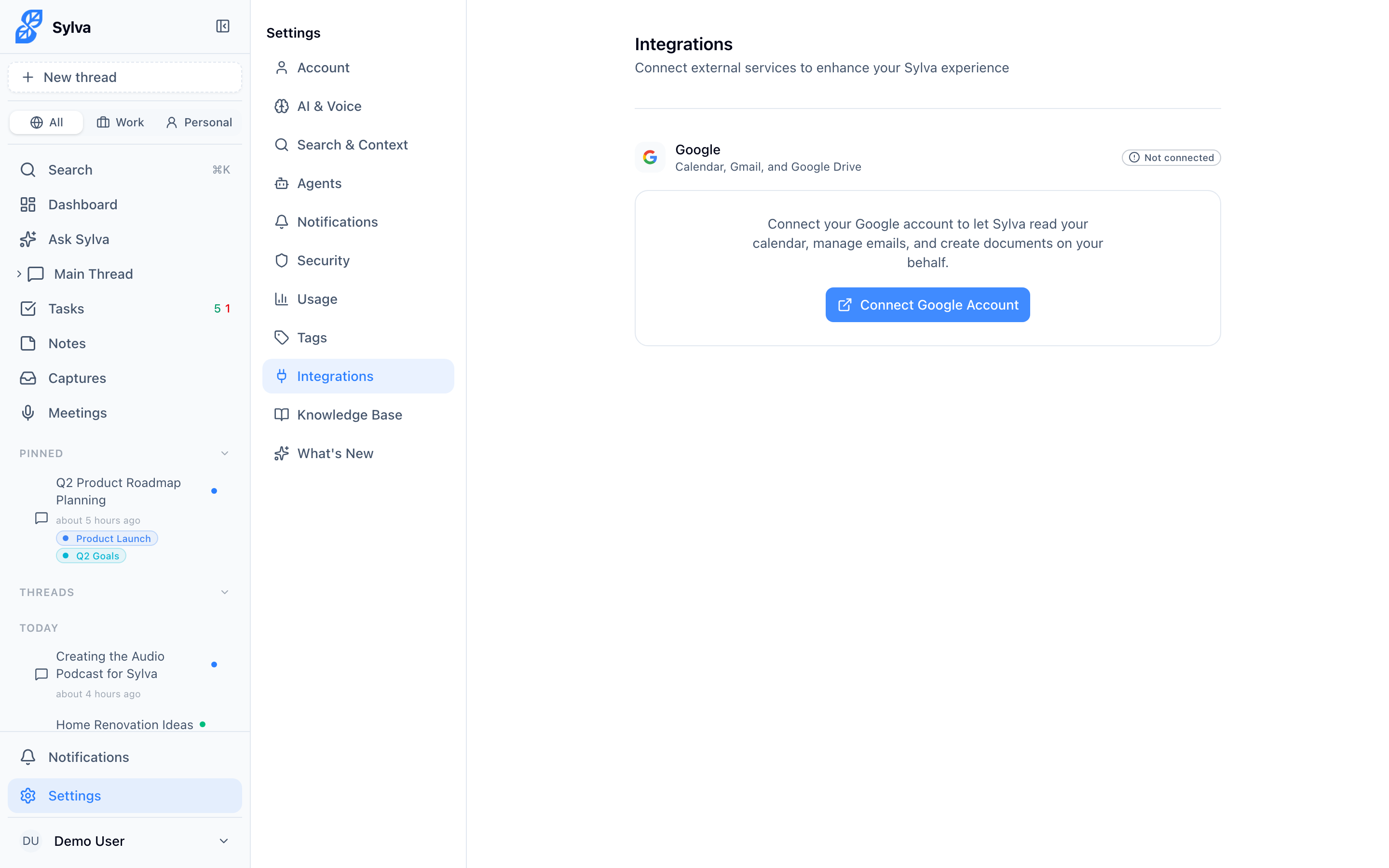
- Go to Settings > Integrations
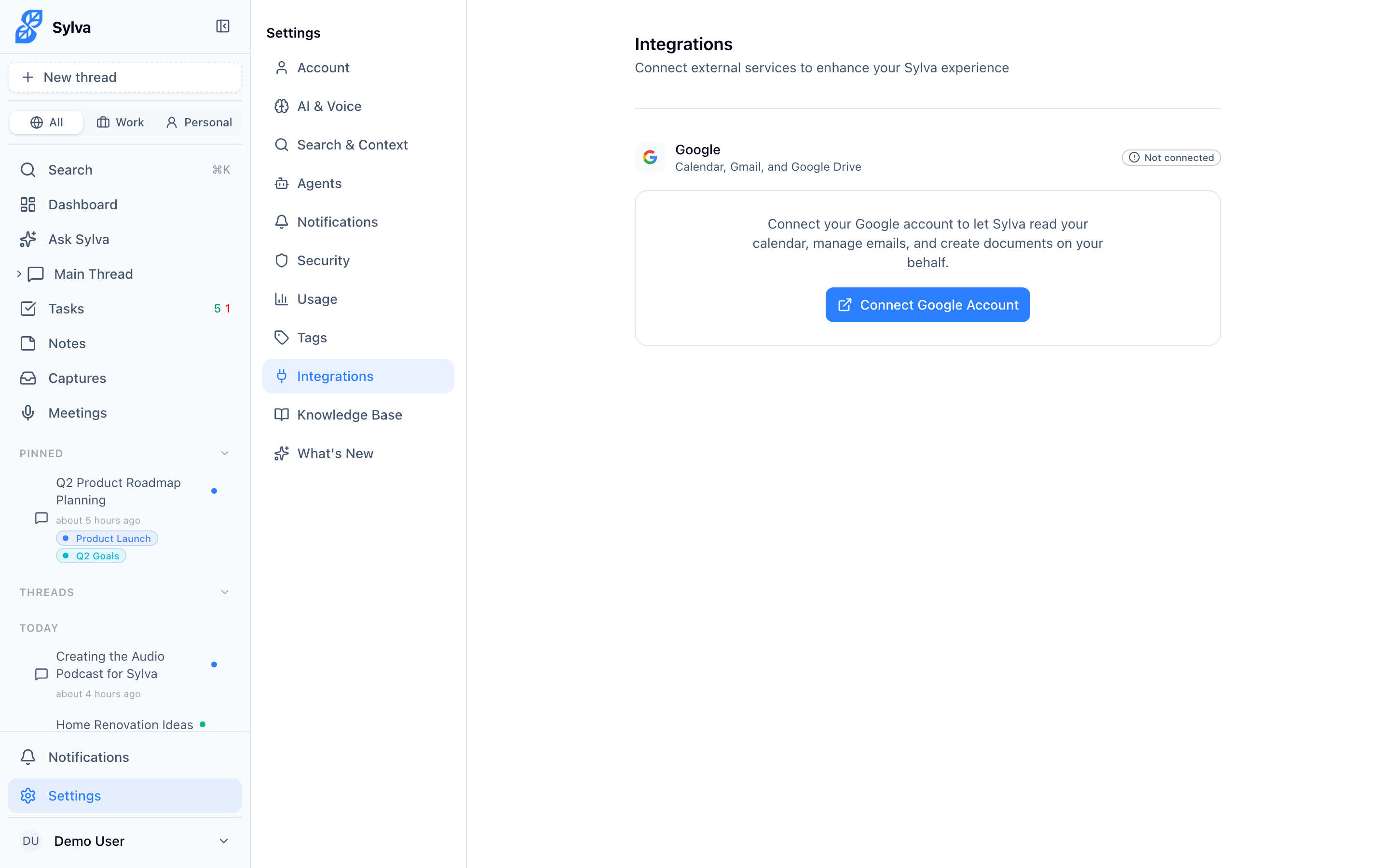
- Click Connect Google Account
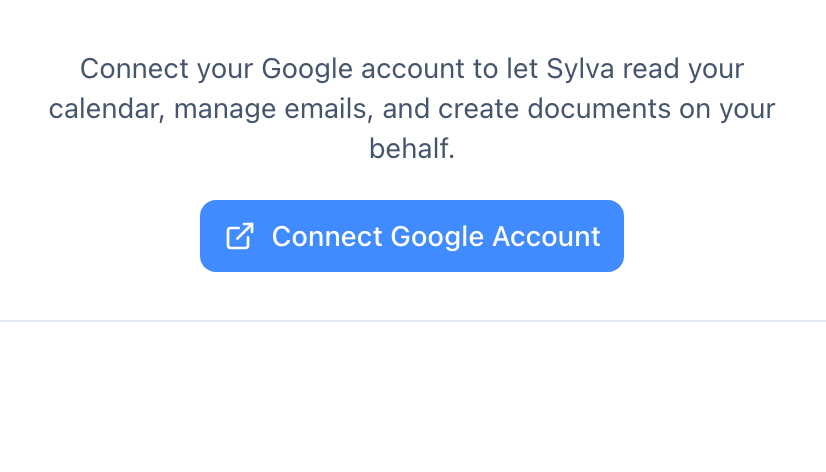
- Sign in with Google and grant the requested permissions
- Toggle which services to enable:
- Google Calendar — Sylva can read your events and create new ones
- Gmail — Sylva can read your emails and optionally send messages on your behalf
- Google Drive — Sylva can browse your files and create new documents or spreadsheets
What You Can Do
Once connected, just ask Sylva naturally:
- "What's on my calendar tomorrow?"
- "Create a meeting with Sarah for next Tuesday at 2pm"
- "Show me my recent emails about the budget proposal"
- "Draft an email to the team about the project update"
- "Create a Google Doc with meeting notes from today"
- "Make a spreadsheet tracking our Q2 goals"
Sylva handles the integration behind the scenes — you don't need to switch apps.
Calendar Sync (Outlook → Google Calendar)
If you use the Chrome Extension to capture Outlook calendar events, you can sync those events directly to your Google Calendar — keeping all your meetings in one place.
Setting Up Calendar Mapping
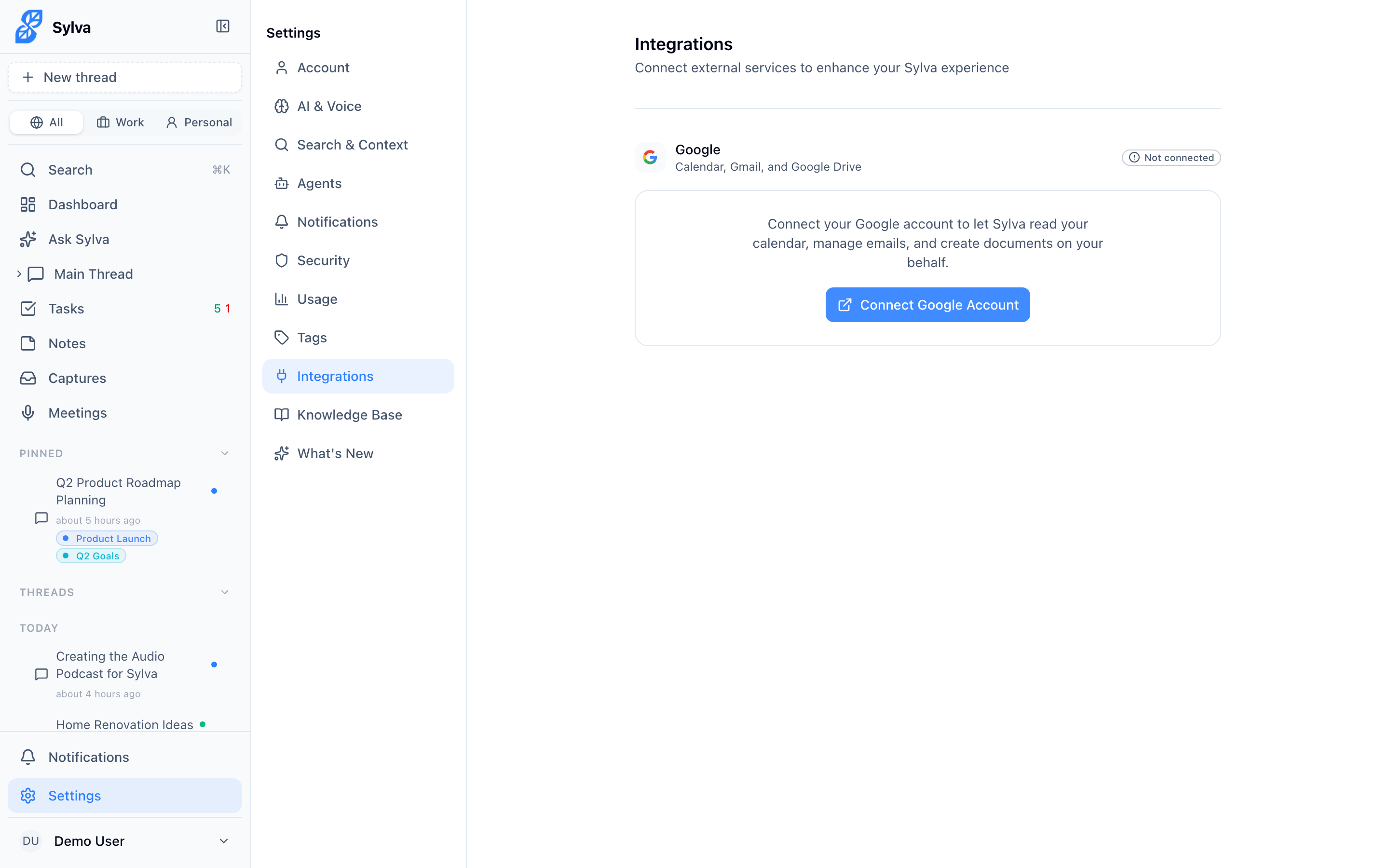
Before syncing, tell Sylva which Google Calendar to use for each context:
- Go to Settings > Integrations
- Under Google Calendar, you'll see mapping options for Work and Personal
- Select which Google Calendar each context should sync to (Sylva lists all your writable calendars)
For example, you might map Work captures to your company calendar and Personal captures to your personal calendar.
Syncing Events
On the Captures page, calendar events from Outlook show a sync indicator. To sync events to Google Calendar:
- Select the calendar captures you want to sync
- Choose Sync to Google Calendar
- Sylva creates the events in the Google Calendar you mapped for that context
Key behaviors:
- Recurring events are supported — you can choose which days of the week to include
- Re-syncing an event that was already synced will update the existing Google Calendar event instead of creating a duplicate
- Event details like the title, time, location, join link (for video meetings), organizer, and any notes from the Outlook event are all included
Disconnecting
You can disconnect your Google account at any time from Settings > Integrations. This removes all stored tokens and Sylva will no longer have access to your Google services.