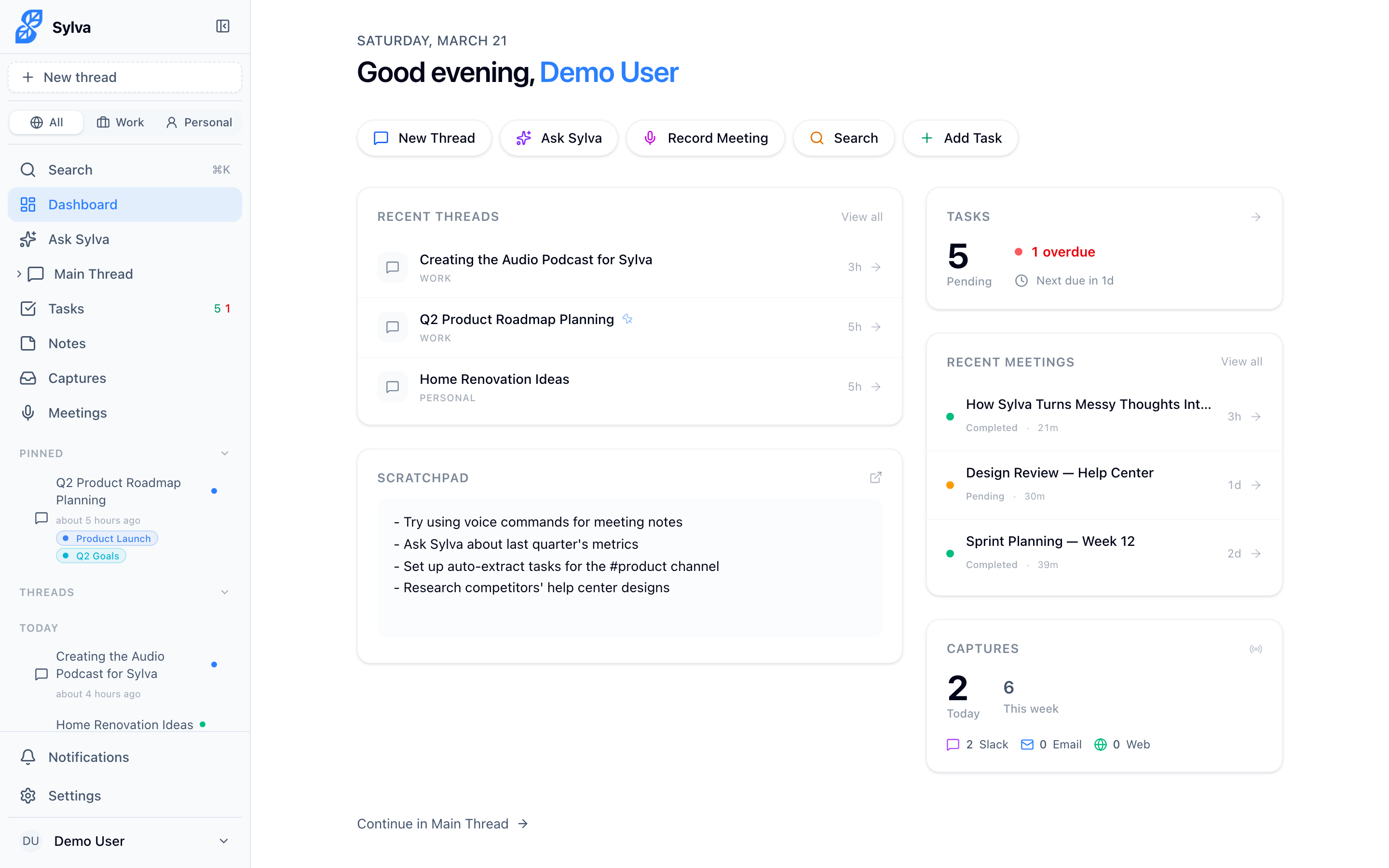
The Dashboard is your home base — by default, it's the first thing you see when you open Sylva. You can change this in Settings > Account under Homepage if you'd prefer to land on the Main Thread instead.
Homepage Redirect
When you first open Sylva — especially as a PWA on mobile or desktop — the app checks your Homepage preference and redirects you to the right page before anything else renders. This means you won't see a flash of the Dashboard if your preferred homepage is the Main Thread, or vice versa. The redirect happens once per session: after that initial load, navigating between pages works normally without any extra redirects.
If you haven't changed your homepage preference, the Dashboard is the default.
What's on the Dashboard
Here's what you'll find on the Dashboard:
- Greeting — A personalized hello based on the time of day
- Quick Actions — Shortcut buttons to start a new thread, ask Sylva a question, record a meeting, and more

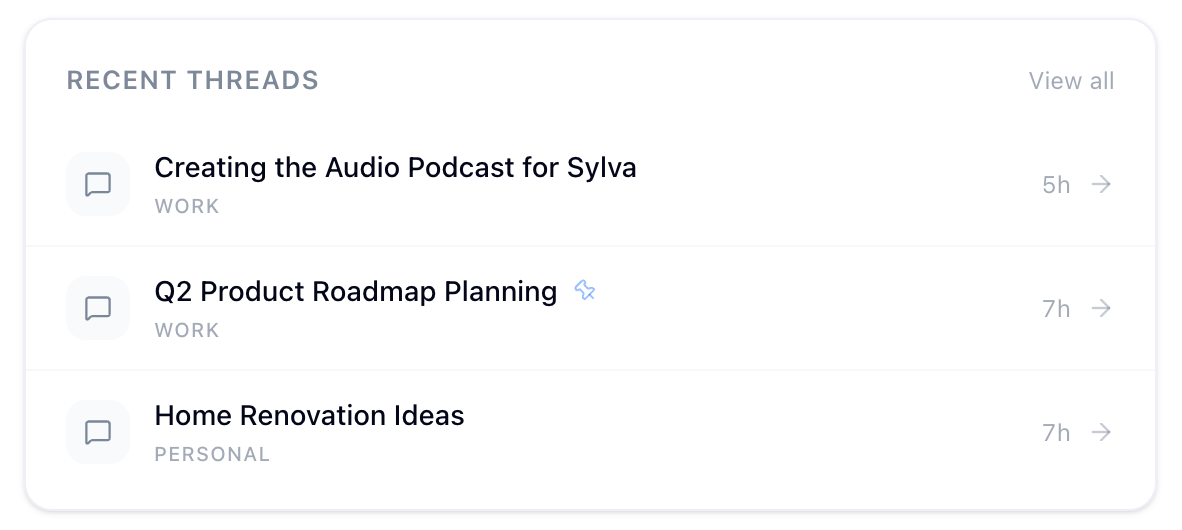
- Recent Threads — Your most recently active conversations
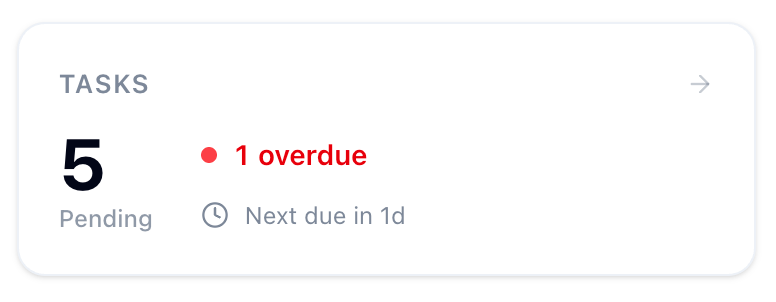
- Tasks Overview — A summary of your pending and overdue tasks
- Recent Meetings — Your latest meeting recordings and their transcription status
- Capture Stats — If you have the Chrome Extension installed, a widget showing how many Slack messages, emails, and web clips Sylva has captured today and this week
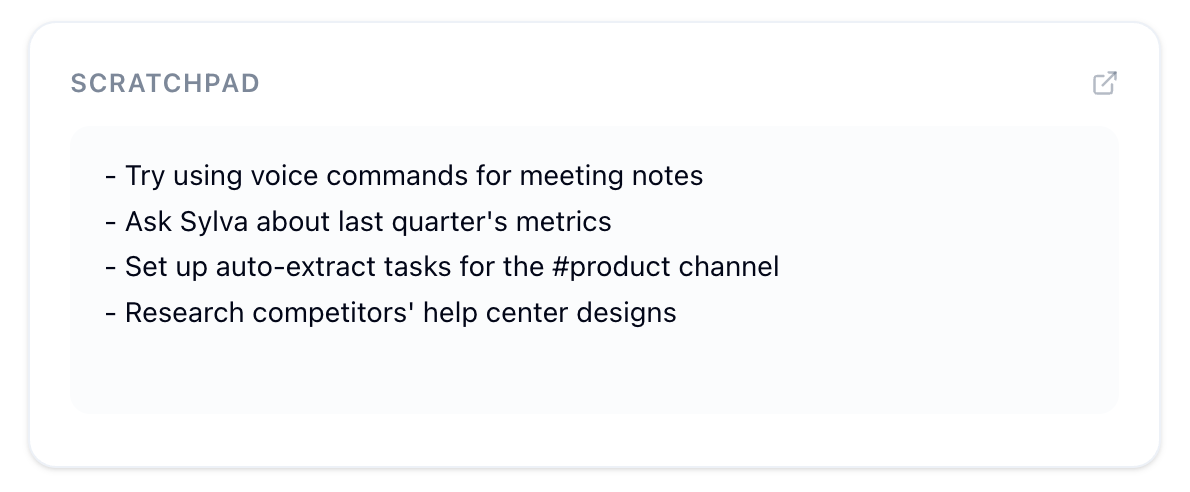
- Scratchpad — A preview of your quick notes
Everything on the Dashboard responds to the profile you have selected in the sidebar, or All profiles if you want to see everything at once.
Daily Briefing Emails
If you have daily briefing emails enabled, each email includes a View in Sylva button at the bottom. Clicking this link always takes you directly to your Main Thread — the central conversation where Sylva posts your briefing content and where you can follow up on any items mentioned in the email.
Finding Entity Graph and Soul
Entity Graph and Soul are no longer in the main sidebar. You can now access both from Settings — look for them under the settings navigation.