Sylva registers as a share target on your device, so you can send content from your browser, news apps, messaging apps, or anywhere your OS share sheet appears — and it lands in Sylva ready to save in one tap.
How It Works
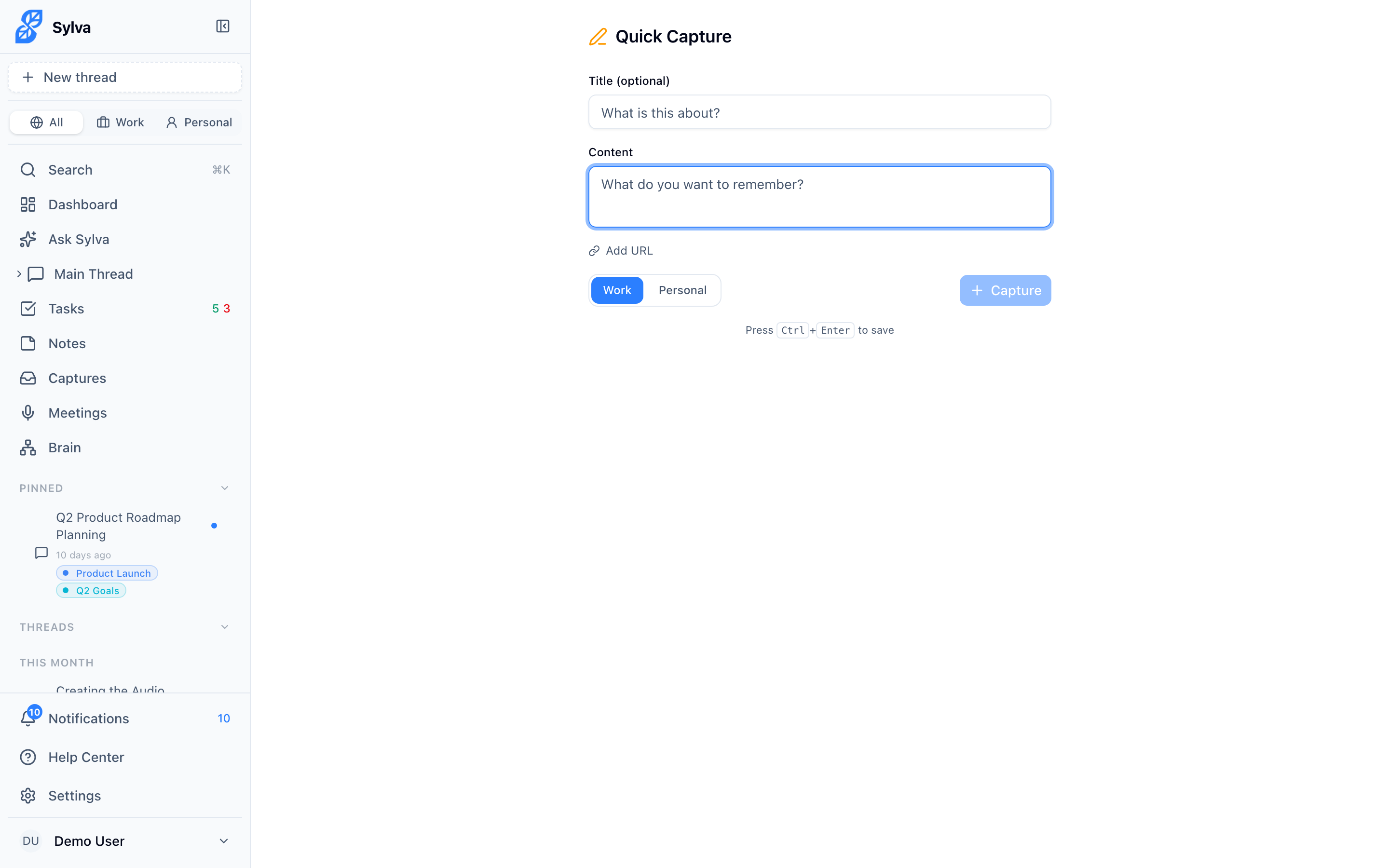
Sylva is a Progressive Web App (PWA). Once you install it to your home screen or dock, it appears as an option in your device's native share sheet — right alongside Mail, Messages, and other apps. When you share something to Sylva, the app opens the Share page with the shared content already filled in.
Three pieces of information come through from the share sheet:
- Title — the page title or headline the source app provides
- Content — the selected text, article description, or message body
- URL — the link to the original content
Not every app sends all three. A browser typically sends all of them; a messaging app might send only the text and a URL. Whatever arrives gets placed into the matching field on the capture form — you can edit any of it before saving.
Saving a Shared Capture
Once the Quick Capture form opens with your shared content:
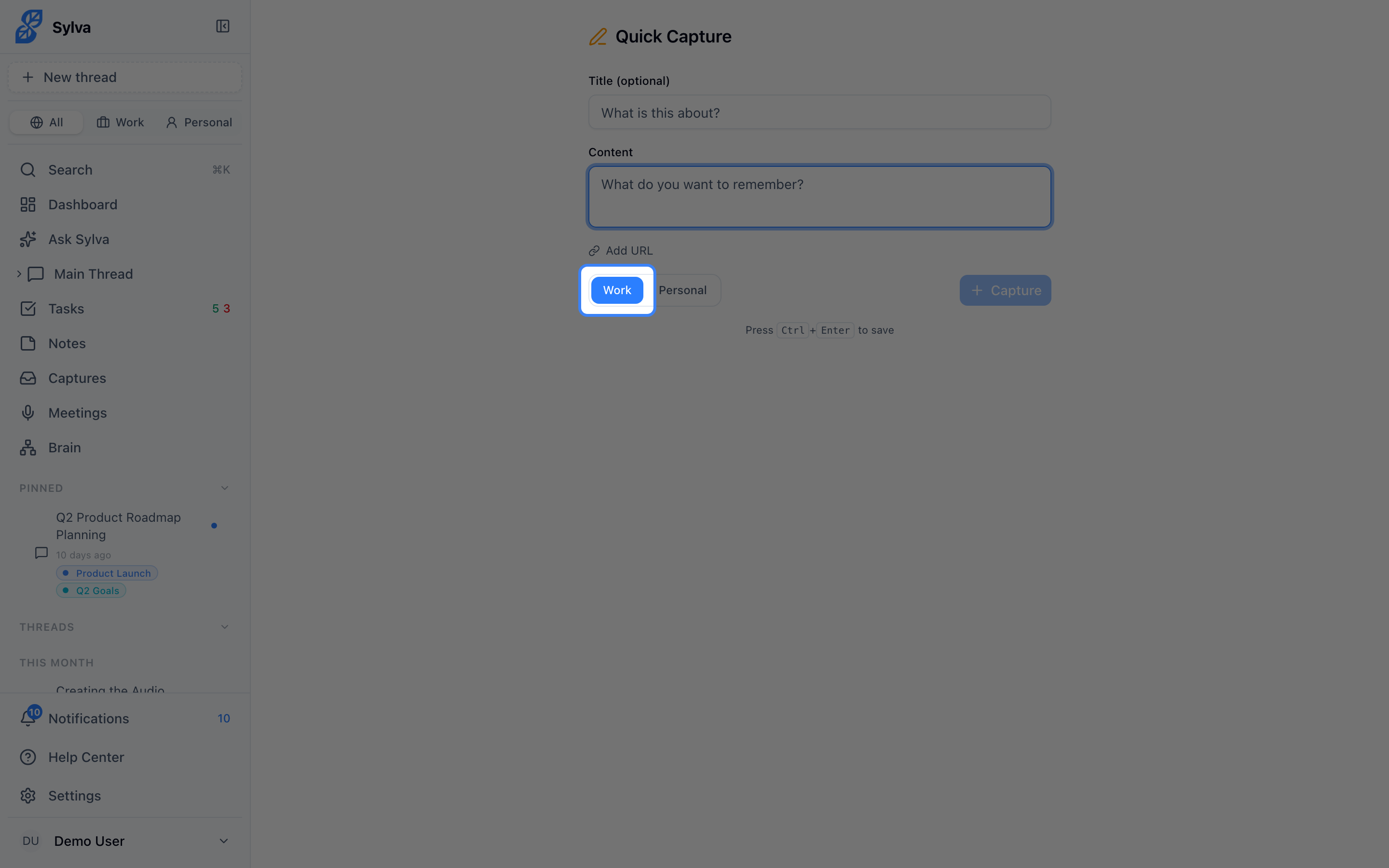
- Review the pre-filled Title, Content, and URL fields — edit anything that needs adjusting
- Choose a context — Work or Personal — using the toggle at the bottom of the form. Work is selected by default
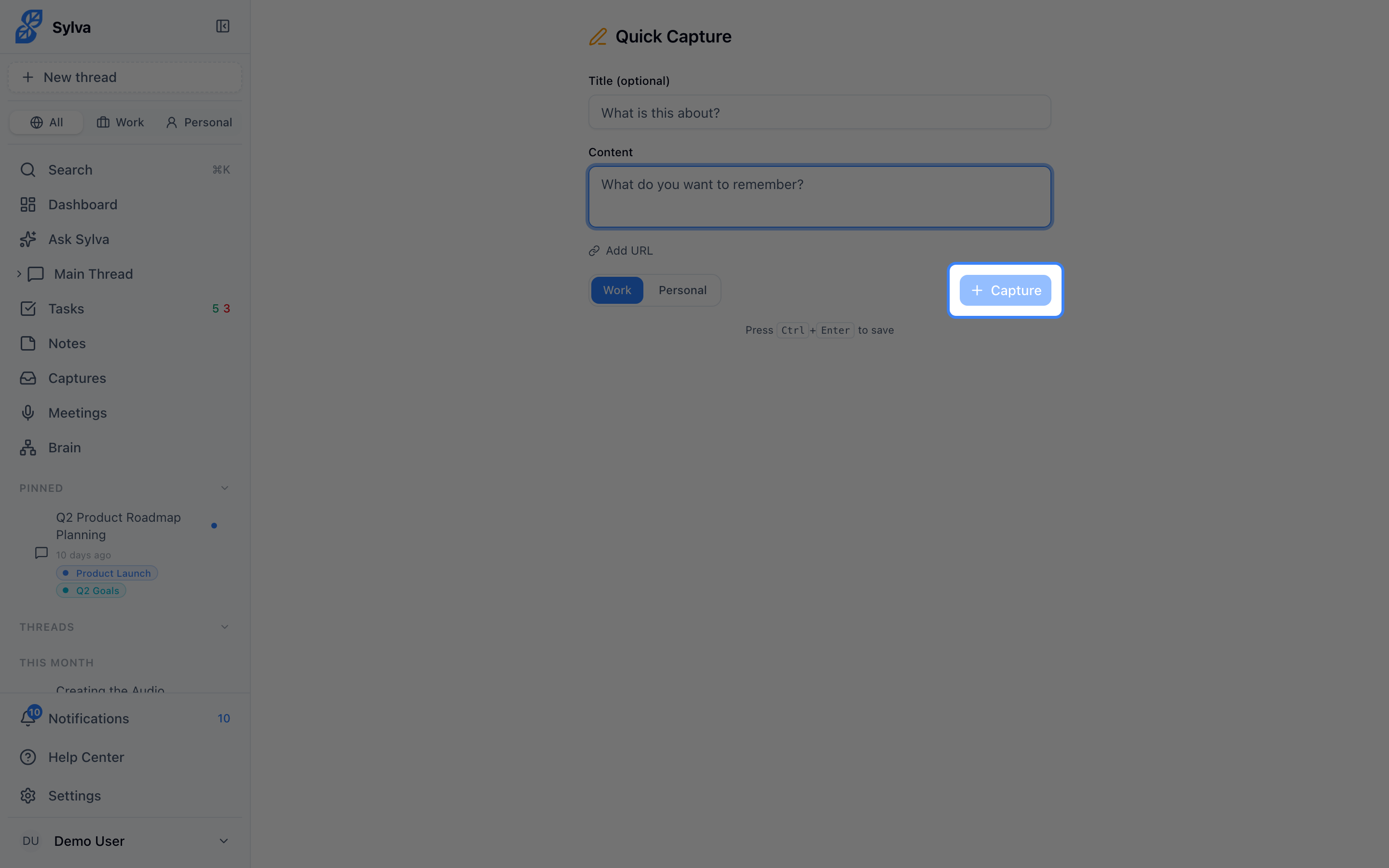
- Tap Save (or press Ctrl+Enter / Cmd+Enter on a keyboard) to store the capture
After saving, Sylva confirms with a "Captured" notification, then clears the form so it's ready for another share. If you close the app instead, the content is already saved — you don't need to stay on the page.
Where Shared Captures Appear
Shared captures show up in your capture list alongside everything else Sylva collects — Chrome Extension captures, meeting extracts, and manual entries. Each shared capture is tagged with a Shared source label so you can tell at a glance how it got into Sylva.
From the capture list, Sylva's AI processes shared content the same way it handles any other capture: extracting tasks, surfacing relevant entities, and making it searchable in your knowledge base.
Example Sharing Flows
Different apps pass different data through the share sheet. Here's what to expect in common scenarios:
- Browser (e.g., Safari, Chrome) — Tap the share icon on any webpage. Sylva receives the page title, any selected text (or the browser's meta description), and the full URL. This is the most complete share source
- News or read-later apps — Share an article and Sylva typically receives the headline as the title, the article summary as content, and the article link as the URL
- Messaging apps (e.g., iMessage, WhatsApp, Slack) — Share a message or link. Sylva receives the message text as content and any embedded URL. Titles are often blank here, so you may want to add one before saving
- Note-taking or document apps — Share a note and Sylva usually receives the note title and body text. URLs are rarely included
If a share comes through with only a URL and no text, Sylva places the URL in the URL field and leaves Content empty — add a quick note about why you saved it so your future self has context.
Requirements
Sylva's share target requires the PWA to be installed on your device. If you're using Sylva in a regular browser tab without installing it, the share sheet won't list Sylva as an option. To install:
- Open Sylva in your browser
- Look for the install prompt — on most browsers this appears as an icon in the address bar or a banner at the bottom of the screen
- Follow the prompt to add Sylva to your home screen or dock
Once installed, Sylva appears in your share sheet immediately.