Sylva registers as a share target on your device, so you can send text, links, and files straight to it from any app — no copy-pasting or switching tabs required.
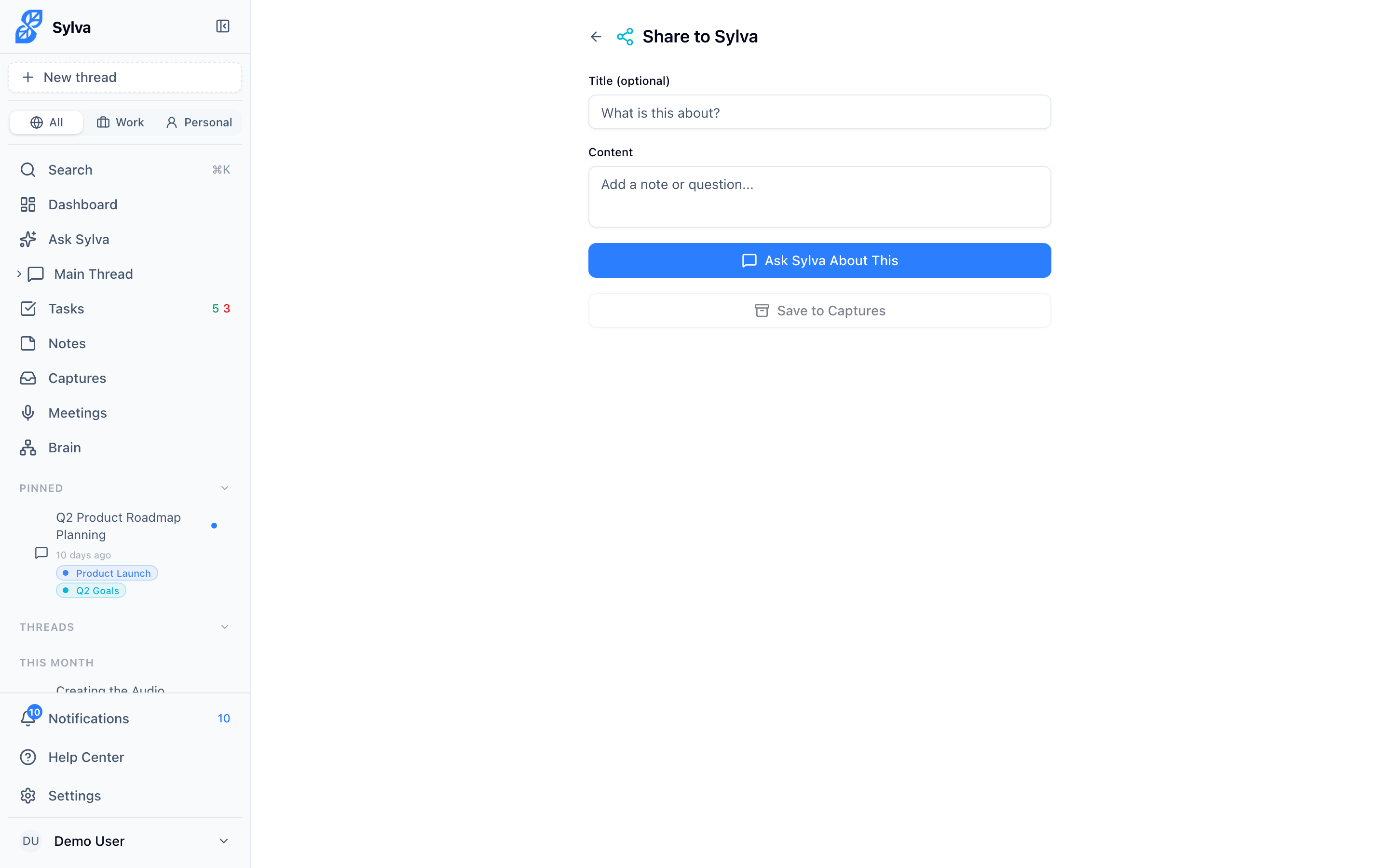
Share from Web and Apps
Anywhere you see your device's native Share button — a browser tab, a photo gallery, a note-taking app, Slack, email — you can share directly to Sylva.
- Tap Share (or use the share menu) in any app or browser
- Select Sylva from the share sheet
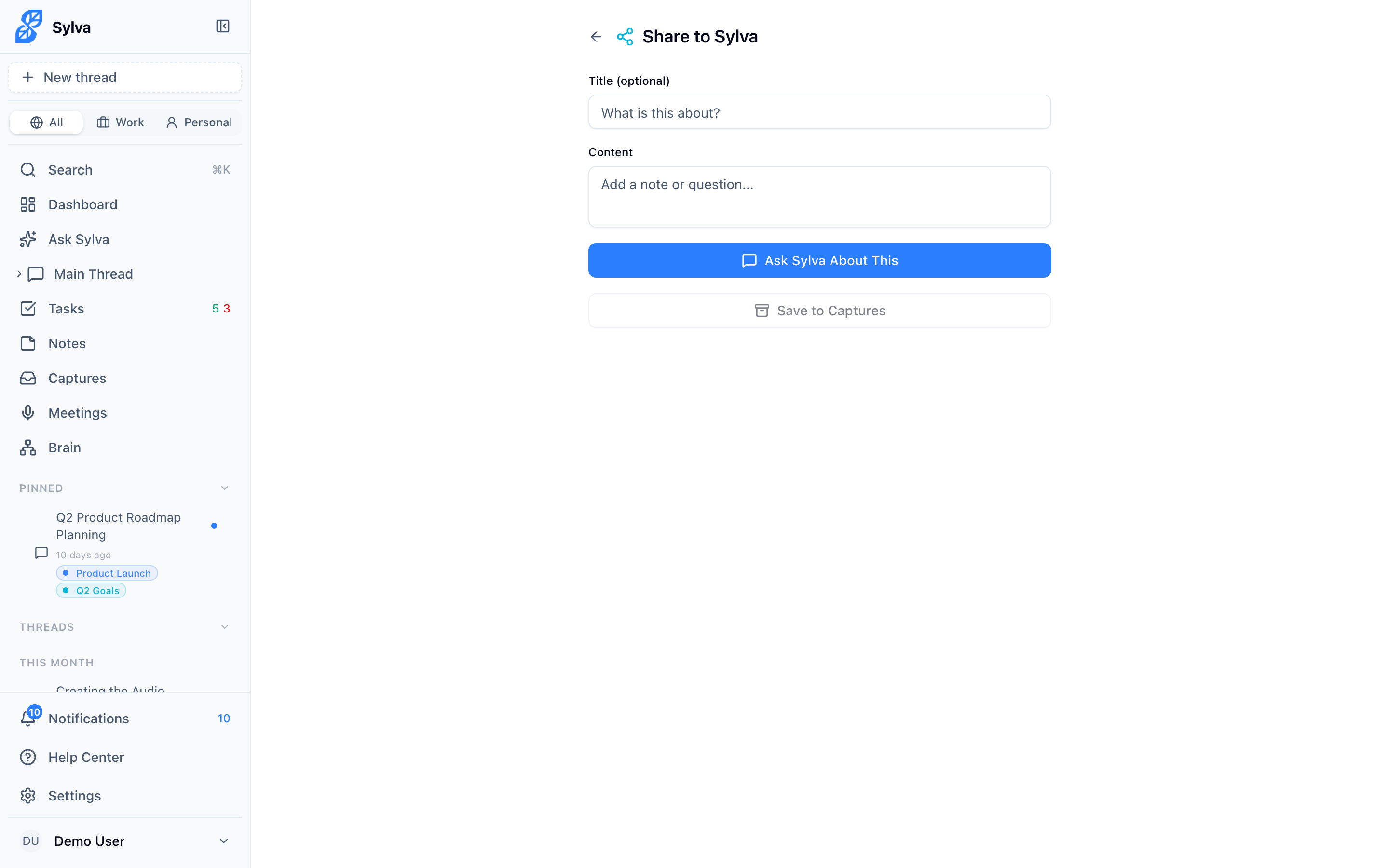
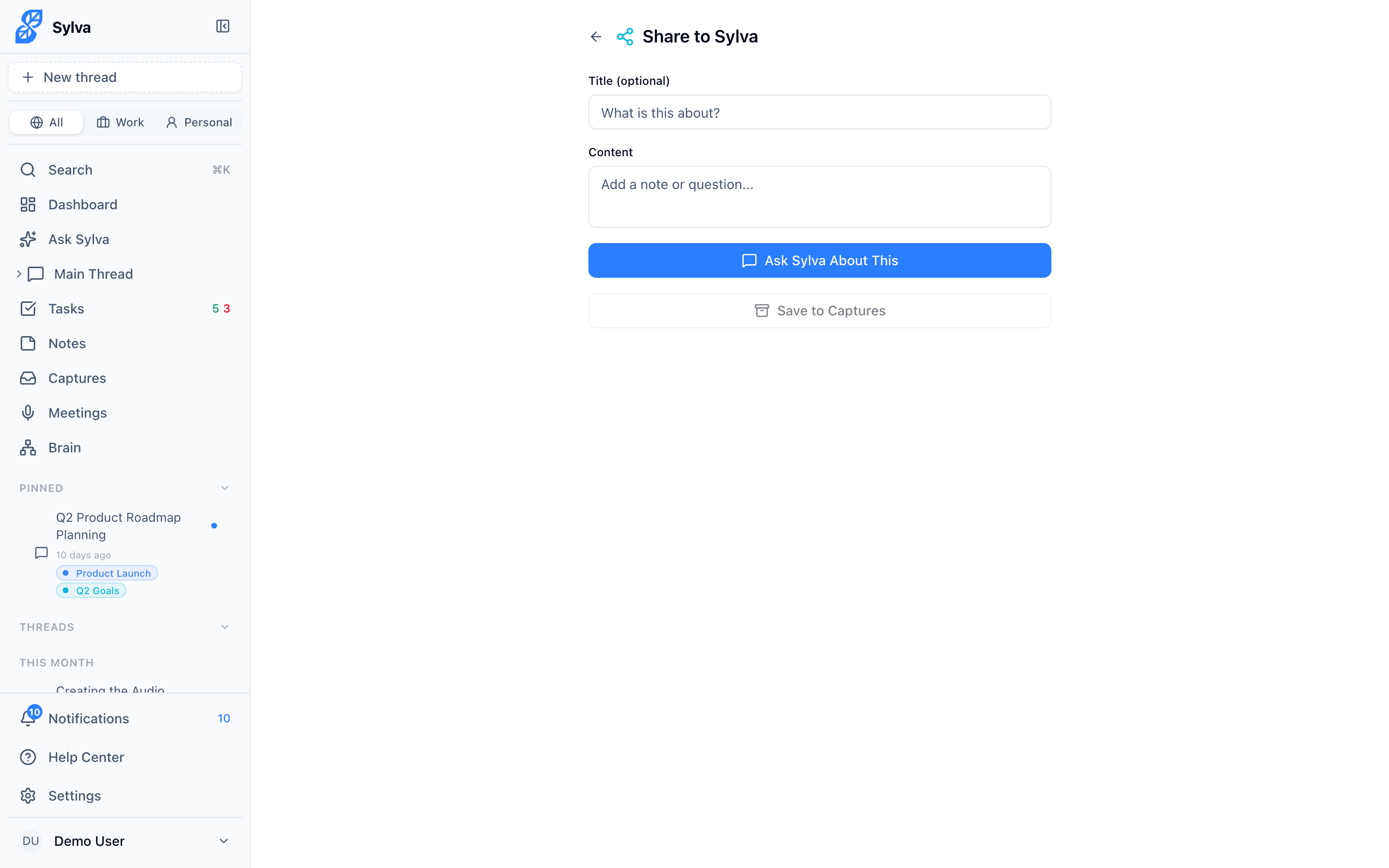
- Sylva opens a share target page showing what you sent — text, a URL, attached files, or a combination
This works on Android, iOS, and desktop browsers that support installed PWAs. On Android and iOS, Sylva appears in the system share sheet automatically once you've installed the app. On desktop, share from any Chromium-based browser with Sylva installed as a PWA.
The share target page lets you review and edit the Title and Content fields before deciding what to do next. You can also remove individual files by clicking the X on their preview cards.
Supported File Types
You can share the following file types to Sylva:
- Images — JPG, PNG, GIF, WebP, SVG
- Documents — PDF
- Text — Plain text (.txt)
Images display as visual previews on the share target page. Documents and text files show their filename and type. If you share a file type that isn't on this list, it won't appear in Sylva — stick to the formats above.
Ask Sylva About This
The primary action on the share target page is Ask Sylva About This. This opens your main chat thread with everything you shared — files attached, text pre-filled in the message bar — ready for you to ask a question or give Sylva instructions.
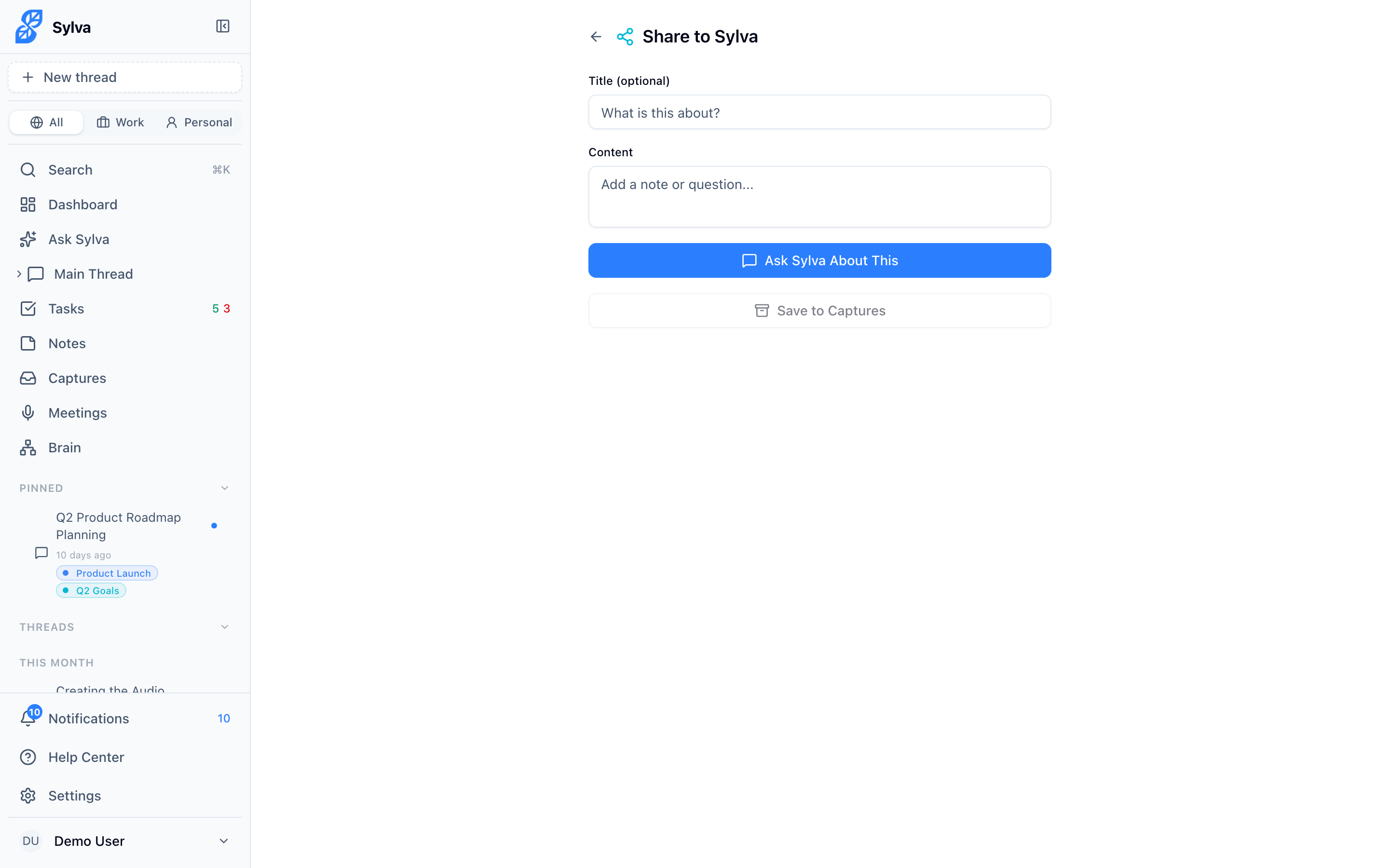
Use this when you want Sylva to do something with what you shared: summarize an article, analyze a document, extract action items from a screenshot, or answer a question about an image.
- Review the shared content on the share target page
- Edit the text if you want to add a specific question or instruction
- Tap Ask Sylva About This
- Sylva opens the chat with your files and text ready to send
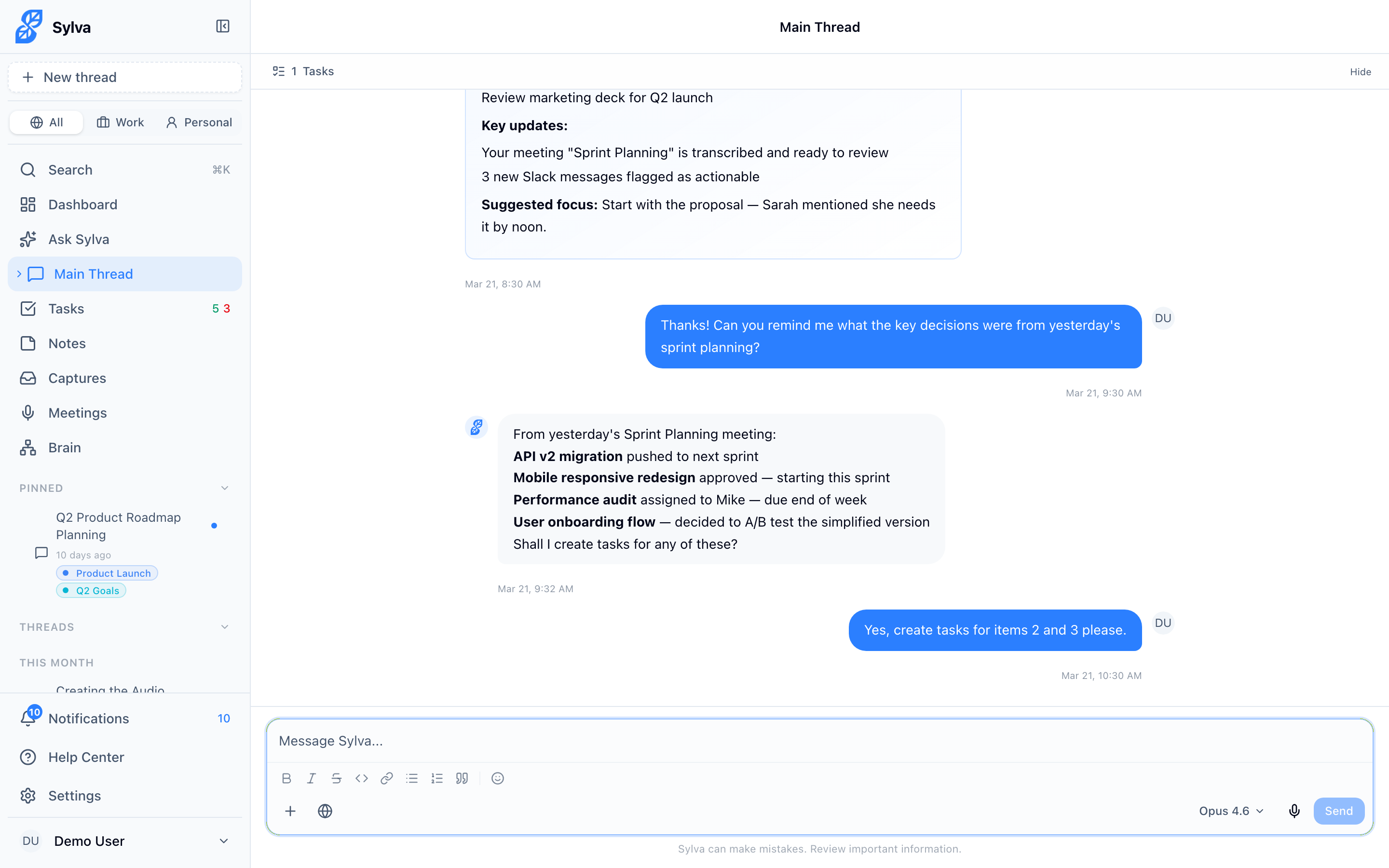
The shared files stay attached to your message — you don't need to re-upload anything.
Save to Captures
If you don't need to chat about the content right now but want to keep it for later, tap Save to Captures instead. This saves the shared text, URLs, and files directly to your Captures archive — the same place Sylva stores content captured from the Chrome Extension.
This is useful for:
- Bookmarking an article or link you want to revisit
- Archiving a document someone sent you
- Saving a screenshot or image for reference
After saving, Sylva confirms the capture and you can navigate away. The content is searchable and accessible from your Captures page whenever you need it.
Inline Image Vision
When you share images and choose Ask Sylva About This, Sylva's vision capabilities can analyze what's in the image directly in the chat. This works with any supported image format — JPG, PNG, GIF, WebP, or SVG.
You can ask Sylva things like:
- "What does this screenshot say?"
- "Summarize the text in this image"
- "What's the key data in this chart?"
- "Describe what's happening in this photo"
Sylva processes the image inline — no separate upload step, no waiting for a different tool to load. The image is right there in the conversation alongside Sylva's analysis, so you can ask follow-up questions naturally.