Access settings by clicking the gear icon in the sidebar or pressing Cmd/Ctrl + ,.
Navigating Settings
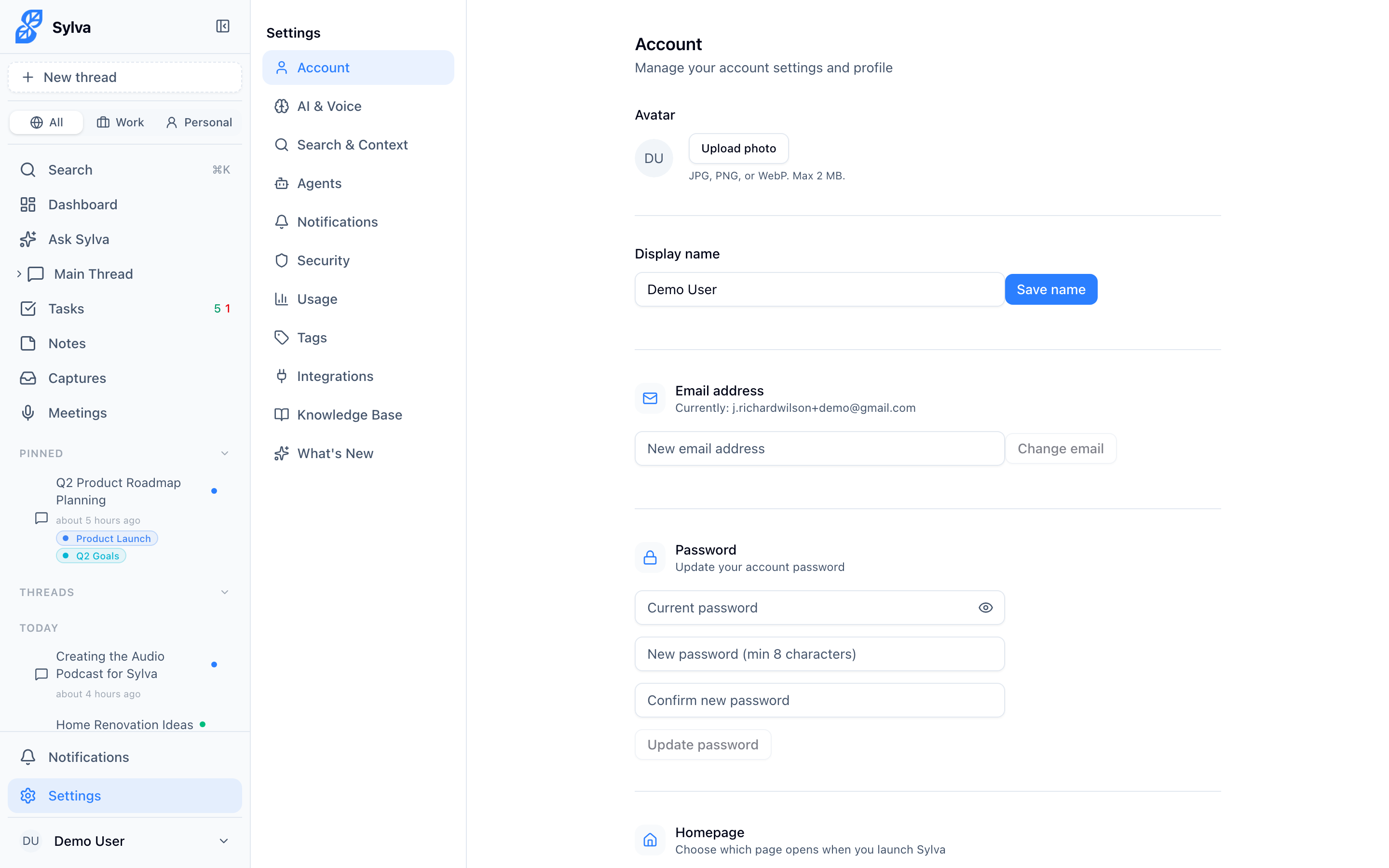
The settings sidebar gives you access to every configuration area in one place. The full list of sections:
- Account — Profile, appearance, and general preferences
- AI & Voice — AI behavior, voice input, and meeting transcription
- Agents — Background processes that keep your data organized
- Entity Graph — People, projects, and organizations extracted from your conversations
- Security — How your data is protected, and data export
- Integrations — Google account and calendar connections
- Tags — Labels for organizing tasks, notes, meetings, and more
- Knowledge Base — Reference documents
- Intake — API keys, endpoint documentation, email intake, GitHub webhooks, and activity logging for external data ingestion (requires admin flag — see below)
- Notifications — Alert preferences by event type
Under a Feature Flags group at the bottom of the sidebar, you may also see:
- Soul — Your personalization profile, observations, and agent soul configuration (visible when the Soul system is enabled)
Entity Graph, Soul, and Intake are accessed exclusively through settings — there are no top-level sidebar entries for these. Entity Graph was previously available as a top-level item in the main sidebar but now lives under settings. If you have old bookmarks or links pointing to the previous top-level /entities or /soul routes, they automatically redirect to Settings > Entity Graph and Settings > Soul respectively.
Intake appears in the settings sidebar when your admin has enabled the flag_intake_api feature flag. If you don't see it, ask your workspace admin to enable it. Admins can toggle this flag from Settings > Admin.
Account
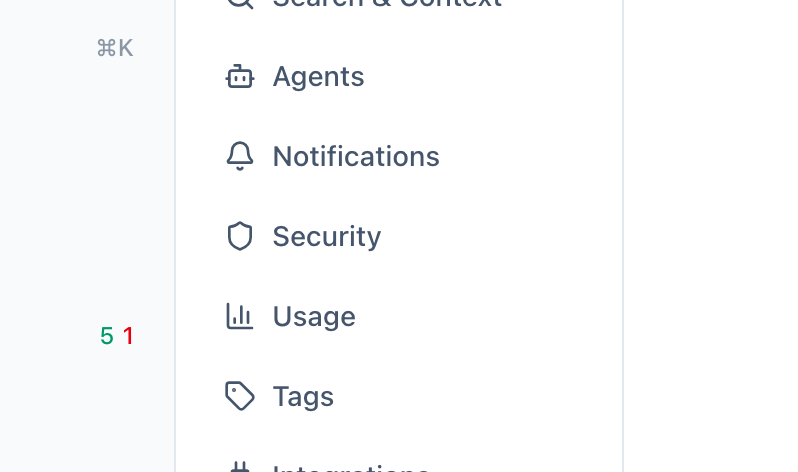
- Update your display name and profile picture
- Homepage — Choose which page opens when you launch Sylva: Dashboard (default) or Main Thread. This also controls where you land after signing in.
- Change your email or password
- Working Schedule — Pick your working days and hours, then switch on Use my working hours for my default context. Until that switch is on, the schedule does nothing. Once it is on, Sylva switches your Work and Personal view to Work during your hours and Personal outside them, and new tasks start there. The same choice is available as Time Based under Settings > Search and context.
- Set your appearance: light theme, dark theme, or match your system
- Chat display preferences (compact messages, show timestamps)
- Resume onboarding if you skipped it earlier
- Delete your account
AI & Voice
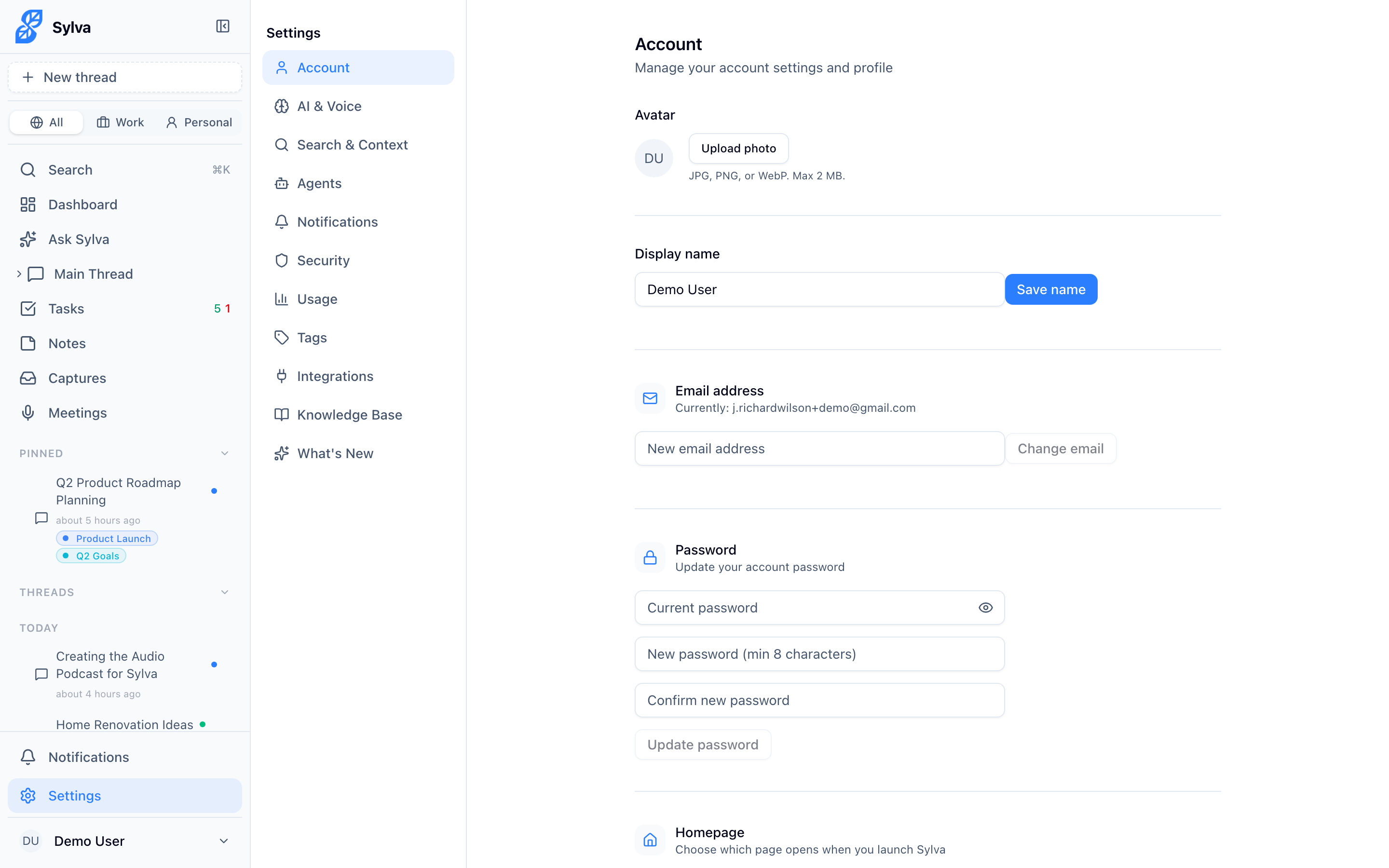
- AI Tone — How Sylva communicates with you: Concise (brief and to the point), Conversational (natural and friendly), or Detailed (thorough explanations)
- Custom Instructions — Tell Sylva things to always keep in mind, like "I work in healthcare" or "Always end with action items"
- Auto-Extract Tasks — Automatically create tasks when you mention to-dos in conversation
- Auto-Capture Notes — Control how Sylva captures notes: Auto (captures on its own), Ask first (suggests and waits for confirmation), or Manual (only when you request it)
- Auto-Generate Summaries — Automatically summarize long threads
- Voice Input — Enable or disable, and choose your preferred input mode
- Recording Quality — Controls the bitrate of meeting recordings, letting you balance storage usage against audio fidelity. Three options:
- Low — 13 kbps (~1 MB per 10 minutes). Optimized for voice — perfectly adequate for transcription and casual playback while using the least storage.
- Standard — 32 kbps (~2.4 MB per 10 minutes). A good middle ground for most users — clear enough for playback while keeping file sizes manageable.
- High — 128 kbps (~10 MB per 10 minutes). Full-fidelity audio, recommended for music playback, multi-speaker environments, or when you need to share or archive recordings with the best possible sound quality.
- Meeting Transcription — Toggle auto-transcription and set audio retention
- Audio Source — Select which microphone or input device Sylva uses for voice input and meeting recording. Your audio source selection is tied to your active context and saved locally on each device — so if you use Sylva on both a laptop and a desktop, each device remembers its own audio source independently. This means you don't need to re-select your microphone every time you switch contexts or devices.
- Web Search Mode — Off, Toggle, or Auto
When you save changes on this page, Sylva automatically logs each change as a soul observation — a record of your preference that Sylva references in future conversations. For example, switching AI Tone from Concise to Detailed creates an observation that you prefer thorough explanations; you don't need to re-explain your preference. This applies to every setting on the page: tone, custom instructions, task extraction, note capture, and more. These settings-sourced observations are labeled Settings in your Soul profile so you can distinguish them from observations extracted from conversations.
Recording Quality
The Recording quality setting in Settings > AI & Voice determines the bitrate Sylva uses when recording meetings and voice input. Your choice directly affects how much of your audio storage quota each recording consumes.
| Quality | Bitrate | Storage per 10 min | Best for |
|---|---|---|---|
| Low | 13 kbps | ~1 MB | Transcription-only use; maximizing storage |
| Standard | 32 kbps | ~2.4 MB | Everyday use — clear playback, reasonable size |
| High | 128 kbps | ~10 MB | Multi-speaker meetings; music; archival recordings |
Low is the default and is optimized for voice — it produces files that are perfectly adequate for transcription and casual playback. Choose High when you're recording in a multi-speaker environment where distinct voices matter, capturing audio with music or complex sound, or archiving recordings you plan to share externally. A single hour-long meeting at High quality uses roughly 60 MB, so factor your storage quota into the decision.

Audio Storage Quota
Every account has a personal audio storage quota — a per-user cap on the total size of all recordings Sylva stores for you. Your admin sets this quota from Settings > Admin under the Audio quota setting. Available tiers:
- 50 MB
- 100 MB
- 200 MB (default)
- 500 MB
- 1 GB
- Unlimited
When you reach your quota, Sylva displays a storage limit error that shows the quota amount and prevents new recordings from being saved. Existing recordings and their transcriptions remain accessible — you aren't at risk of losing data you've already captured. To free up space, delete old recordings you no longer need, or ask your admin to increase your quota.
Because your recording quality setting directly determines how fast you consume quota, the two work hand in hand. If you're on a 200 MB quota, recording at Low gives you roughly 2,000 minutes (~33 hours) of audio, while High gives you about 200 minutes (~3.3 hours). Pick the quality level that matches both your fidelity needs and your available storage.
For admins: You can override the default audio storage quota on a per-user basis from Settings > Admin. The Audio quota dropdown — found under the Voice category — lets you select from 50 MB, 100 MB, 200 MB, 500 MB, 1 GB, or Unlimited for each user. Use this to grant higher limits to team members who record frequently (e.g., people managers with back-to-back meetings) or to restrict usage on shared accounts. Changes take effect immediately — the user sees their updated quota the next time they start a recording.

Soul
When the Soul system is enabled, Sylva builds a living model of who you are — your preferences, communication style, work context, and habits — so its responses become more personalized over time. Access your Soul profile from Settings > Soul (listed under Feature Flags in the settings sidebar).
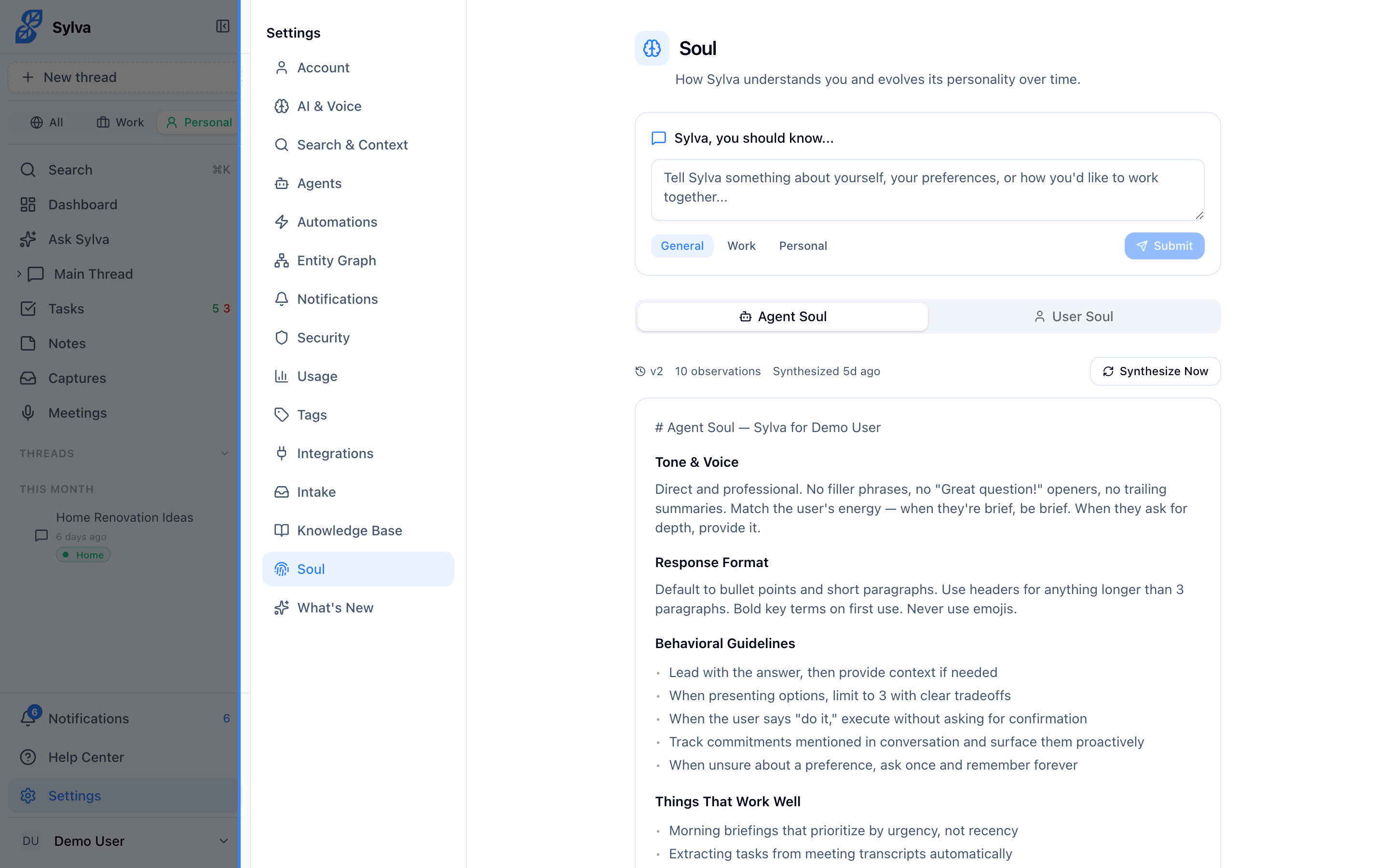
The Soul page is organized into two tabs:
- Agent Soul — The synthesized soul document and observations that shape how Sylva's AI behaves. This is where you see the distilled model Sylva uses to personalize its responses, along with the individual observations that feed into it.
- User Soul — Your personal profile information, preferences, and facts about your role and work context. This tab gives you direct control over the biographical and contextual details Sylva knows about you.
Initialization during onboarding — When you first set up Sylva, the onboarding flow asks you to provide custom instructions (things like "I manage a team of 12" or "Keep responses under 3 paragraphs"). These custom instructions are converted into seed observations — the initial building blocks of your Soul profile. This gives Sylva a head start on understanding you from day one, rather than starting from zero.
After onboarding, Sylva continues learning from your conversations. A background extraction process periodically scans your messages for new observations — preferences you express, facts about your role, recurring patterns — and adds them to your Soul profile automatically. Observations that stop being reinforced gradually decay over time, so your profile stays current.
Soul maturity and custom instructions — As Sylva accumulates observations, it periodically synthesizes them into a soul document — a distilled summary of who you are. Once the soul document has been synthesized from 20 or more observations, Sylva considers your soul "mature." At that point, the soul document becomes the primary source of personalization and supersedes your custom instructions in Settings > AI & Voice. This means the nuanced, observed model of your preferences takes priority over the static text you originally wrote. Your custom instructions aren't deleted — they remain editable and continue to seed new observations — but Sylva's behavior is shaped primarily by the synthesized soul document. If you ever feel Sylva has drifted from your intent, update your custom instructions or edit individual observations in the Soul profile; both feed into the next synthesis cycle.
Entity Graph
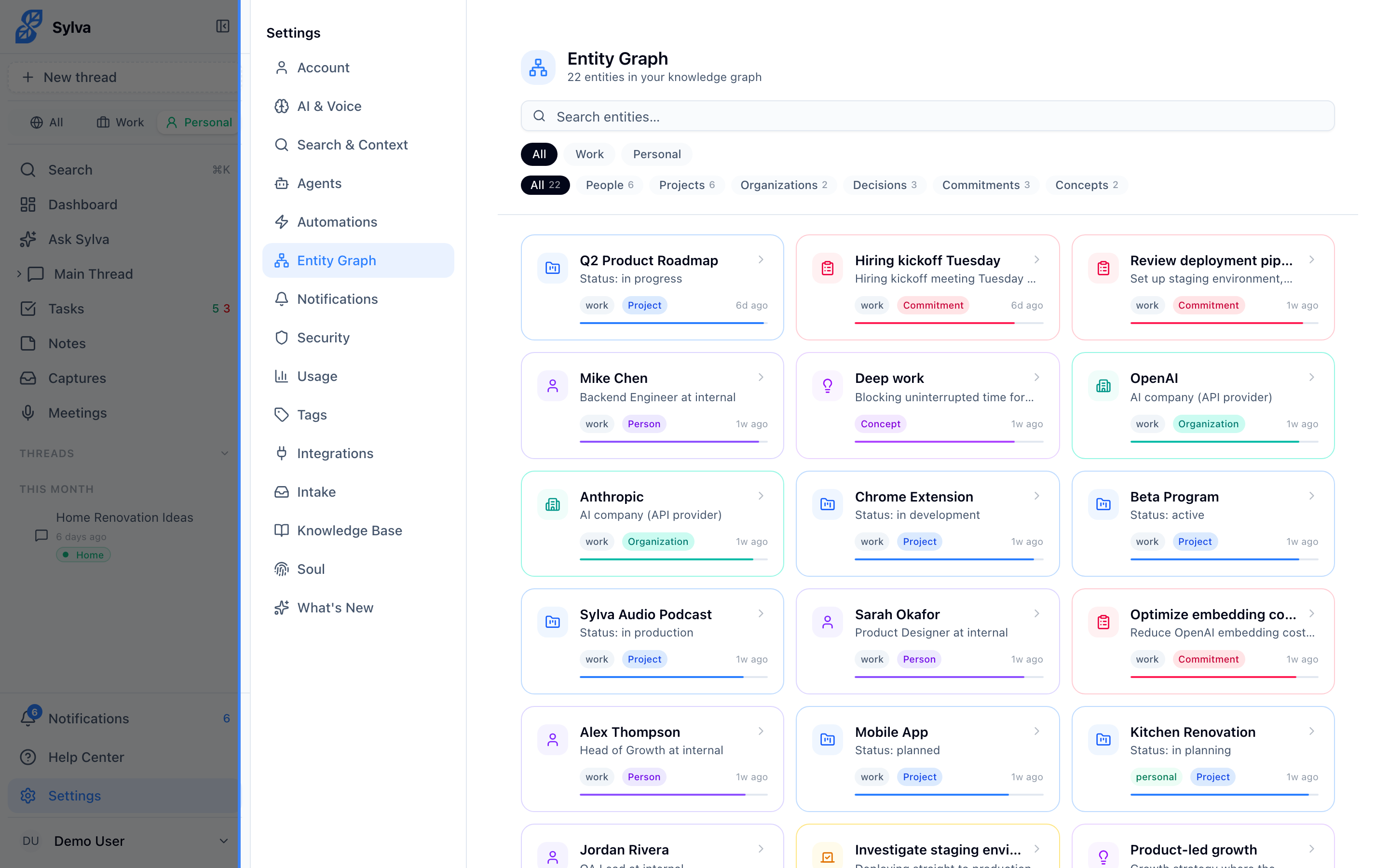
The Entity Graph is where Sylva maps the people, projects, organizations, decisions, and commitments it finds in your conversations. Each entity has its own detail page with facts, relationships to other entities, and a confidence score that reflects how recently and frequently it appeared.
You don't need to maintain the Entity Graph manually — the Entity Graph — Extract and Entity Graph — Maintenance agents (described below) keep it populated and clean. But browsing it is useful when you want to recall who's involved in a project, check a commitment someone made, or see how different people and initiatives connect.
Access it from Settings > Entity Graph. Entity Graph was previously a top-level item in the main sidebar — it now lives exclusively within settings.
Agents
Agents are background processes that keep your data organized and up to date. Each agent runs on its own schedule, but you can trigger any of them immediately by clicking its Run Now button. When you do, the agent executes right away and reports back with a summary of what it did.
Sylva includes the following agents:
- Comms Digest — Summarizes captured communications into a daily digest
- Stale Tasks — Finds tasks that may need attention based on age and inactivity
- Pattern Recognition — Analyzes your data for recurring themes and patterns
- Entity Graph — Extract — Scans your conversations for people, projects, decisions, commitments, and organizations. Runs automatically every 15 minutes. When you click Run Now, Sylva reports how many conversations it scanned and how many new entities it found — for example, "Scanned 12 conversations, found 8 new entities." If everything is already up to date, it tells you so. Visit Settings > Entity Graph to explore the results.
- Entity Graph — Maintenance — Runs nightly to keep your entity graph clean. It decays confidence on stale entities, archives inactive ones, generates merge proposals for similar entities, and refreshes embeddings. You can also trigger it manually with Run Now if you want an immediate cleanup.
The two Entity Graph agents are always on — they don't have an on/off toggle. The other agents (except Soul agents, described below) can be individually enabled or disabled.
Soul
When the Soul system is enabled, two additional agent cards appear