Quick Capture gives you a lightweight, purpose-built form to get something into Sylva in seconds — so you can capture a thought, a link, or a note the moment it occurs to you and get back to what you were doing.
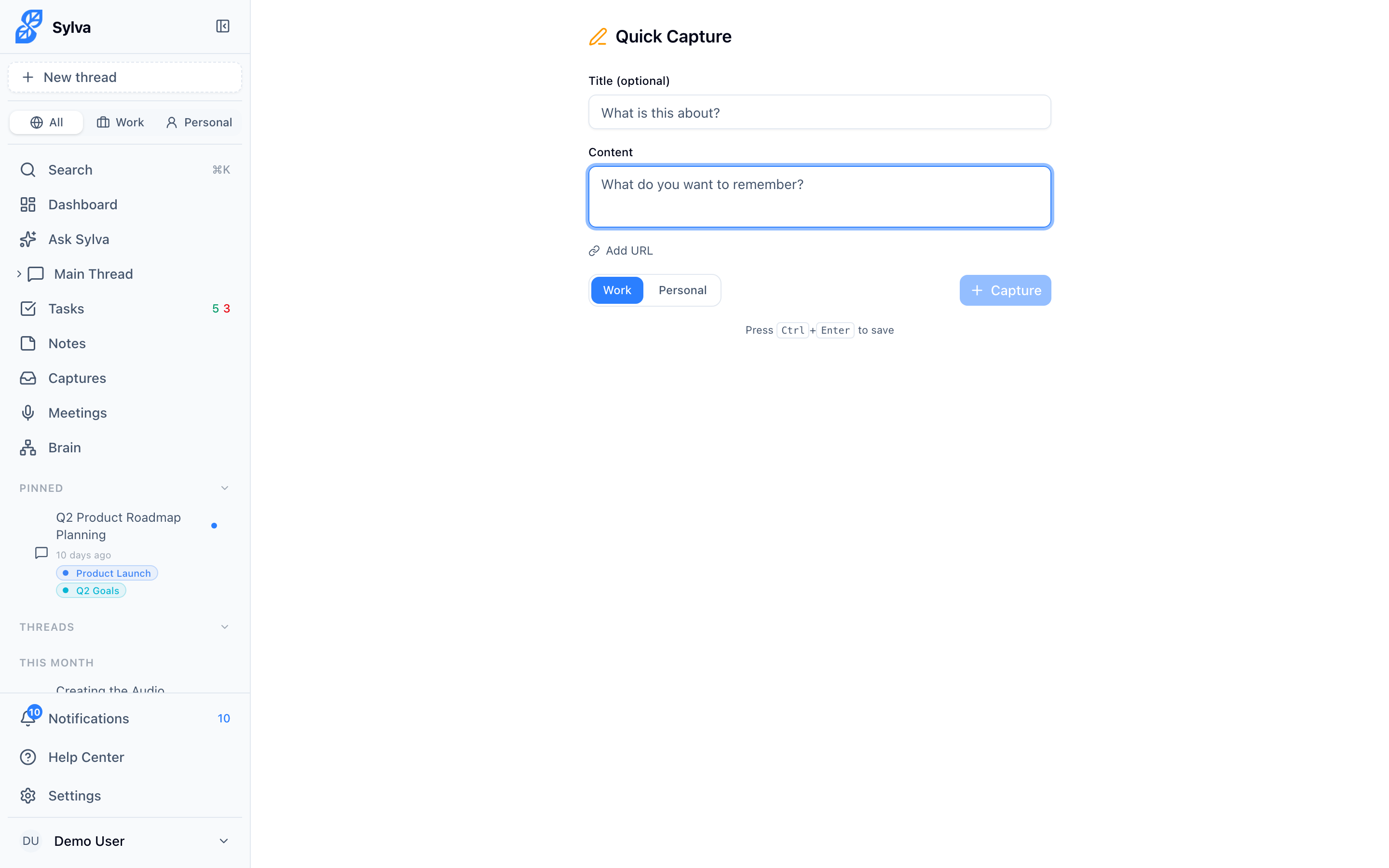
Opening Quick Capture
There are several ways to get to the capture form:
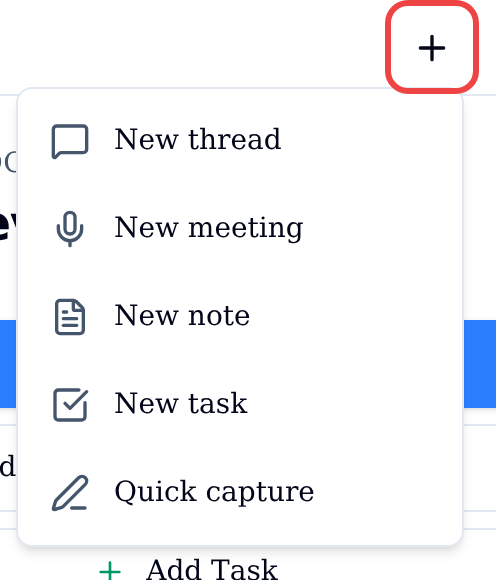
- Plus (+) icon in the mobile header — this button sits in the top-right corner of every screen in the mobile app. Tap it to open the quick-actions menu, then choose Quick capture
- New button at the top of the sidebar on desktop (a plus icon when the sidebar is collapsed) — click it to open the same quick-actions menu, then choose Quick capture
- Direct URL — navigate to /capture in your browser or bookmark it for one-tap access
The menu starts the other things you create most often. In order, it lists New thread, New meeting, New note, New task and Quick capture. New thread and New task open their create forms (New task takes you to the Tasks page first); the others open their pages.
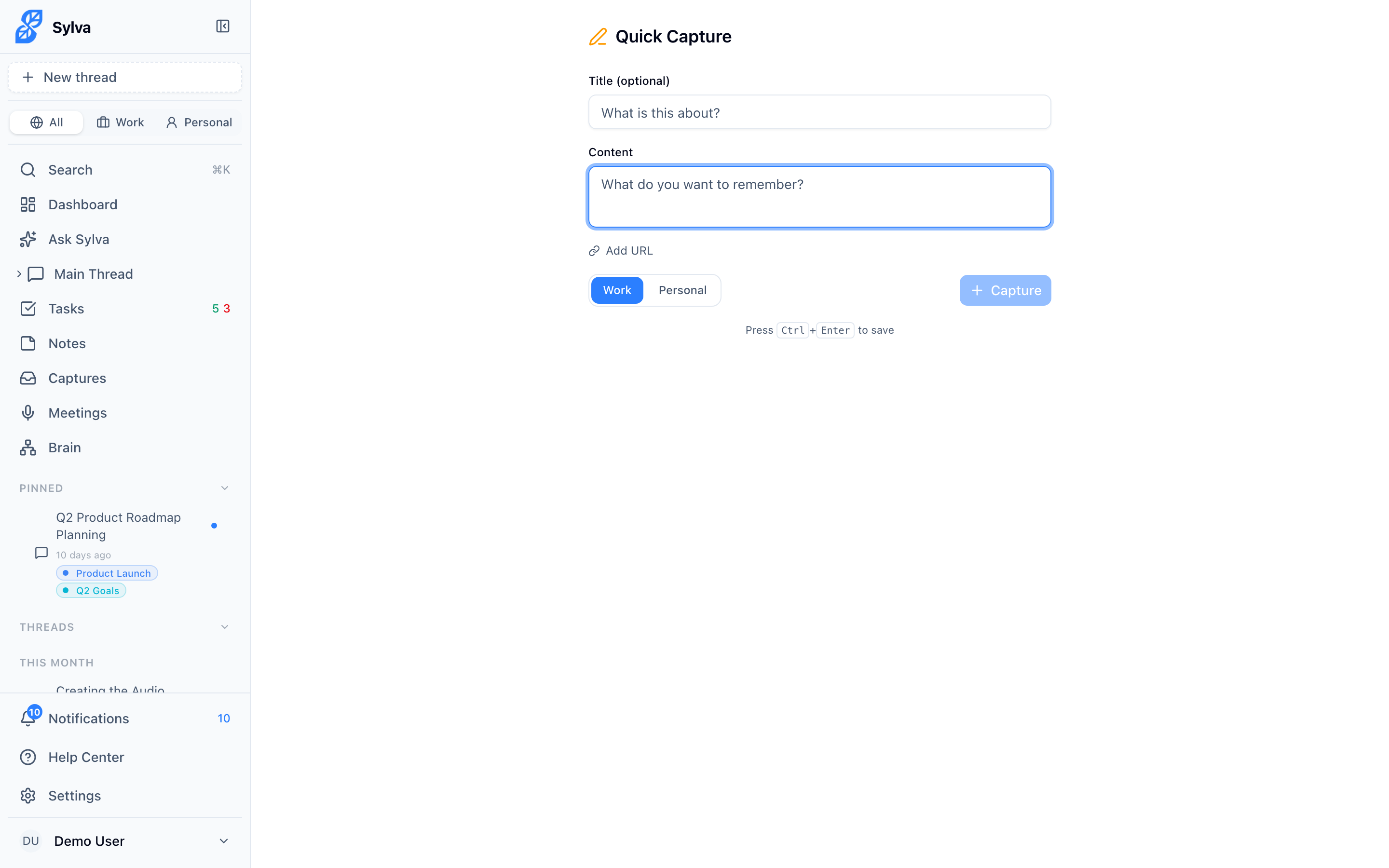
When the form loads, the cursor lands in the Content field automatically so you can start typing immediately.
Filling in a Capture
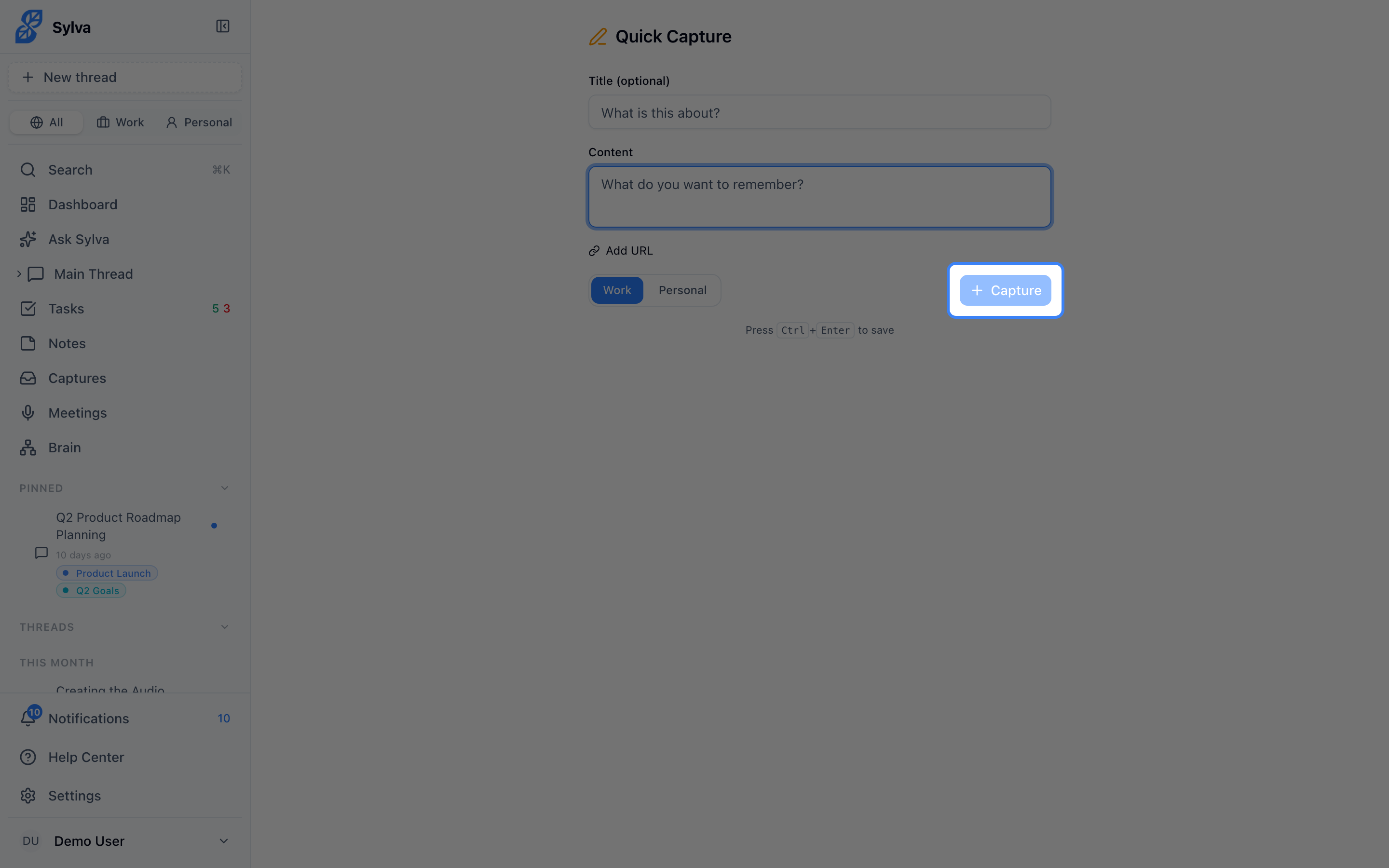
The form is intentionally minimal. Only one field is required — everything else is there if you need it.
- Title — An optional label for your capture. Leave it blank and Sylva stores the content without one
- Content — The main body of what you want to capture. This is the only required field
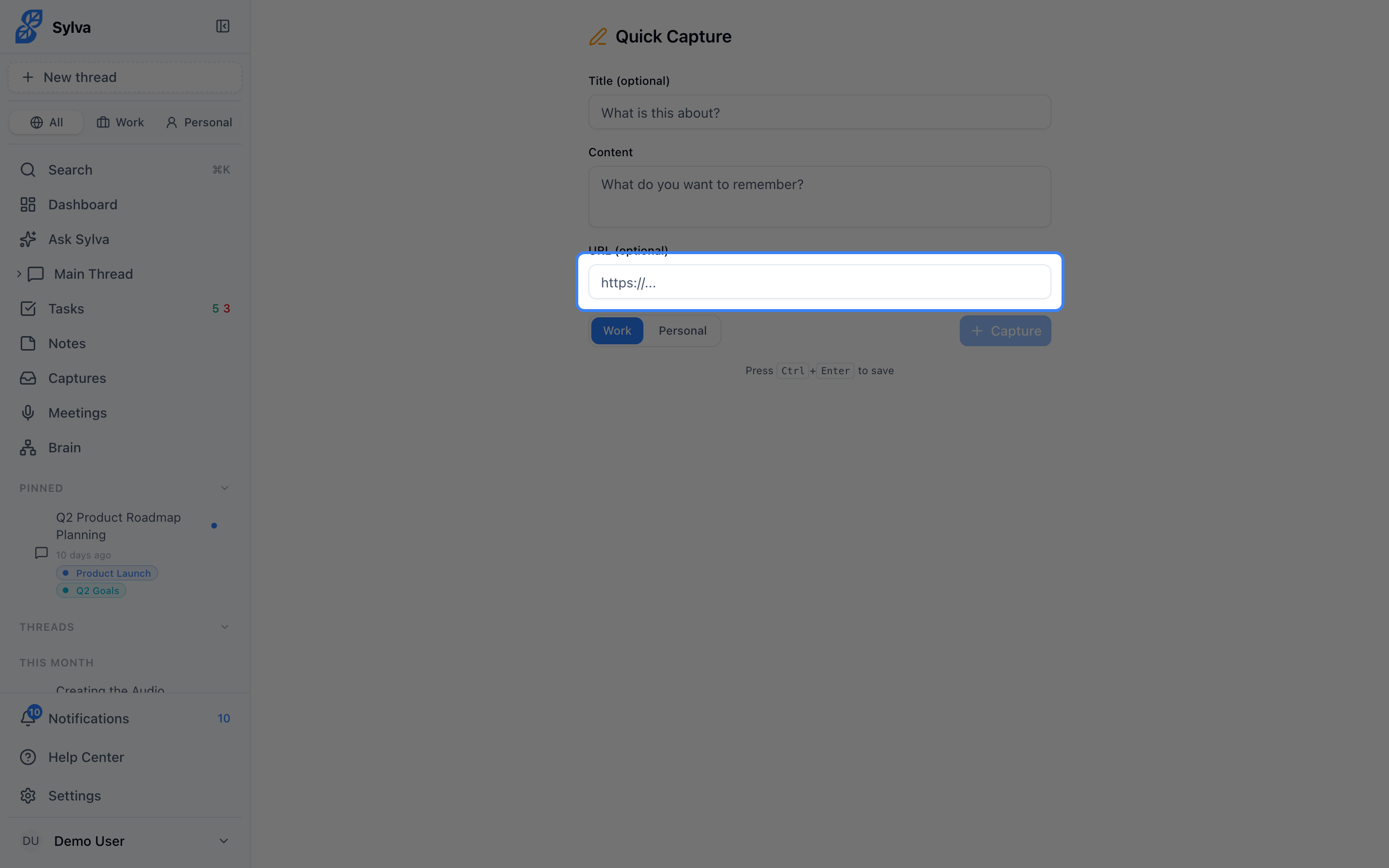
- URL — An optional link related to the content. Click Add URL to reveal this field when you need it
- Profile buttons — Pick one of your profiles to keep the capture organized with the rest of your content. Defaults to Work
Saving a Capture
You have two ways to save:
- Click the Capture button at the bottom of the form
- Press Ctrl+Enter (Windows/Linux) or Cmd+Enter (Mac) from any field in the form — no mouse needed
After you save, Sylva shows a brief confirmation and then resets the form so you can capture another item immediately. The cursor returns to the Content field automatically.
If you try to save without entering any content, Sylva displays an error and keeps your other fields intact so nothing is lost.
Sharing Content Directly into Sylva
When you install Sylva as a PWA (Progressive Web App), it registers as a share target on your device. This means you can send content to Sylva from other apps — your browser, a news reader, a notes app — using your platform's native share sheet.
Shared content is sent to the Share page (/share), where it pre-fills automatically:
- Shared text fills the Content field
- Shared URL fills the URL field
- Shared title fills the Title field
- Shared files — images (JPEG, PNG, GIF, WebP, SVG), PDFs, and plain text files are accepted
From the share page you have two options for what to do with the shared content:
- Save as capture — stores the content as-is, the same way the Quick Capture form does
- Ask Sylva — routes the shared content (including any attached files) to chat, so Sylva can act on it — summarize a PDF, extract action items from an image, or answer a question about a link
This works with iOS Shortcuts, Android share intents, and desktop share menus — anywhere your OS offers a share target picker. For the full details on PWA installation and share target setup, see the Sharing Content article.
When to Use Quick Capture vs. Chat
Both Quick Capture and Sylva's chat let you get information into the system, but they serve different purposes:
- Quick Capture is fastest when you want to store something exactly as you write it — a note, a link, a fleeting idea — without Sylva interpreting or acting on it
- Chat is better when you want Sylva to do something with your input — create a task, answer a question, summarize something, or extract action items
Think of Quick Capture as your inbox and chat as your assistant. The Plus (+) button in the mobile header and the New button in the desktop sidebar open the quick-actions menu, where Quick capture is one tap away from anywhere in the app. If you want Sylva to act on shared content instead — use your device's share sheet to send it to Sylva and choose Ask Sylva from the share page.