Getting the Most from Sylva
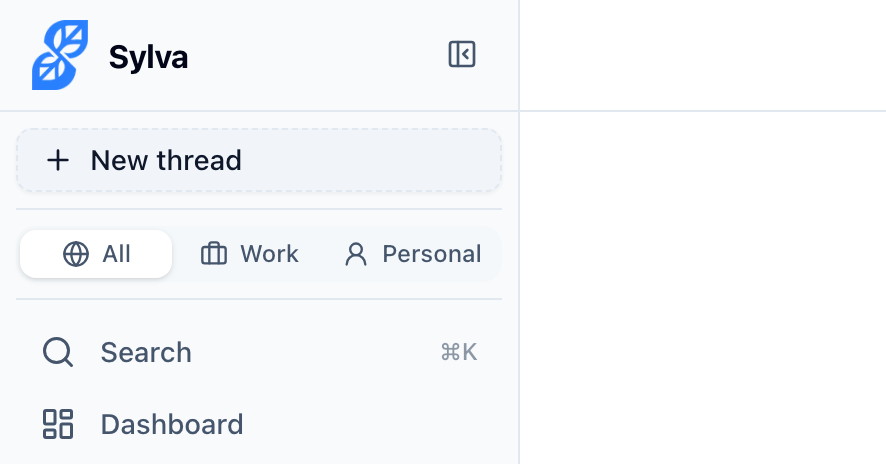
- Use threads intentionally — Create separate threads for different projects or topics. This keeps your conversations organized and makes Ask Sylva much more effective at finding things later.
-
Let Sylva manage your tasks — Mention deadlines and to-dos naturally in conversation. If auto-extract is on, Sylva picks them up and tracks them for you — no extra work needed.
-
Upload key documents — Add project briefs, policies, or reference material to your Knowledge Base. The more context Sylva has, the better and more relevant its answers will be.
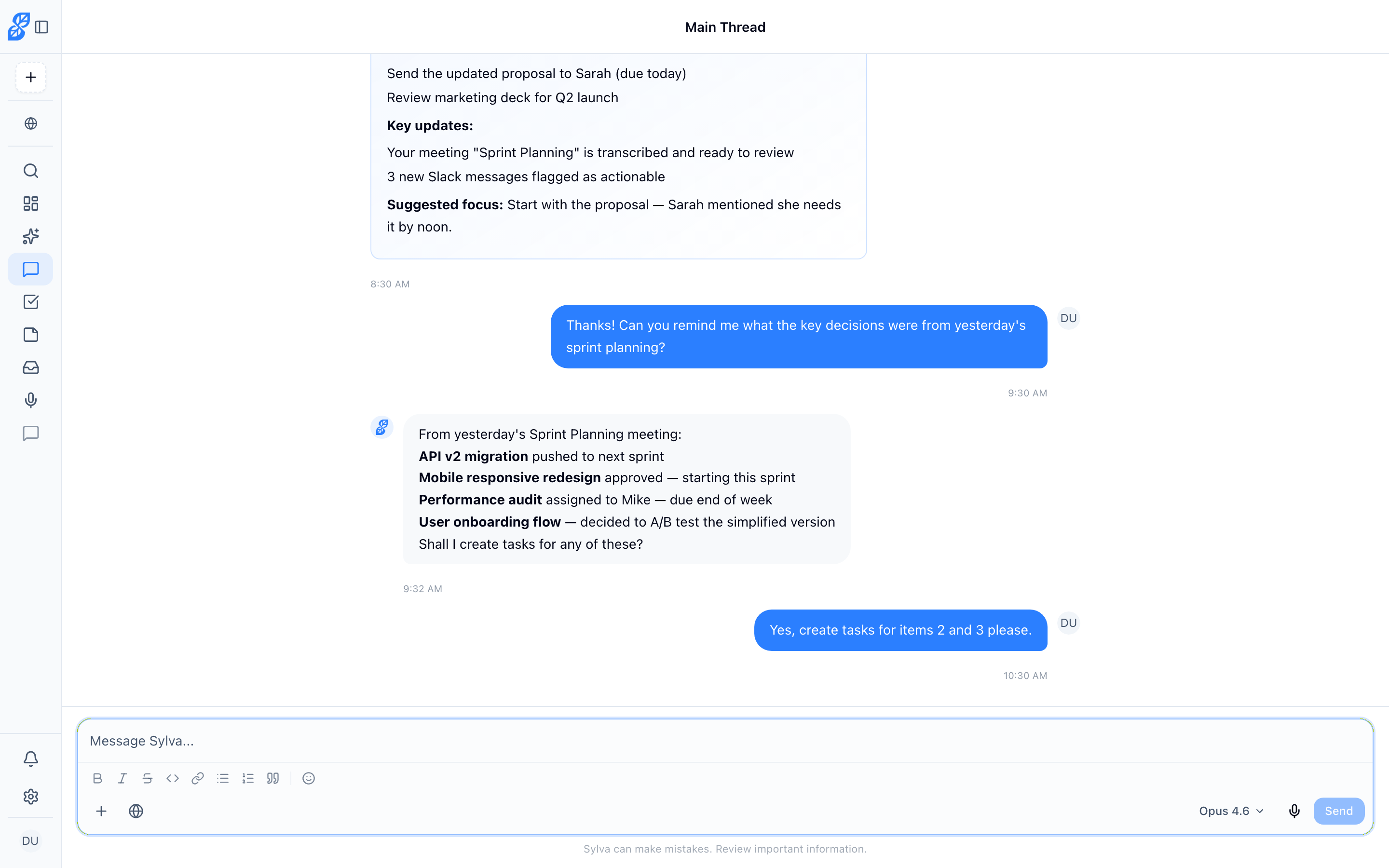
- Start your day with the briefing — Check your Main Thread each morning for your daily briefing. It's a quick way to get oriented and know what needs your attention.
- Use Ask Sylva for recall — Can't remember where you discussed something? Don't scroll through old threads — ask Sylva. It searches everything for you.

-
Share content directly to Sylva — Use your browser's or mobile device's share sheet to send content straight to Sylva. The shared text is pre-filled in the input field, giving Sylva immediate context so you can ask follow-up questions or save it without retyping anything.
-
Record important meetings — Having a searchable transcript makes it easy to revisit decisions, find action items, and hold everyone accountable. After transcription, use Ask AI to quickly get answers about the meeting, and Extract Tasks to pull out action items automatically.
-
Experiment with AI tones — If Sylva's responses feel too long or too brief, try a different tone in settings. You might prefer "Concise" for quick questions and "Detailed" for deep work.
-
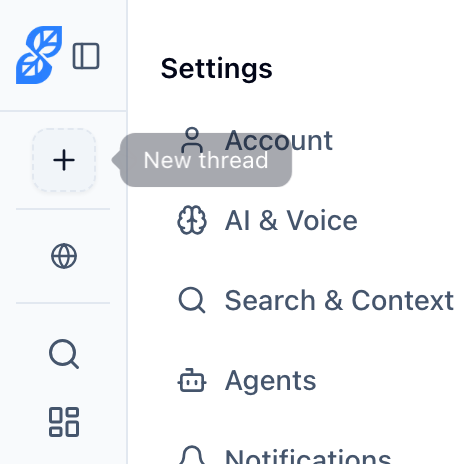
Separate Work and Personal — Use the context switcher to keep different parts of your life organized. Your morning briefing respects this too.
-
Add custom instructions — Tell Sylva about your industry, your role, or how you like responses structured. This makes every conversation more relevant.
-
Install the Chrome Extension — Sylva Capture brings your Slack and email into Sylva automatically. The daily communications digest alone is worth it — you'll never miss an important message again.
-
Use the Command Palette — Cmd/Ctrl+K is the fastest way to find anything or jump anywhere in Sylva.

-
Use voice commands while dictating — Saying "comma", "new paragraph", or "scratch that" while using voice input is faster than editing afterward. Sylva handles punctuation, formatting, and corrections on the fly.
-
Browse your Notes page — Instead of hunting through threads for a specific decision or takeaway, check the Notes page. Sylva captures important information as notes automatically, and you can search and filter them all from one screen.
-
Tag everything — Create tags for your projects, teams, or priorities, and assign them to tasks, notes, meetings, threads, and captures. Tags work consistently across all of Sylva, so you can filter any list by the same set of tags. This is especially powerful when you have a lot going on and want to focus on one project at a time.
Pausing During Recordings
Not every moment in a meeting is worth transcribing. Phone calls that interrupt the flow, side conversations that veer off-topic, or a five-minute break while someone grabs coffee — all of these add noise to your transcript and make it harder for Sylva's AI to extract what actually matters.
Use the Pause button during a recording to skip irrelevant sections without losing your entire recording. When you pause, Sylva stops capturing audio. When you resume, the recording picks up seamlessly — no gaps, no lost data from before the pause.

This is especially useful for:
- Phone calls or interruptions mid-meeting
- Side conversations that don't belong in the transcript
- Breaks or waiting periods where nothing meaningful is happening
The result is a cleaner transcript, better AI-generated summaries, and more accurate task extraction — because Sylva's AI works with signal, not noise.
Attaching Files Inline for Immediate Context
When you need Sylva to analyze a specific document — a diagram, a proposal, a spreadsheet — you have two options: upload it to your Knowledge Base for long-term reference, or attach it directly to a message for immediate context.
For questions that need the file's content right now — "What are the key risks in this proposal?" or "Summarize the data in this chart" — attach the file to the same message. Sylva processes the file inline alongside your question, giving you a faster, more focused response than if the file lived in the Knowledge Base and had to be retrieved by search.

Click the attachment button in the chat input, select your file, and type your question in the same message. Sylva handles images, PDFs, and text documents. The file's content is sent directly with your message — no waiting for background processing.
Use inline attachments when:
- You're reviewing a proposal, contract, or brief and want Sylva's take immediately
- You have a diagram, screenshot, or chart that needs interpretation
- The file is relevant to this one conversation, not something you'll reference repeatedly
Use the Knowledge Base instead when the document is something you'll want Sylva to draw on across multiple conversations over time — company policies, project briefs, reference material.
Helping Sylva Learn About You
Sylva builds a picture of who you are over time — your preferences, communication style, work patterns, and boundaries. It picks up on cues from your conversations automatically, but you can accelerate this and make the results significantly better by being deliberate about what you share.
Tell Sylva your preferences and boundaries directly. The more explicit you are, the more confident Sylva becomes in its understanding of you. Compare these two approaches:
- Vague: "I don't like long meetings"
- Explicit: "I prefer meetings capped at 30 minutes. If something needs more time, I'd rather split it into two sessions."
Both work, but the second gives Sylva a much clearer signal. It stores that observation with higher confidence and applies it more consistently.
Use "Sylva, you should know..." regularly — don't wait for automatic extraction. Sylva's extraction agent scans your conversations every 15 minutes for behavioral cues, but the fastest and most reliable way to teach Sylva is to tell it directly. Make a habit of sharing preferences, working styles, and boundaries proactively using the "Sylva, you should know..." framing. For example:
- "Sylva, you should know I prefer bullet points over long paragraphs in my briefings."
- "Sylva, you should know I don't check email after 6pm — never schedule reminders for evenings."
- "Sylva, you should know I manage two direct reports: Jamie on engineering, Priya on design."
- "Sylva, you should know I prefer concise answers — three sentences max unless I ask for more detail."
- "Sylva, you should know I always want action items formatted as bullet points with owners and due dates."
This framing helps Sylva treat the information as a deliberate, lasting fact about you rather than something fleeting from a conversation. Relying on automatic extraction alone means Sylva has to infer what matters from noisy conversation data — direct statements remove the guesswork.
Share your communication style too. If you prefer blunt feedback over diplomatic hedging, or you want Sylva to push back when your calendar is overloaded, say so. Sylva adapts its tone and behavior based on what it learns about how you like to interact.

How Sylva Remembers (and Forgets)
Not everything Sylva learns about you is treated equally. Sylva distinguishes between stable traits and temporary states, and it forgets them at different rates.
- Stable traits decay slowly. Things like your role, communication preferences, team structure, and work boundaries persist for a long time. These form the core of how Sylva understands you and only fade if they go unreinforced for an extended period.
- Temporal states decay quickly. Observations about your current energy level, mood, what you're focused on right now, or that you're feeling overwhelmed today fade within hours or days. Sylva treats these as short-lived context — useful in the moment but not something to build on indefinitely.
This means you don't need to worry about an offhand comment like "I'm exhausted today" permanently shaping how Sylva talks to you. But if you tell Sylva you prefer concise responses, that sticks around.
All observations decay over time if they aren't reinforced. Even stable traits gradually lose influence if Sylva never sees them confirmed again. The synthesis agent — which runs weekly — applies this decay and consolidates your observations into coherent soul documents. If a preference matters to you long-term, reinforce it occasionally. You don't need to repeat it every day, but mentioning it again every few weeks — or re-stating it with "Sylva, you should know..." — resets the decay clock and keeps that observation strong.
When Sylva picks up on something repeatedly — you mention a preference across multiple conversations, or you explicitly confirm it — the observation's confidence increases, making it more durable and influential. A single passing mention carries less weight than a direct statement or a pattern Sylva sees over time. The most effective way to shape how Sylva works for you is a combination of explicit feedback and consistent behavior.
Editing Observations for Better Results
You can view and edit Sylva's observations about you on the Soul page (linked from Settings > Agents under Soul — Synthesize). This is worth doing periodically — especially when you first start using Sylva — because the observations extracted from conversations can sometimes be vague or overly broad.
Making an observation more specific increases its confidence and influence. Sylva weighs high-confidence observations more heavily when deciding how to respond, what tone to use, and what to include in your briefings. Compare:
- Before editing: "Prefers shorter responses"
- After editing: "Prefers responses of 2–3 sentences for routine questions. Wants detailed explanations only when explicitly asked."
The edited version gives Sylva a much clearer rule to follow. When you edit an observation, its confidence level reflects the precision of the language — specific, actionable statements carry more weight than fuzzy ones.

A good cadence: check the Soul page once a week, clean up anything that feels off, and add specificity where you can. Over time, this builds a highly accurate profile that makes Sylva feel like it truly knows how you work.