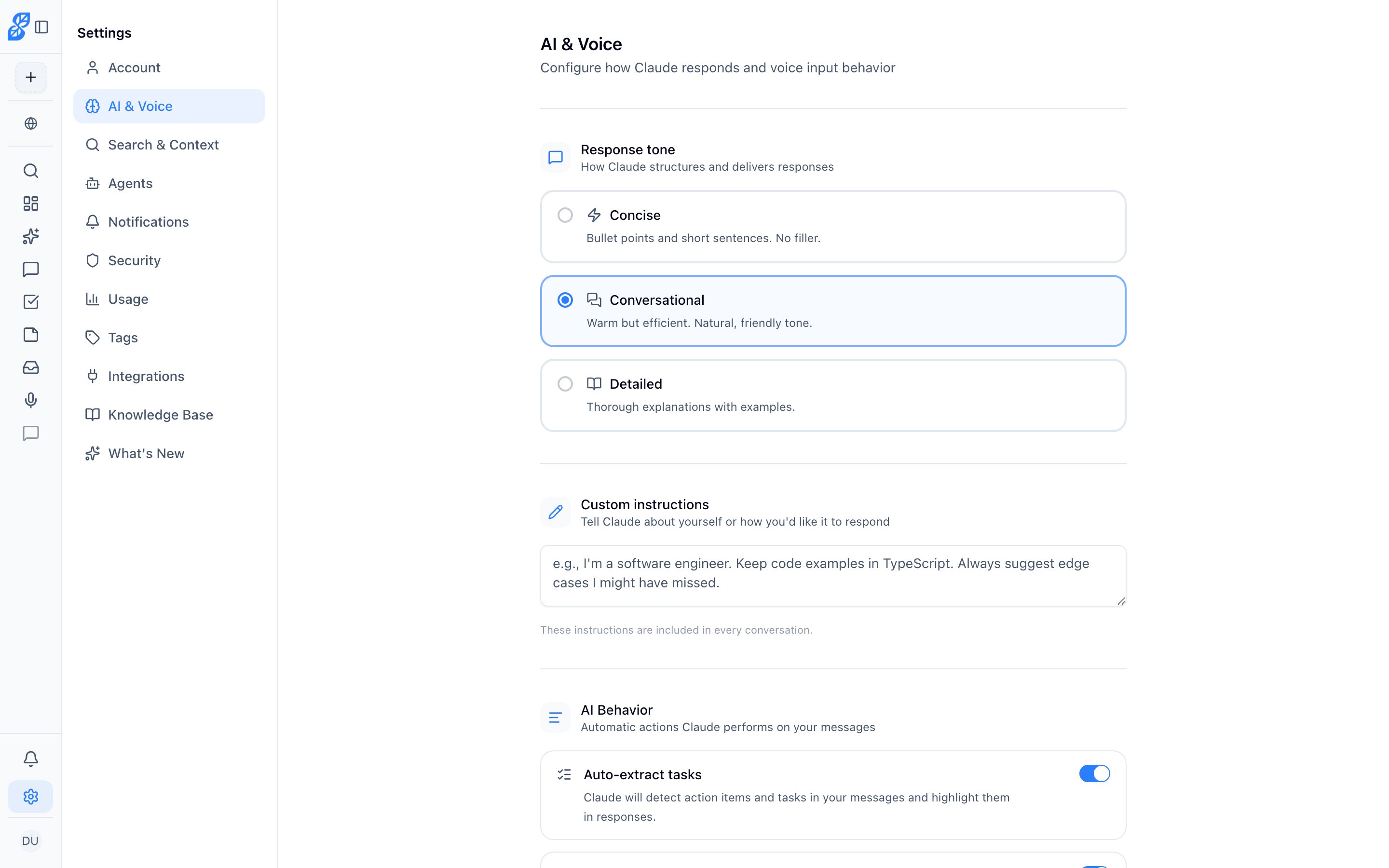
Voice input isn't working
- Make sure your browser has permission to access the microphone (check your browser's site settings)
- Verify that voice input is enabled in Settings > AI & Voice
- Try refreshing the page
- Chrome, Edge, and Firefox work best for voice features
You can check your voice settings here.
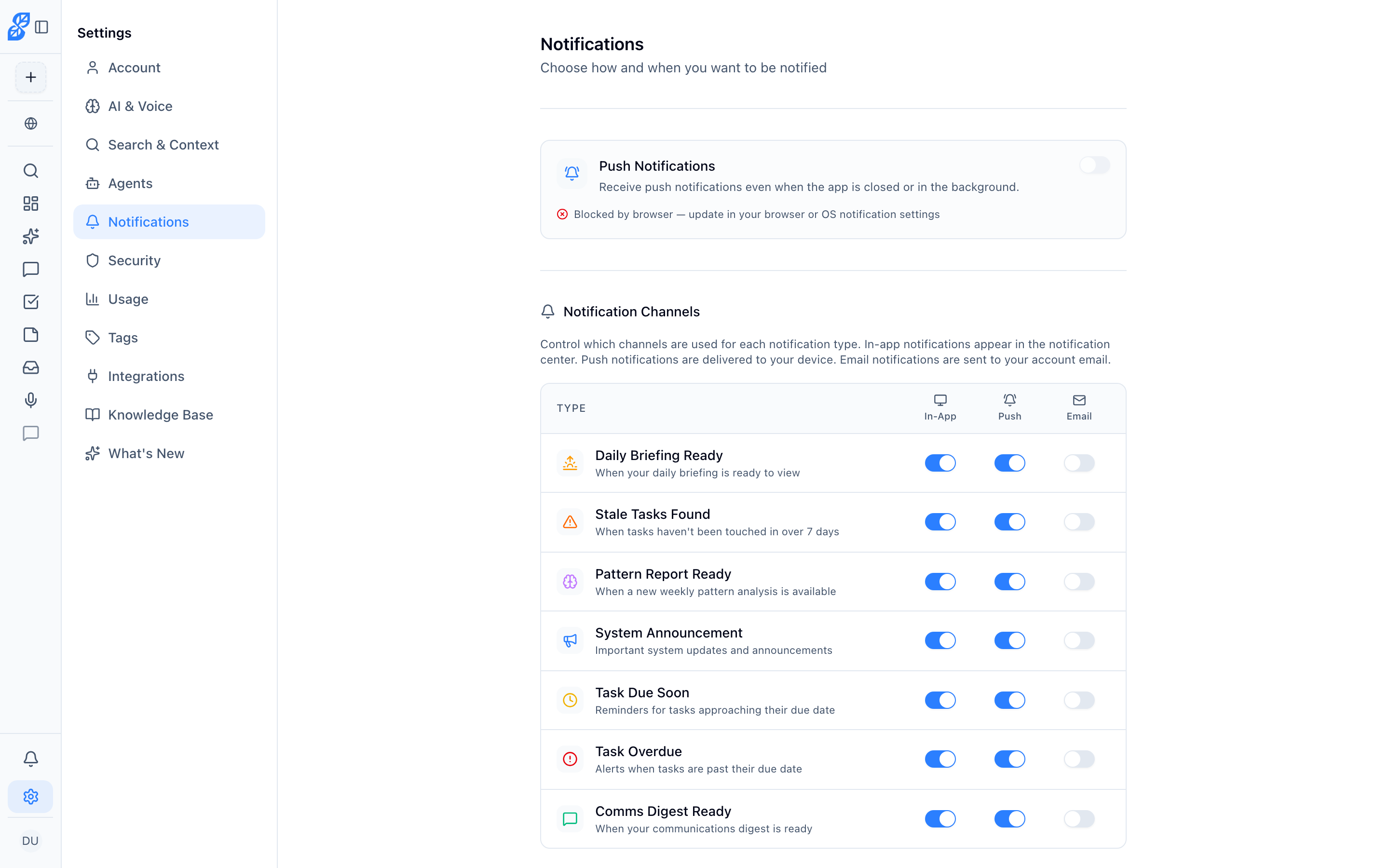
I'm not getting push notifications
- Check Settings > Notifications to ensure push is enabled for the notification types you want
- Make sure your browser allows notifications from Sylva (check browser settings)
- On mobile, you may need to install Sylva as a PWA first for push notifications to work
Verify your notification preferences are configured correctly.
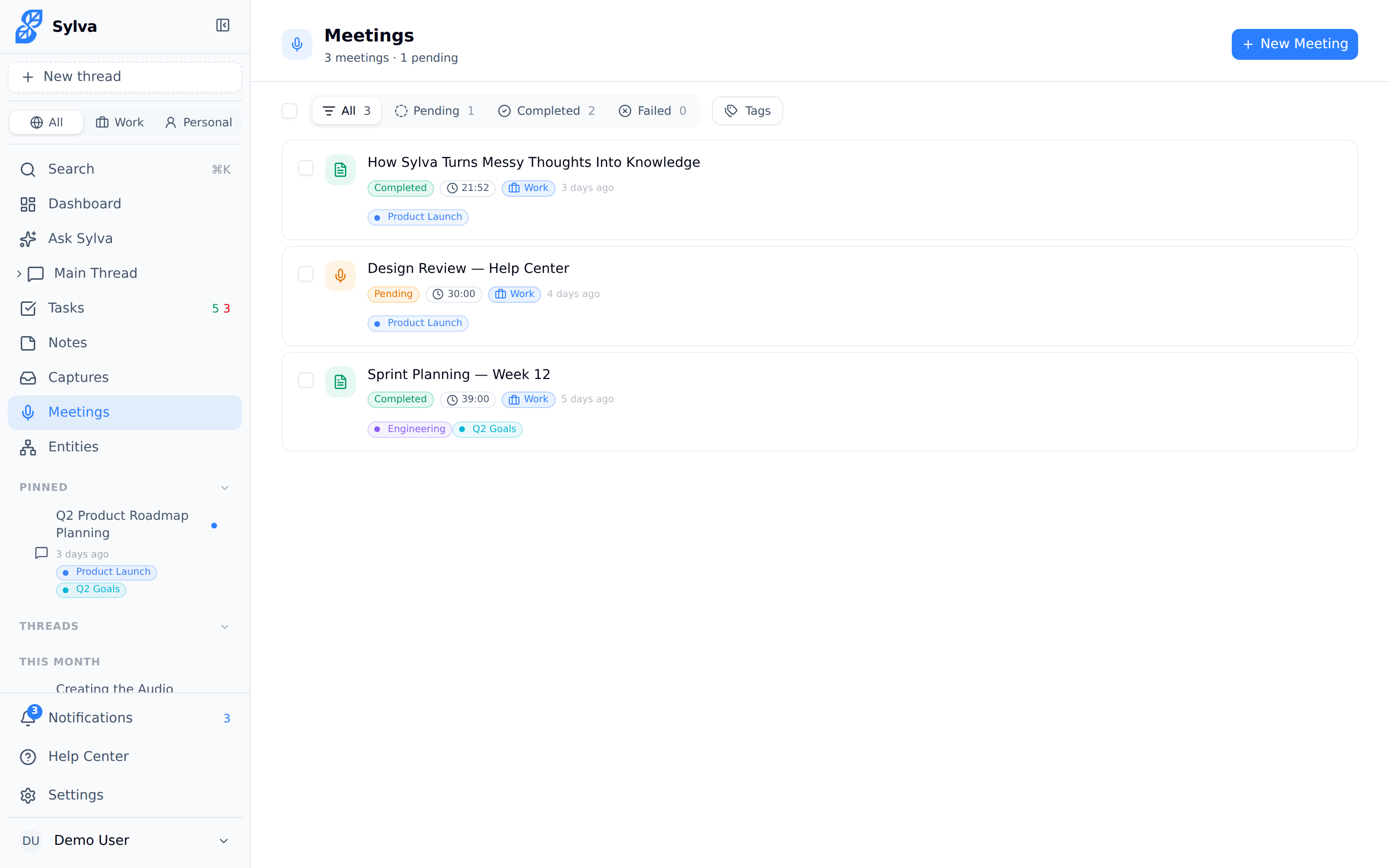
My meeting recording failed
- If pressing Record does nothing, or the microphone or screen prompt never appears, see Recording won't start
- Make sure your browser has microphone permissions
- Check that you have a stable internet connection (needed for uploading)
- Chrome, Edge, and Firefox are the most reliable browsers for recording
- If the upload fails, the recording is saved locally and will retry
My recording didn't upload — what happened?
Your audio is safe. Sylva uses a direct-to-storage upload architecture — audio goes straight from your browser to Sylva's cloud storage (Supabase Storage) without passing through an intermediary server. This makes uploads faster and more resilient, but it also means the upload depends on a direct connection between your browser and the storage endpoint. If that connection is interrupted, the upload fails even if the rest of your internet is working fine.
Regardless of what caused the failure, Sylva saves recording chunks to your browser's local storage (IndexedDB) as it records, so a failed upload never means lost audio. Here's how recovery works:
- Check IndexedDB — Sylva stores every audio chunk locally before attempting an upload. As long as you haven't cleared your browser data, the recording is still on your device.
- Automatic retry — When an upload fails, Sylva queues a retry automatically. The service worker handles retries with exponential backoff — even if you've closed the Sylva tab or switched to another app. When your connection to the storage endpoint is restored, the upload resumes without any action from you.
- Manual retry — Open Sylva and look for the recovery banner at the top of the screen (see the next section). Click Retry Upload to send the audio again immediately.
- Permanent storage safety — Your audio stays in IndexedDB until the upload completes successfully or you explicitly choose to discard it. Navigating away, closing the tab, or restarting your browser does not delete it. The only things that remove it are a successful upload, clicking Discard, or manually clearing your browser's site data.
After a successful upload, Sylva calls a confirmation endpoint that updates your meeting record with the storage path, file size, and duration — then automatically queues the recording for transcription. You don't need to trigger transcription manually.
Upload failures most commonly happen on slow mobile connections. Sylva allows up to 5 minutes for a single upload to complete, so even large recordings on spotty networks usually make it through on retry.
Audio storage quota
Each Sylva account has a 200 MB server-side audio storage quota. This quota covers uploaded recordings stored on Sylva's servers — not the temporary local copies in IndexedDB.
When you approach or hit the limit, Sylva warns you before starting a new recording. To free up space:
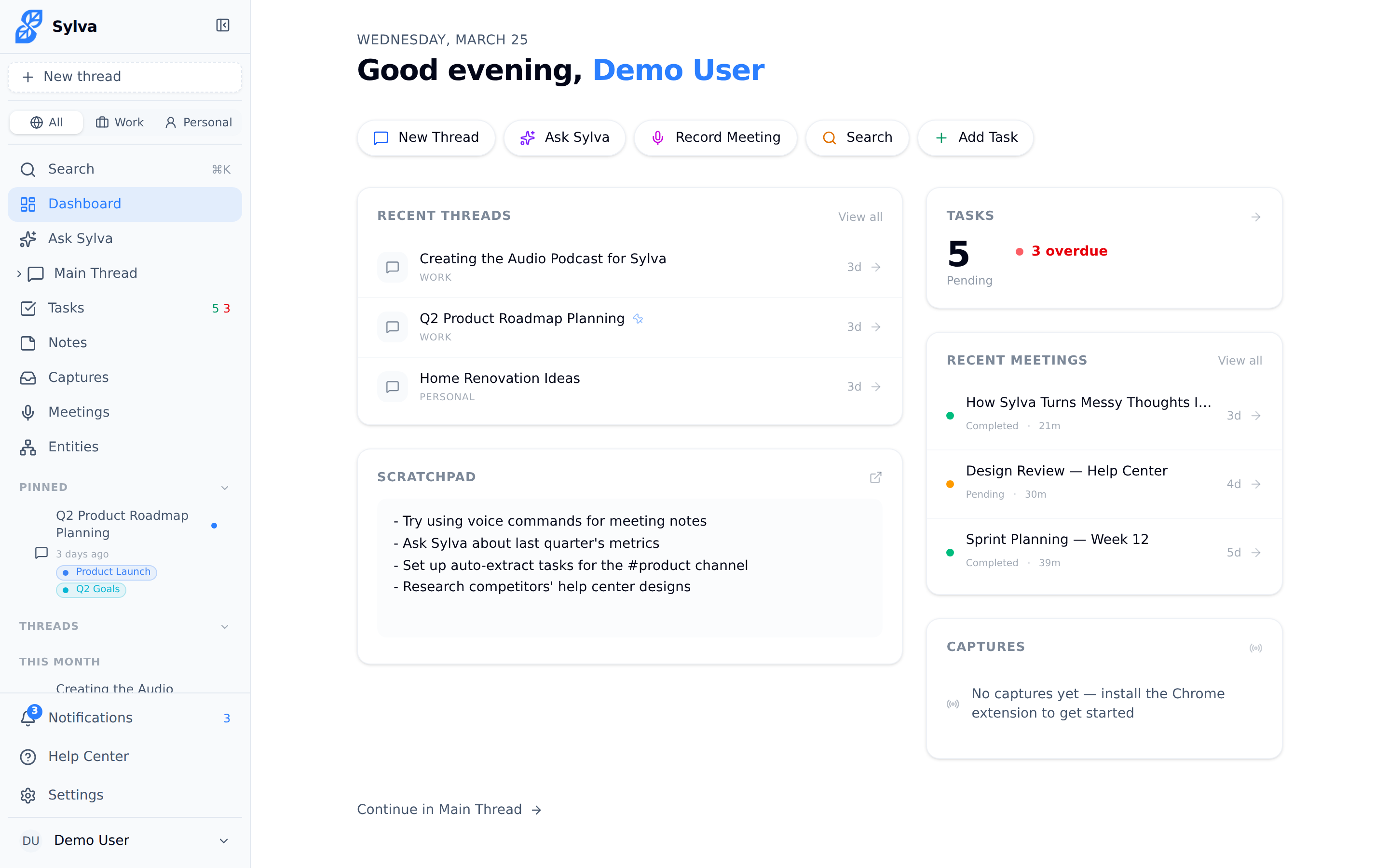
- Open the Meetings page and find the old meetings you no longer need.
- Download anything you want to keep first. Open the meeting and use Download for the audio or the transcript. There is no way to delete only the audio, so deleting a meeting removes the whole meeting.
- Open the menu on that meeting and click Delete. You can also open the meeting and click Delete there. From the Meetings page the meeting is deleted straight away; on the meeting's own page Sylva asks you to confirm first.
Deleting a meeting is permanent and cannot be undone. It removes the meeting, its transcript and its audio file, and frees the audio space the recording used. Tasks you extracted from a meeting are not deleted with it. They stay in your Tasks list with their text, status and due date, but they no longer point to a meeting.

Why is my audio storage limit showing a different number?
The default audio storage quota is 200 MB, but your organization's admin can override this on a per-user basis. If you hit a limit other than 200 MB — such as 50 MB, 500 MB, 1 GB, or "Unlimited" — your admin has set a custom quota for your account using the audio_quota_mb setting in Settings > Admin.
This override takes priority over the default. You don't need to do anything. If you think the limit is wrong, reach out to your organization's Sylva admin to adjust it.

I see "Unsaved recording found" banner — what should I do?
When Sylva detects a recording in IndexedDB that hasn't been uploaded — whether from a failed upload, a crash, or a closed tab — it displays a RecordingRecoveryBanner at the top of your screen. The banner shows the meeting name and an estimated duration so you can identify which recording it belongs to.
You have two options:
- Upload — sends the locally stored audio to Sylva's servers for transcription. Once the upload succeeds, the local copy is automatically cleaned up.
- Discard — permanently removes the local audio if you no longer need it. This action cannot be undone.
The banner stays visible until you take action, so you won't miss it even if you navigate to other pages and come back later. If you ignore it, the service worker also attempts automatic background uploads whenever connectivity is available.
Recording was interrupted by phone call / app crash
Sylva continuously saves audio chunks to IndexedDB as it records — not just at the end. If your recording is interrupted by an incoming phone call, an app crash, a browser tab closing, or your laptop dying, the audio captured up to that point is still on your device.
The recovered file covers everything up to the last chunk saved before the interruption — typically within a few seconds of when recording stopped. You won't get the full meeting if Sylva wasn't running, but you won't lose what was already captured.
When you reopen Sylva after an interruption, the recovery banner appears automatically (see the section above). From there you can upload the partial recording for transcription or discard it. Sylva transcribes whatever audio is available, so even a partial recording produces useful notes and action items.
Pause and resume behavior
Pausing a recording stops the microphone (or system audio) capture but keeps the recording session active. When you resume, capture picks up exactly where you left off. A few things to know:
- Paused time is excluded from duration — The meeting duration counter stops while paused and resumes when you hit Resume. The final duration reflects only the time audio was actively captured, so your transcript timestamps stay accurate and your recording file stays compact.
- Audio quality is unaffected — Pausing and resuming does not introduce glitches, clicks, or gaps in the audio. Sylva cleanly stops writing audio chunks when you pause and starts a new chunk when you resume, so the resulting file sounds continuous.
- App backgrounded while paused — On mobile browsers and some desktop browsers, the operating system may suspend Sylva's tab after a period of inactivity. When you return, Sylva detects the suspended state and restores the recording session. The audio captured before the pause is safe in IndexedDB. Resume works normally, but there may be a brief delay (1–2 seconds) while the microphone is reacquired.
- Battery saver or power management — Some devices aggressively suspend background audio when battery saver is active. If Sylva loses microphone access while paused, it displays a warning banner when you return: "Microphone access was interrupted — tap Resume to reconnect." The audio captured before the interruption is preserved. To avoid this, keep Sylva in the foreground during meetings or disable battery saver while recording.
- Another app grabs the audio device — If you pause Sylva and then join a phone call, video chat, or another app that takes exclusive control of the microphone, Sylva may not be able to reclaim the audio device when you resume. You'll see an error prompting you to close the other app or re-grant microphone permission. Again, all audio captured before the pause remains safe in IndexedDB regardless of what happens to the microphone afterward.
In all of these scenarios, the worst case is that you need to start a new recording segment — you never lose audio that was already captured.
Recording while offline
Sylva can record audio even without an internet connection. The microphone capture and local storage happen entirely in-browser, so a network outage mid-meeting doesn't interrupt recording.
When your connection drops during an active recording, Sylva displays an offline banner with the message: "Recording continues — your audio will upload when reconnected." This confirms that the microphone is still capturing and chunks are still being saved locally. You don't need to do anything differently — keep your meeting going as normal.
Once you're back online, Sylva uploads the audio and begins transcription. Keep in mind that transcription itself requires a connection — the offline guarantee covers recording and local storage only.
My meeting recording converted to WebM format
This is normal behavior. Sylva automatically converts recordings to WebM (Opus codec) format for storage efficiency. Depending on your Recording quality setting in Settings > AI & Voice, a 10-minute recording can use as little as ~1 MB at Low (13 kbps) quality — compared to ~10 MB at High (128 kbps).
The conversion happens in your browser using the WebCodecs API before the file is uploaded. The original audio source (microphone or system audio) is captured at full quality, then encoded to the target bitrate you've selected. This means:
- Transcription accuracy is not affected — Even at the lowest bitrate, the Opus codec preserves speech clarity well. Sylva's transcription engine works with all quality levels.
- The output file is always
.webm— Regardless of what your browser's MediaRecorder natively produces, Sylva re-encodes to WebM/Opus for consistent storage and playback. - You can change the quality level — Go to Settings > AI & Voice and find Recording quality. Choose Low (13 kbps) to maximize storage space, Standard (32 kbps) for a balance, or High (128 kbps) if you want near-original fidelity for archival purposes.
If you need the recording in a different format for use outside Sylva, download the WebM file and convert it with any standard audio tool.
System audio not captured
If your screen-share recording contains no system or tab audio — only silence or microphone input — the most likely cause is a missing checkbox in the browser's share picker. The getDisplayMedia API that powers system audio capture requires you to explicitly opt in to audio sharing each time you start a screen share. Browsers do not remember this setting between sessions.
Here's how to fix it:
- Click Record and choose the screen/tab share option.
- In the browser's share picker that appears, select the tab or screen you want to share.
- Check the "Share audio" or "Share tab audio" checkbox at the bottom of the picker dialog. This checkbox is unchecked by default — if you skip it, Sylva captures the screen only and no system audio reaches the recording.
- Click Share to start.
If you're capturing a specific Chrome tab, the checkbox reads "Share tab audio." If you're sharing your entire screen, it reads "Share system audio" (available on Windows and ChromeOS; macOS does not support system-level audio capture through the browser without a third-party audio driver).
Browser compatibility matters here. System audio capture through getDisplayMedia is supported in Chrome and Edge only. Firefox and Safari do not expose the audio-sharing option in their screen-share pickers, so you cannot capture system or tab audio in those browsers. If you need system audio, switch to Chrome or Edge for the recording.
Microphone audio and system/tab audio are mixed into a single recording when both are active. If you only want system audio (no microphone), you can mute your mic in Sylva's recording controls after starting the screen share.

Audio file upload failed
When you upload a pre-recorded audio file through the Upload Audio dialog on the Meetings page, the upload can fail for a few reasons. Here's what to check:
- Supported formats — Sylva accepts
.webm,.mp3,.m4a,.wav,.ogg, and.mp4(audio track only) files. If your file is in a different format, convert it to one of these before uploading. The dialog shows accepted formats in the file picker. - File size limit — Uploaded audio files must be under 200 MB. Files larger than this are rejected before the upload begins. If your recording exceeds the limit, split it into smaller segments using an audio editor or compress it to a lower bitrate.
- Connection status — Unlike live recordings (which are saved locally and retry automatically), file uploads require an active internet connection for the entire transfer. If your connection drops mid-upload, the upload fails and you need to try again manually. Check your connection by loading another page in your browser. If Sylva's dashboard loads but the upload still fails, the issue may be between your browser and the storage endpoint — wait a few minutes and retry.
- Storage quota — Your upload counts against your 200 MB server-side audio storage quota. If the file would push you over the limit, the upload is rejected. Free up space by deleting old meetings on the Meetings page (see the "Audio storage quota" section above).
After a successful upload, Sylva creates a meeting record and automatically queues the file for transcription. You can track transcription progress on the Meetings page.

My file upload failed
When you attach a file to a chat message and the upload fails, here's what to know:
- Large files (over 4.5 MB) — Sylva uploads large files directly to Supabase Storage instead of encoding them inline with your message. This direct upload path handles files that would otherwise time out or exceed payload limits