Threads are where your conversations with Sylva happen. Think of each thread as a dedicated space for a topic, project, or line of thinking.
Main Thread
Every user has one Main Thread — it's always available at the top of your sidebar. Use it for day-to-day conversation, quick questions, or anything that doesn't need its own thread. Your daily briefing also appears here each morning.
The Main Thread has a special property: it's marked as your main thread internally, which means it has visibility into all of your meetings. When you ask Sylva a question in the Main Thread, it can search across every completed meeting transcript in your account — regardless of whether those meetings are linked to a specific thread. This makes the Main Thread your best starting point when you're not sure which conversation a meeting was tied to, or when you want to search broadly across everything.
Creating Threads
Click the New button at the top of the sidebar and choose New thread, or press Cmd/Ctrl + N to start a new conversation.

- Give your thread a name that reflects what it's about
- Start chatting
Managing Threads
Hover over any thread in the sidebar to reveal its actions menu.
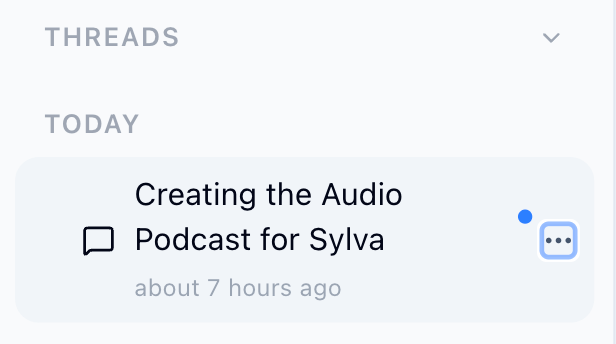
From there you can:
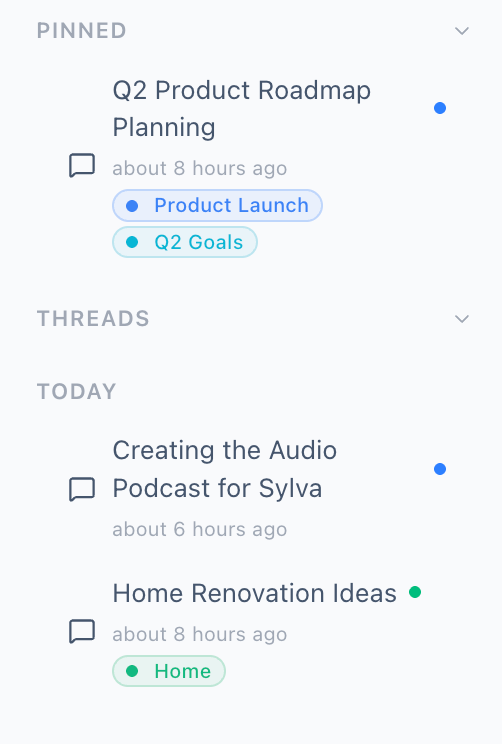
- Pin important threads so they stay at the top of your sidebar
- Rename threads as the conversation evolves
- Tag threads to organize them by project, client, or topic — open the dropdown menu on any thread and use the Tags submenu. Tags appear as colored badges below the thread title in the sidebar
- Archive threads you're done with to keep things tidy
- Delete threads you no longer need
What You Can Do Inside a Thread

- Get a Summary — Click the summary icon to get an AI-generated overview of the entire conversation in one click
- View Files — Open the files menu to see every document that's been shared in the thread, organized by who shared it
- View Notes — See all topic notes that Sylva has generated from this thread
- View Tasks — See tasks that were created during this conversation
Linking Meetings & Audio to Threads
When you upload audio on the Meetings page, you can associate it with an existing thread using the Link to Thread dropdown in the upload dialog. This keeps the meeting transcript, extracted tasks, and any notes connected to the conversation where they're most relevant — so when you open that thread later, everything is in one place.

To link audio to a thread:
- Go to the Meetings page and click Upload Audio
- Select your audio file
- Open the Link to Thread dropdown and choose the thread you want to associate with this recording
- Complete the upload
The Link to Thread dropdown filters threads by the profile you've selected for the recording. If you set the meeting's profile to Work, you only see Work threads in the dropdown — and the same for any other profile. This keeps things clean so you don't accidentally link a client call to a personal thread.

If you skip the Link to Thread step, the meeting is still created — it's accessible from the Meetings page as usual, but won't be tied to any specific thread. You can think of thread linking as optional context that makes it easier to find related content later.
You can also link a meeting to a conversation from the meeting itself. Open any completed meeting on the Meetings page, then click the Link Conversation button to choose the thread you want to associate it with.

Meeting Context in Conversations
When a conversation is linked to one or more completed meetings, Sylva automatically brings relevant meeting context into the AI's responses. You don't need to search through transcripts or copy-paste excerpts — Sylva handles this behind the scenes.
Here's how it works: when you ask Sylva something in a thread that has linked meetings, it performs a semantic search across the transcripts of those meetings. Rather than injecting entire transcripts (which would be unwieldy), Sylva retrieves the most relevant transcript segments based on how closely they match what you're discussing. These excerpts are then provided to the AI as additional context when generating a response.
This means you can ask questions like "What did we decide about the Q3 timeline?" or "What concerns did Sarah raise in last week's standup?" and Sylva pulls the relevant portions of linked meeting transcripts to inform its answer — without you having to remember which meeting it came from or dig through recordings.
Main Thread vs. Custom Threads: Meeting Visibility
The key difference between the Main Thread and custom threads is how broadly Sylva searches for meeting context.
- Main Thread — Has access to all of your meetings. Semantic search runs across every completed transcript in your account. Use this when you want the widest possible recall or when you're asking a general question that could span multiple projects
- Custom threads — Have isolated meeting context. Sylva only searches across meetings that are explicitly linked to that thread. This isolation is intentional — it keeps the AI focused on what's relevant to the thread's topic and prevents unrelated meeting content from bleeding into your conversation
This isolation makes custom threads ideal for project-specific work. If you have a thread dedicated to "Q3 Product Launch," linking the relevant planning meetings to that thread means Sylva's answers stay tightly scoped to that project. Meetings from your weekly 1:1s or other projects won't interfere.
If you're not getting the meeting context you expect in a custom thread, check whether the relevant meetings are linked to it. You can always switch to the Main Thread for a broader search, or link additional meetings to the custom thread using the Link Conversation button on the meeting detail page.
A few things to keep in mind:
- Meeting context only applies to completed meetings with transcripts — a meeting that hasn't been transcribed yet won't contribute context
- The more specific your question, the better the results. Semantic search matches based on meaning, so "What was the budget discussion?" retrieves more targeted excerpts than "Tell me about the meeting"
- If multiple meetings are linked to a thread, Sylva searches across all of them and pulls the most relevant segments from whichever meetings contain matching content