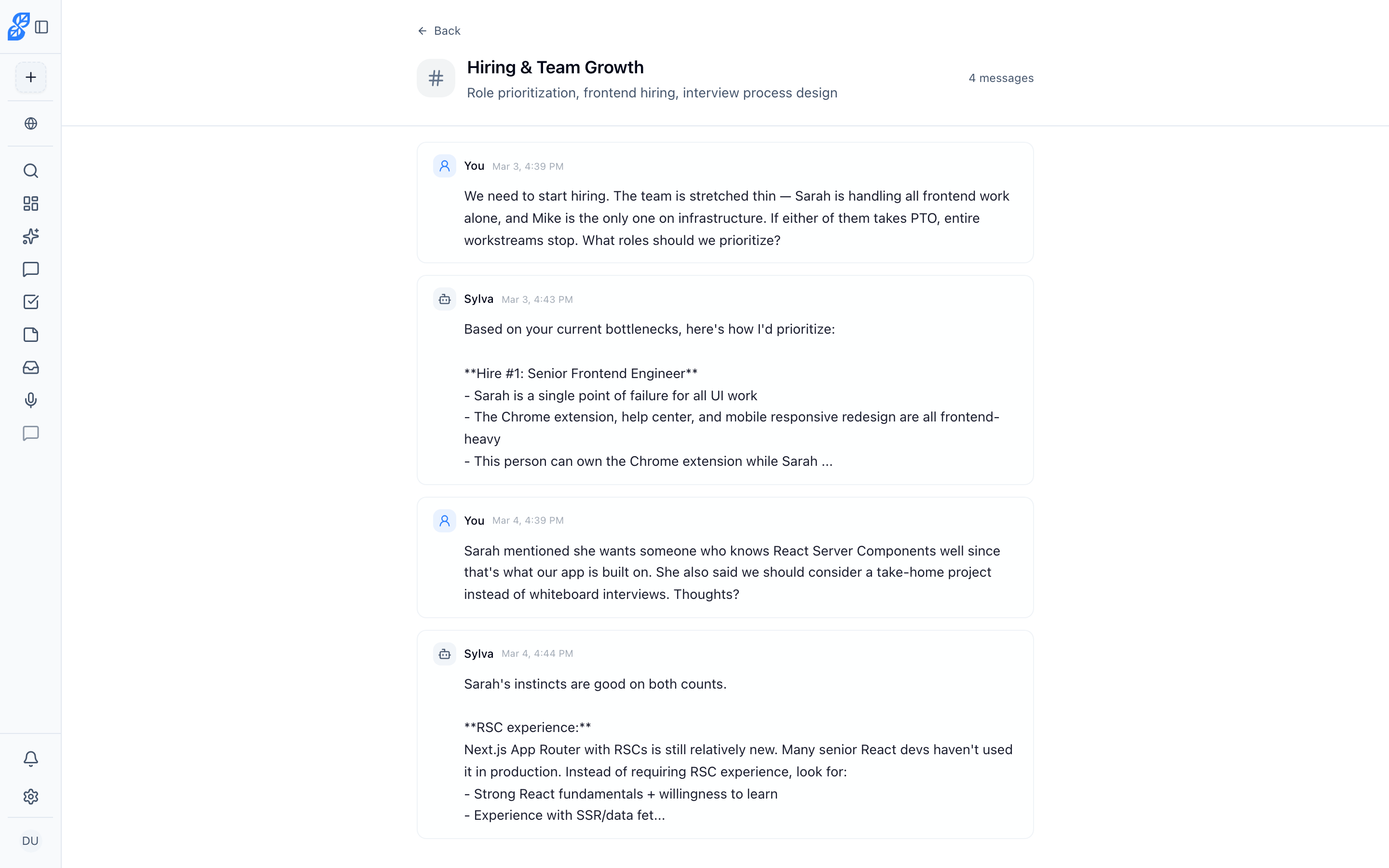
Sylva automatically organizes your conversations into Topics — clusters of related messages that emerge naturally as you chat.
How Topics Work
- As you talk, Sylva identifies themes and groups related messages together
- Topics appear in a tree view inside each thread in the sidebar
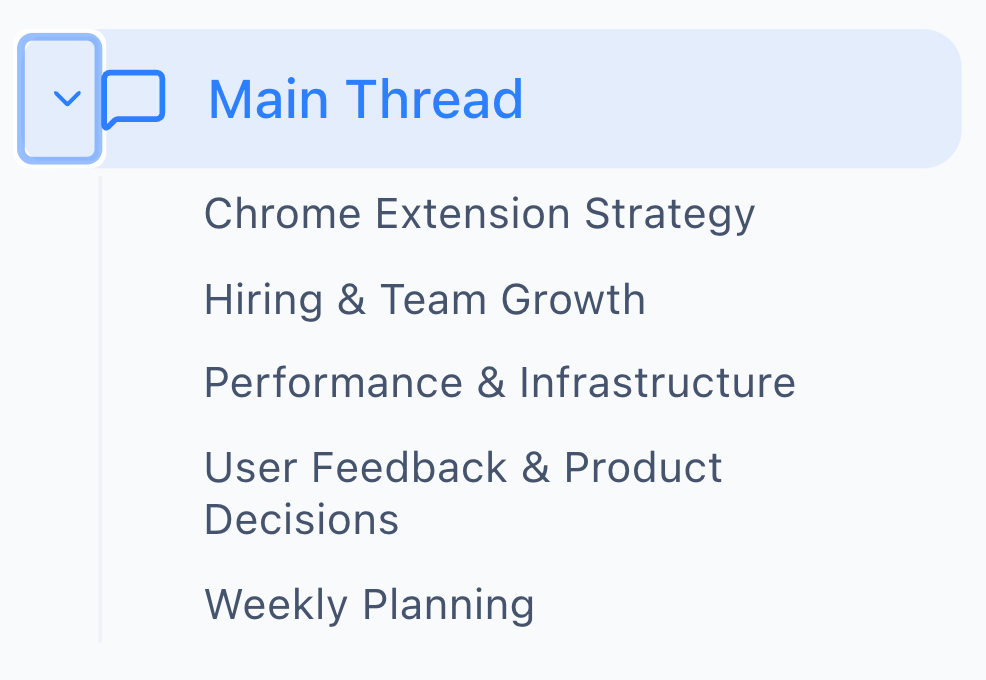
- Related topics automatically organize into subtopics for cleaner grouping
- Click any topic to see the messages grouped by theme
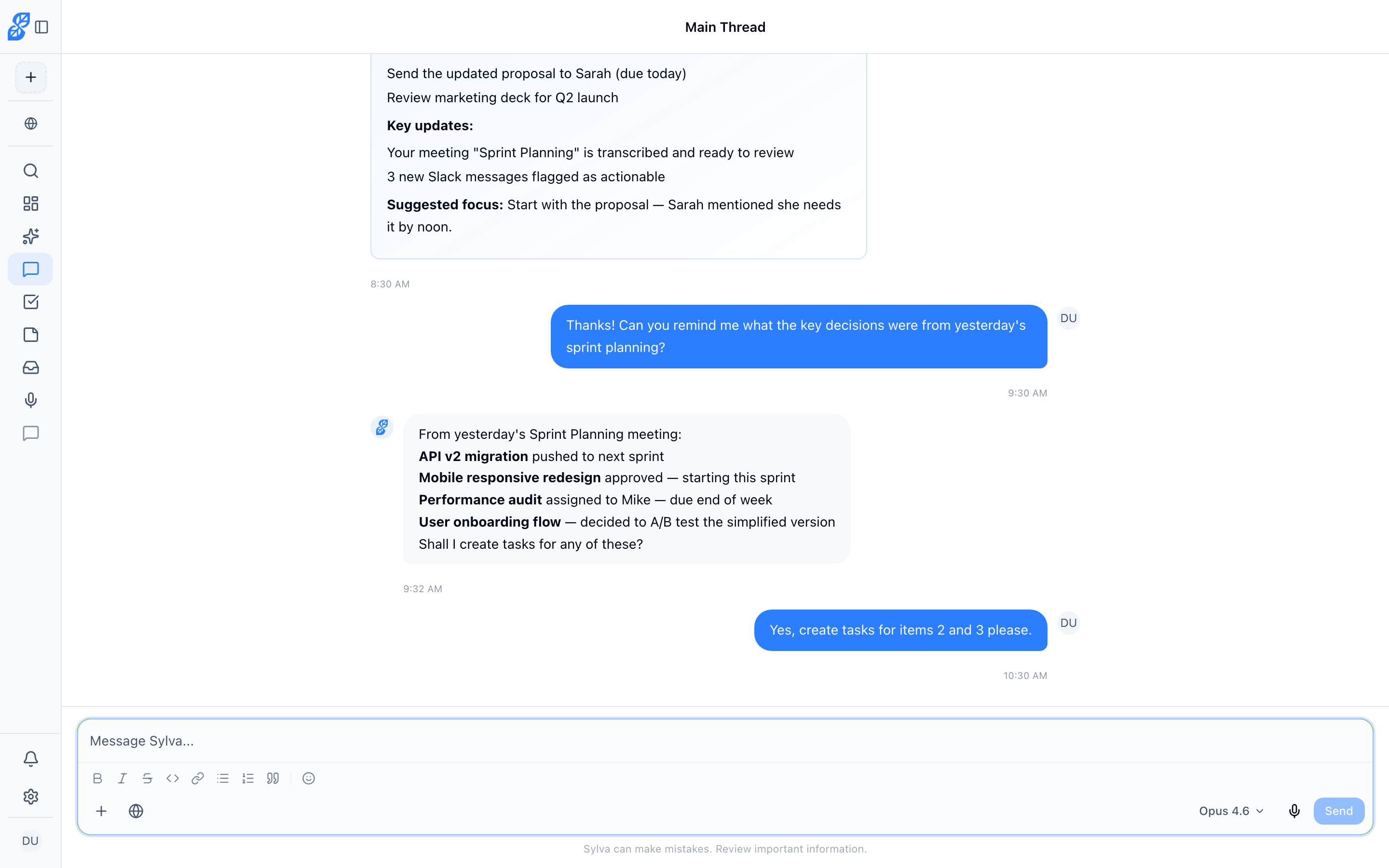
Sylva also generates AI-powered notes for each topic, capturing key decisions and takeaways:
Managing Topics
Hover over any topic in the sidebar to reveal the actions menu (three dots). From here you can:
- Rename — Change the topic's name to something more descriptive
- Suggest subtopics — Sylva's AI analyzes the messages in the topic and proposes subtopics to break it into more specific themes. This is especially useful for broad topics that cover multiple related areas. You can review and accept the suggestions.
- Generate note — Creates an AI-generated summary note for the topic, capturing key decisions, takeaways, and action items from the messages in that topic
- Delete — Remove a topic entirely. The messages themselves are not deleted — they'll be available for re-clustering or can be found via search.
Subtopics
When a topic grows large enough to cover multiple distinct themes, you can use Suggest subtopics to let Sylva break it down automatically. Subtopics appear nested under their parent topic in the sidebar tree, making it easy to drill into specific areas of a broader conversation. For example, a topic called "Performance & Infrastructure" might generate subtopics like "Search Optimization", "Database Indexing", and "Embedding Rate Limits" — each containing only the messages relevant to that specific area.
Topic Notes
Sylva generates notes from your conversations — summaries, key decisions, and important takeaways organized by topic. You can also write your own notes from scratch using the built-in rich text editor.
- View notes by clicking on a topic
- Edit any note (AI-generated or your own) using the visual editor with formatting toolbar, markdown shortcuts, and source mode
- Export individual notes when you need to share them
Topics and the Entity Graph
Topics organize your conversations by theme, while the Entity Graph extracts specific people, projects, decisions, commitments, and organizations mentioned across those conversations. The two features are complementary — Topics give you a thematic view of what you've discussed, and entities give you a structured view of who and what was involved. You can explore your extracted entities on the Entities page at /entities, and configure entity extraction settings under Settings > Entity Graph.
Entity context is also available directly in chat through entity-aware prompts — when you mention a person, project, or organization that Sylva has extracted, it automatically pulls in relevant entity context to give you richer, more informed responses.
Topic Detail Page
Click any topic to open its detail page, where you can see:
- All messages that belong to that topic, in chronological order
- Any notes (AI-generated or manual) associated with the topic
- Subtopics nested under the parent topic
Here you can rename the topic, suggest subtopics, generate notes, or delete the topic.