Sharing files with Sylva lets you bring documents, images, and text directly into a conversation so the AI can read, analyze, and answer questions about them — no copy-pasting required.
How Files Get into Chat
There are two ways to share a file with Sylva:
- Share from your browser — Use your browser's native share functionality (or the Sylva Chrome Extension) to send content to Sylva. The shared text or file pre-populates the chat input so you can add context before sending.
- Drag and drop — Drag a file from your desktop or file manager directly into the chat area. Sylva detects the file type and attaches it to your next message.
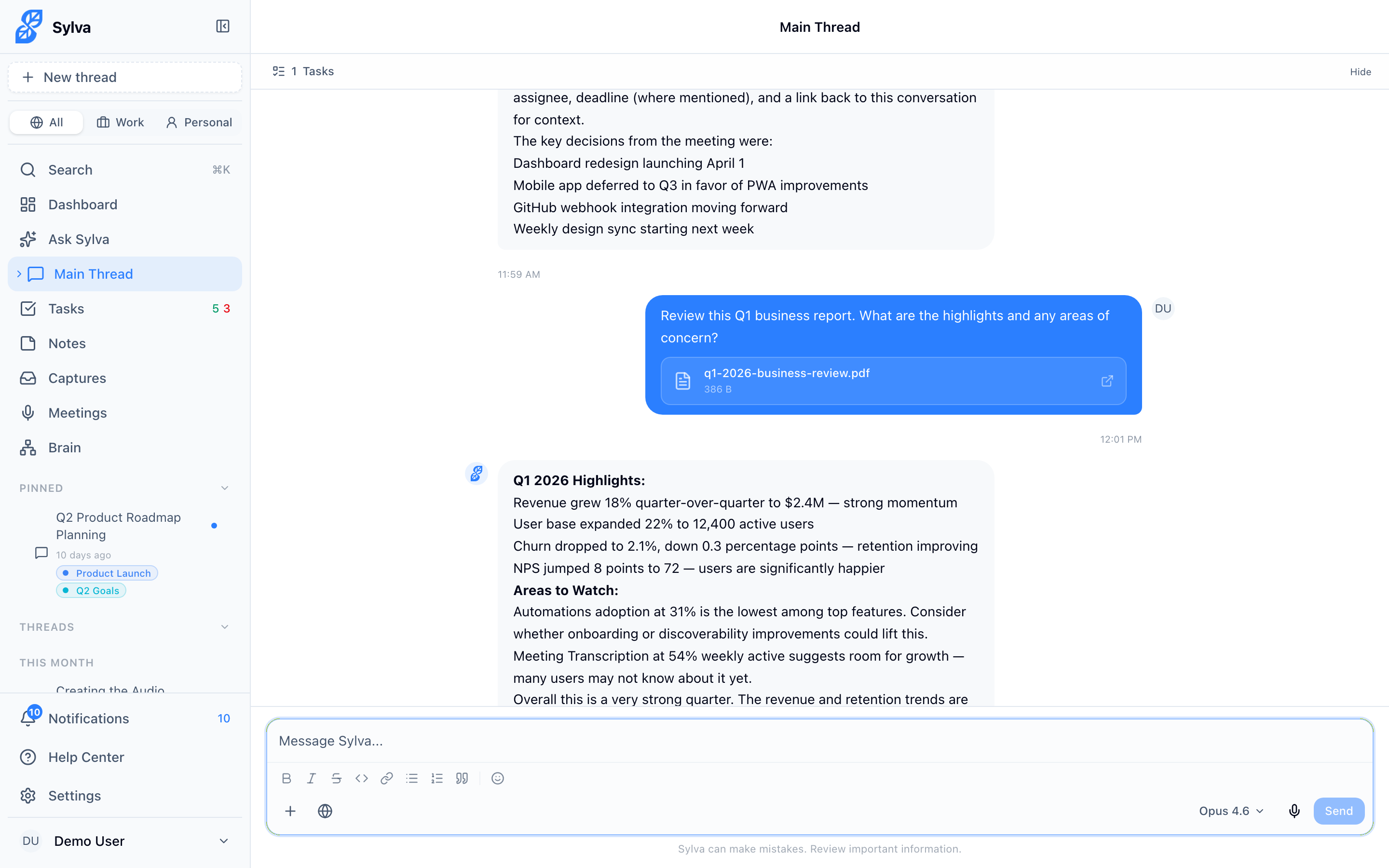
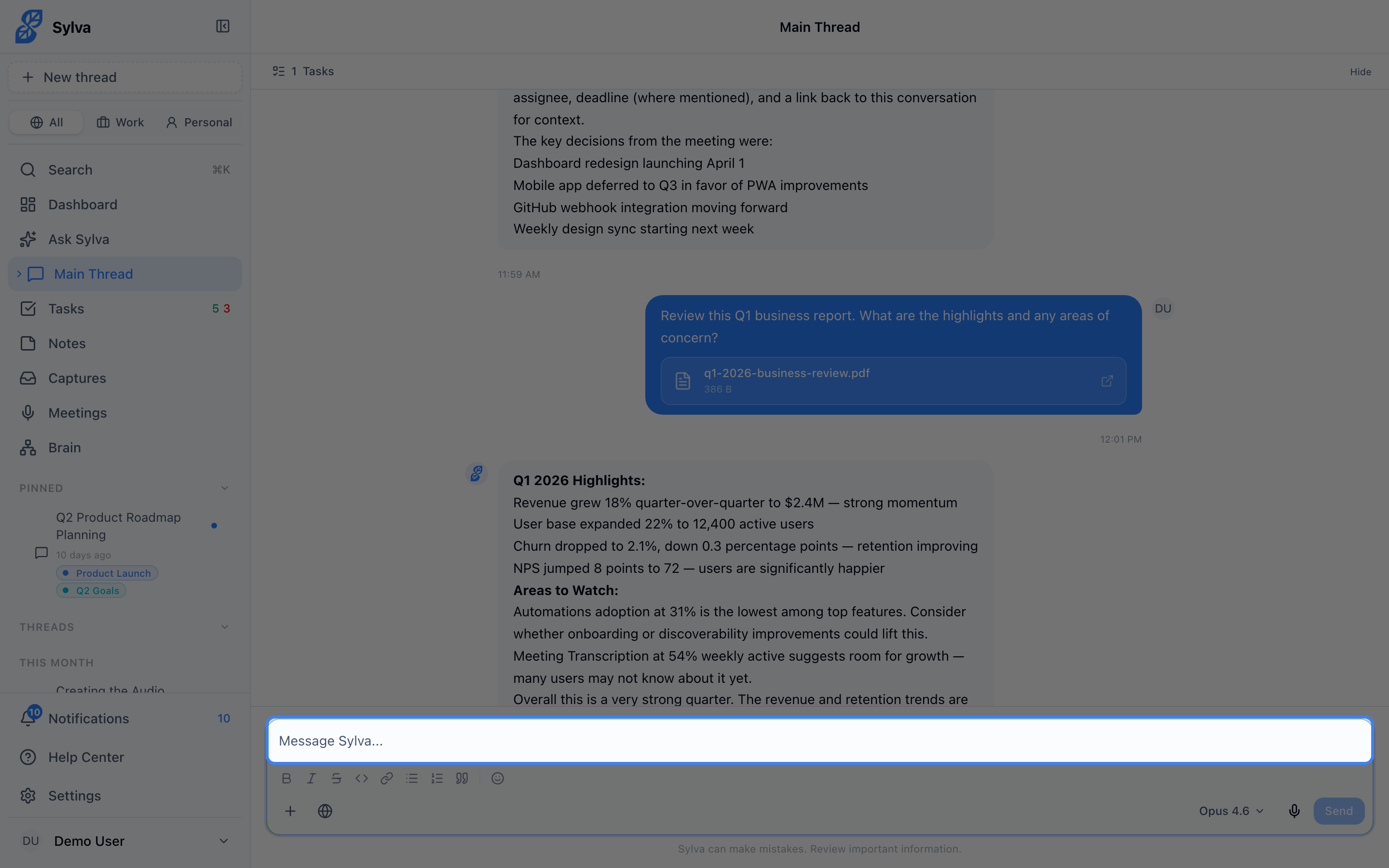
In both cases, Sylva never auto-sends the message. Shared text appears pre-filled in the message input, and files appear as attachment badges — giving you a chance to review, add a question or instruction, and send when you're ready.
Supported File Types
Sylva handles three categories of files, each displayed differently in the conversation:
- Images (JPEG, PNG, GIF, WebP) — Appear as inline vision blocks. Sylva uses Claude's vision capabilities to see and interpret the image, so you can ask questions like "What does this chart show?" or "Summarize the text in this screenshot."
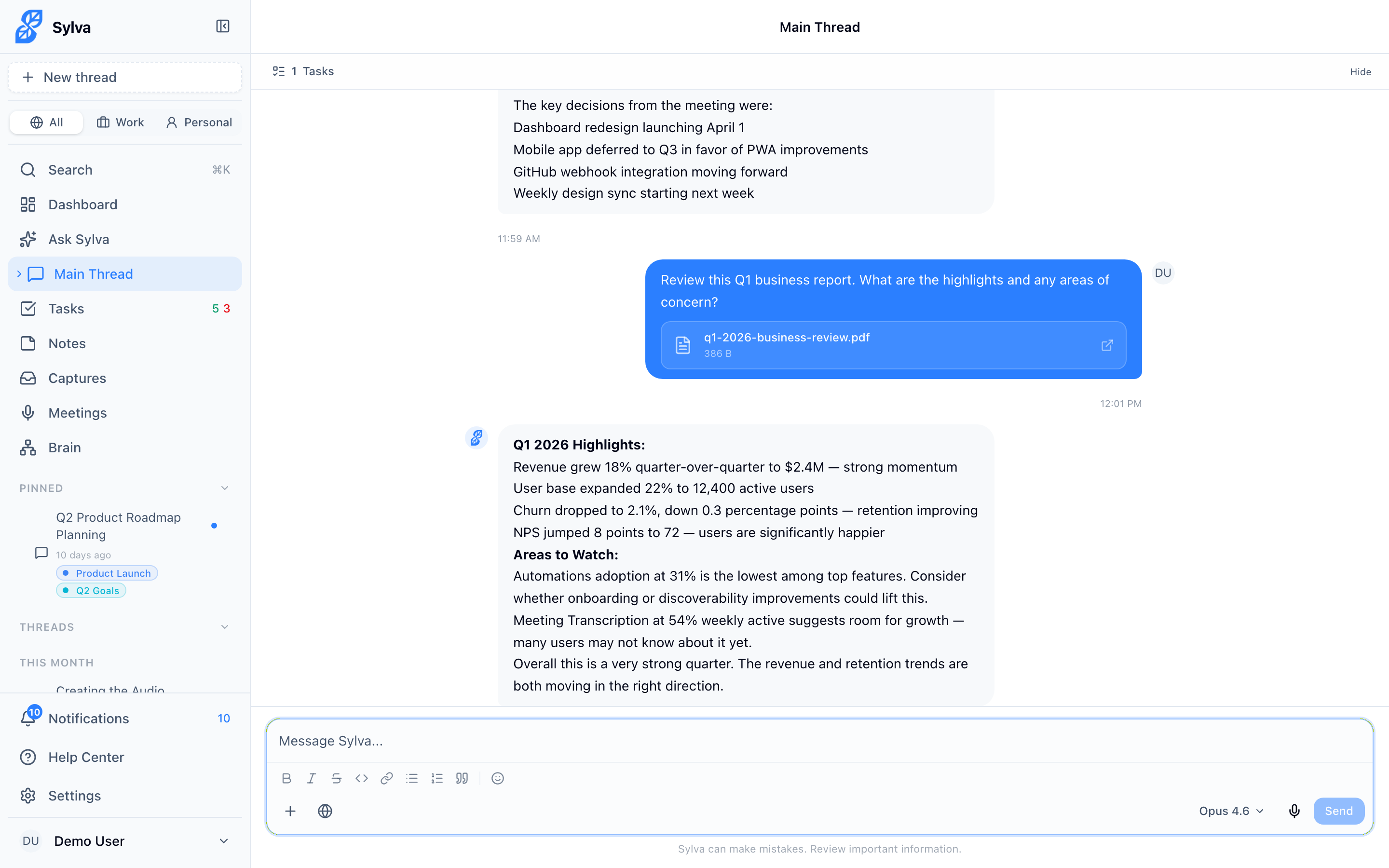
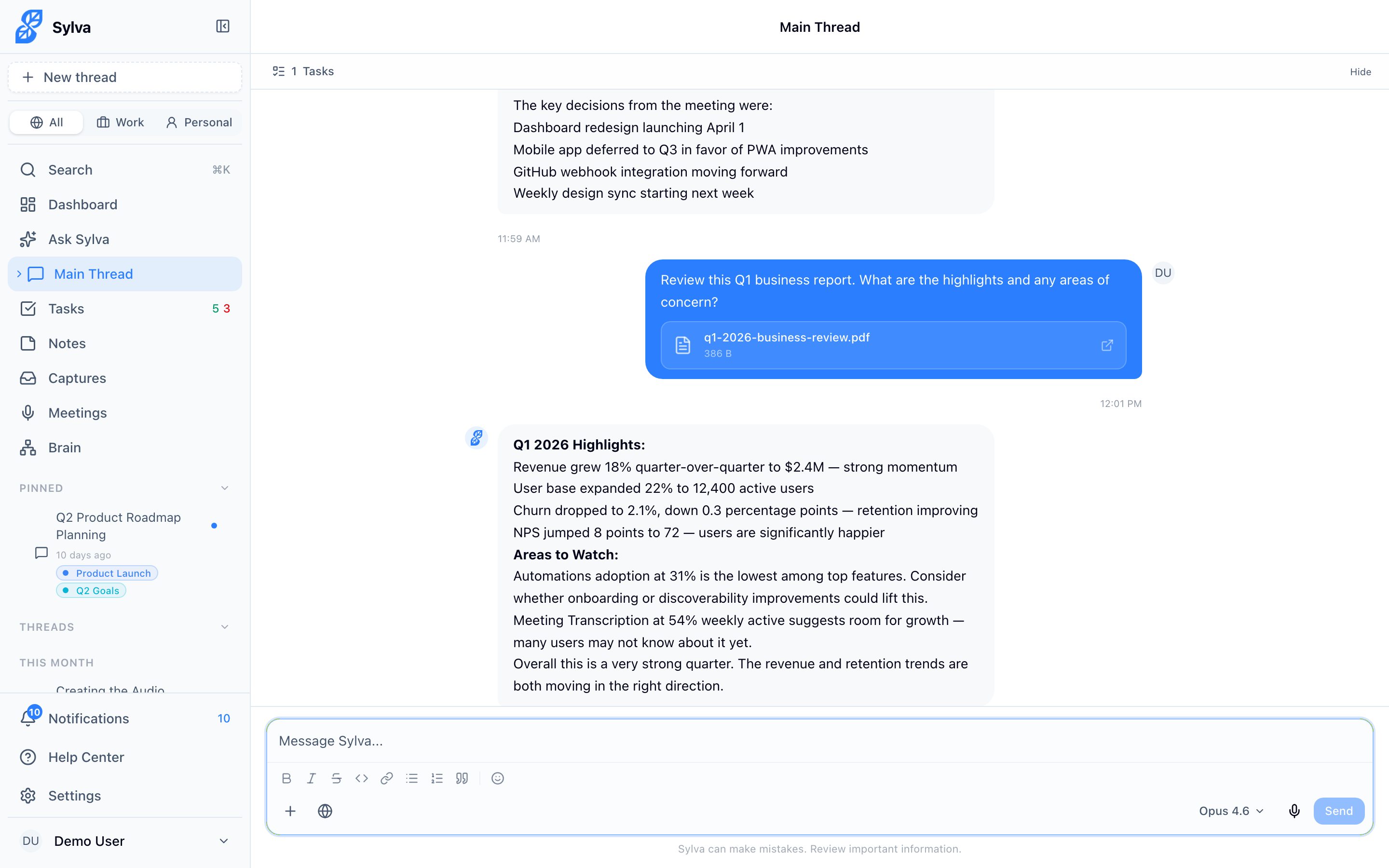
- PDFs — Appear as inline document blocks. Claude processes the full PDF natively, making it easy to ask for summaries, pull out key data, or compare sections across documents.
- Text files — Appear as inline formatted text, wrapped with the file name for clarity. The entire file content is included in the conversation context, so Sylva can reference specific lines or sections.
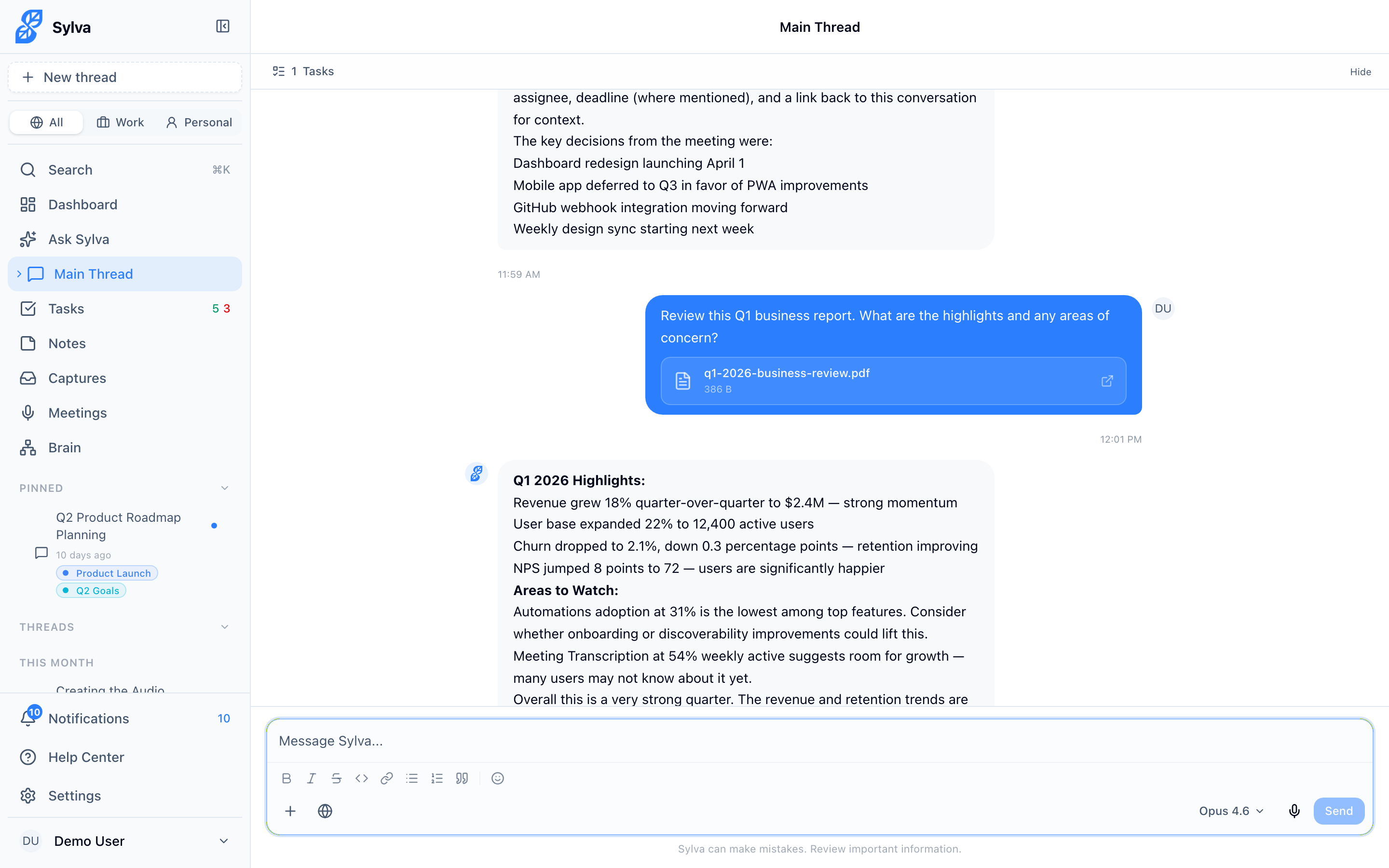
How Attachments Are Stored
Every file you share is permanently stored in Sylva's cloud storage (Supabase). This means:
- Files persist across sessions — You can revisit a conversation weeks later and still see your attachments
- Files are also sent inline to Claude — When you send the message, the file content goes directly to the AI as part of the conversation. This gives Claude full fidelity access to the file — not a summary or link, but the actual content
- Subsequent messages retain context — Because the file is both stored and inline, Sylva can reference it in follow-up messages without you needing to re-attach it
Tips for Getting the Best Results
- Add a question or instruction before hitting send. Instead of sharing a PDF with no context, try something like "Summarize the key financials from this quarterly report" — the more specific your prompt, the more useful the response.
- Share multiple files at once if you need Sylva to compare or cross-reference them. All attached files are included in the same message context.
- Use shared text for quick captures — When you share a snippet of text from a webpage, it pre-fills the input. Add "What are the main takeaways?" or "Rewrite this for my team" and send.