Sylva stores a rolling backup of your meeting audio directly in your browser's local storage (IndexedDB), so if your tab crashes, your laptop restarts, or your network drops, you can pick up right where you left off.
How the Backup Works
While you record a meeting, Sylva continuously writes audio chunks to IndexedDB inside your browser. This happens automatically — you don't need to enable anything. If the recording ends normally, Sylva assembles those chunks into a single file, uploads it, and cleans up the local data.
If something interrupts that process — a browser crash, an accidental tab close, a network failure — the chunks stay safely in IndexedDB until you return.
Pausing a Recording
You can pause and resume a recording at any time during a meeting by clicking the Pause button in the recording controls.

When a recording is paused:
- Audio is not captured — nothing is recorded or stored while paused, so you don't end up with dead air or off-the-record conversation in your transcript
- Paused time is excluded from the duration calculation — if you record for 30 minutes, pause for 10, and record for another 20, the meeting duration shows as 50 minutes, not 60
- Resuming picks up seamlessly; Sylva stitches the pre-pause and post-pause segments together into a single continuous file
Pausing is useful for breaks, side conversations you don't want transcribed, or any moment you need the mic off without ending the meeting entirely.
Recovering a Lost Recording
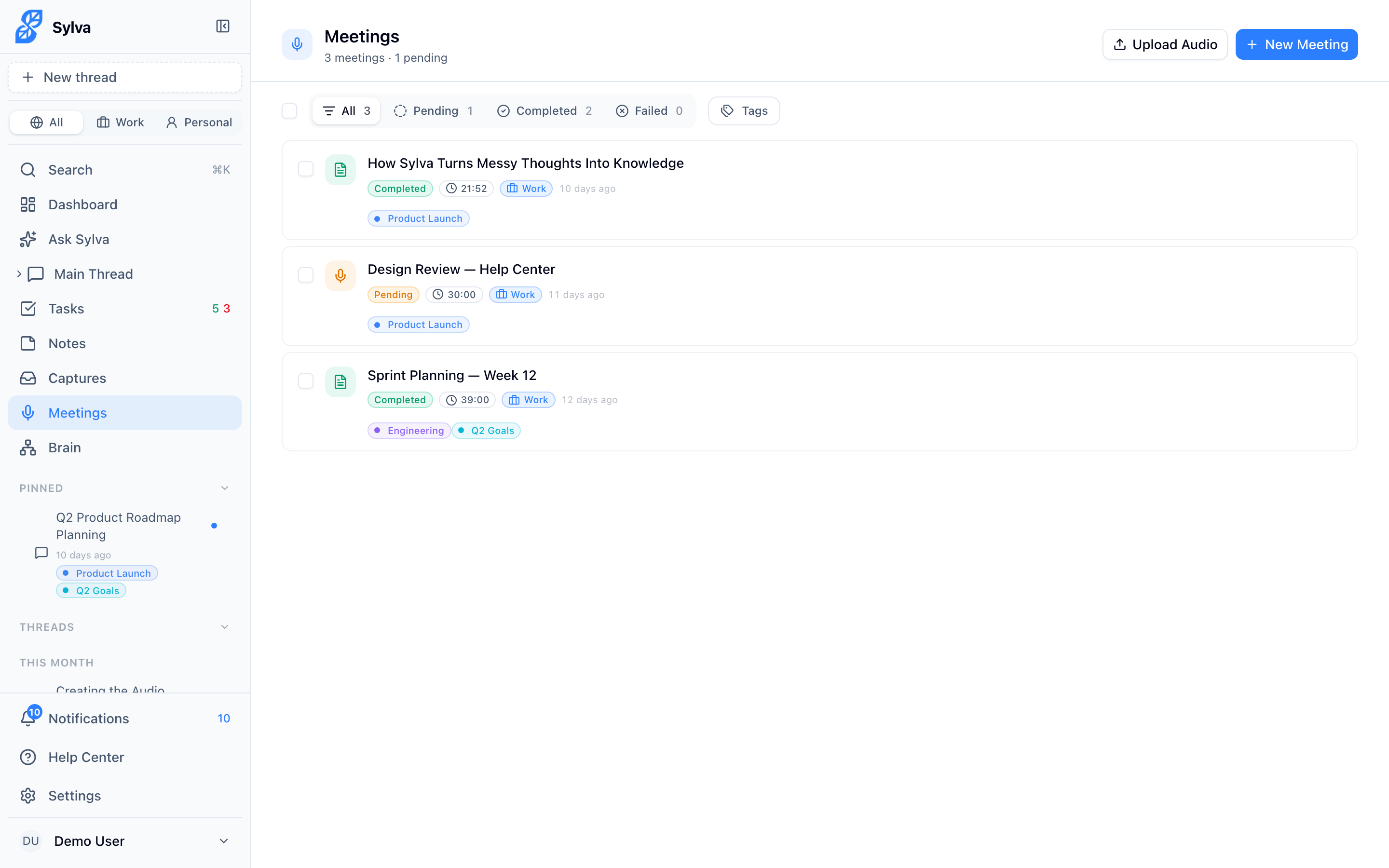
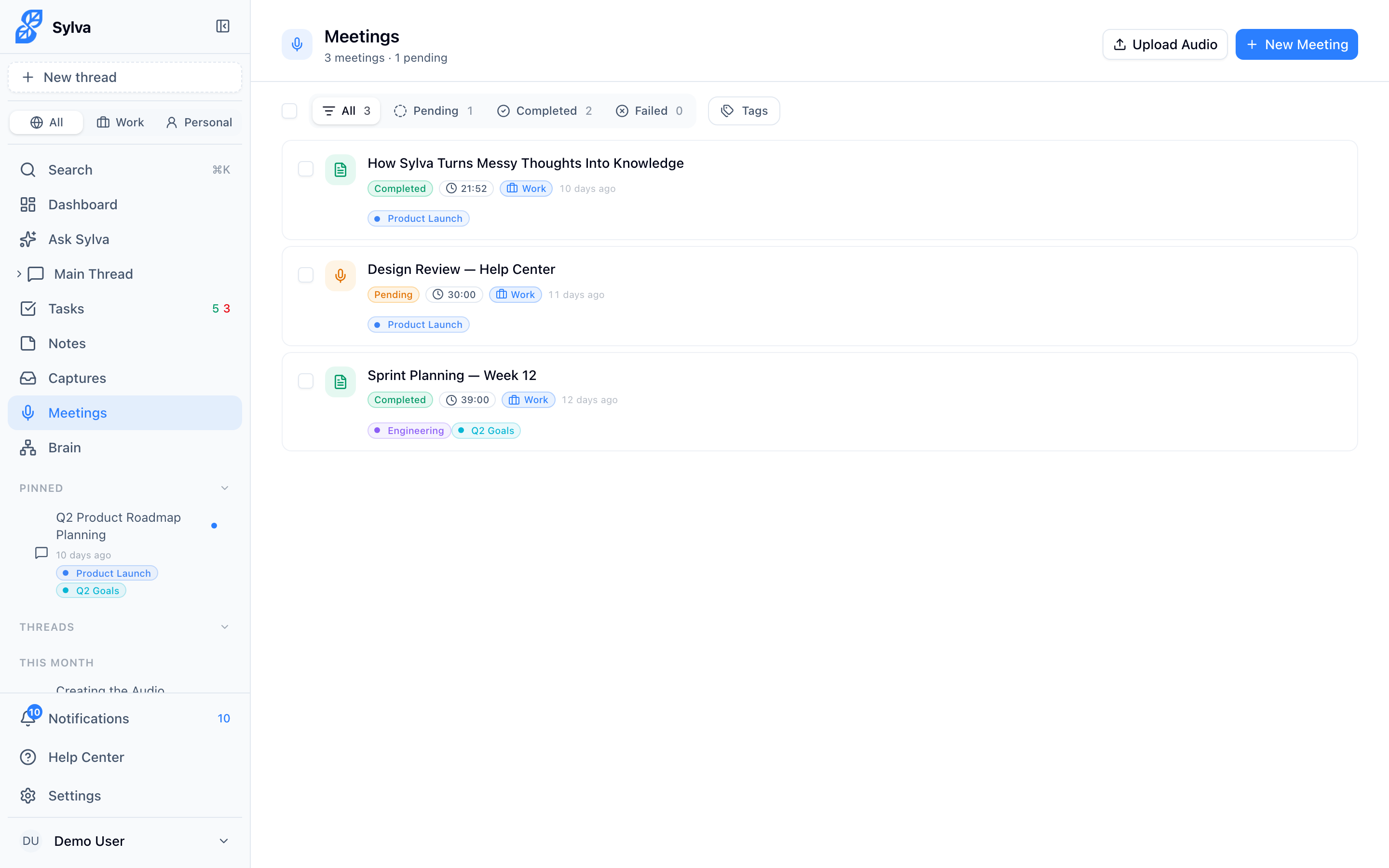
When you open the Meetings page after an interrupted recording, Sylva detects leftover audio chunks in IndexedDB and displays a recovery banner at the top of the page. The banner tells you which meeting the audio belongs to and gives you two options:
- Recover — Sylva assembles the chunks back into an audio file and uploads it. During the upload, the banner displays a percentage progress indicator so you can see exactly how far along the transfer is
- Discard — Removes the local chunks and skips recovery entirely

The upload progress is especially helpful for longer recordings on slower connections — you'll know whether you're at 12% or 92% instead of staring at an indeterminate spinner.
When Recovery Hits an Error
If something goes wrong during the assembly or upload step — a corrupted chunk, a network timeout mid-upload — Sylva does not automatically clear the IndexedDB data. Your audio chunks remain intact in the browser so you can try again.
This is a deliberate safety measure. You won't lose your last copy of the audio because of a transient error. The recovery banner stays visible, and you can:
- Retry the recovery once the issue is resolved (network restored, browser refreshed)
- Discard the chunks explicitly if you no longer need the recording
The only ways the local backup data gets removed are a successful upload or you clicking Discard. Sylva never deletes it on your behalf after a failure.
Things to Keep in Mind
- IndexedDB is per-browser — the backup lives in the specific browser and profile you recorded with. If you recorded in Chrome on your work laptop, you need to recover from that same browser
- Storage limits — most browsers allow several hundred megabytes in IndexedDB, enough for hours of compressed audio. Very long recordings (4+ hours) on browsers with restrictive storage policies could hit a limit, so for marathon sessions consider stopping and starting a new meeting at natural break points
- Private/incognito windows — IndexedDB is wiped when the window closes, so the backup safety net doesn't apply. Record in a normal browser window whenever possible