The Sylva Capture Chrome extension brings your external communications — Slack messages, Outlook emails, and web content — into Sylva automatically. Instead of copy-pasting important information into threads, the extension captures it passively as you read, and Sylva's AI processes it so it's searchable, summarized, and actionable.
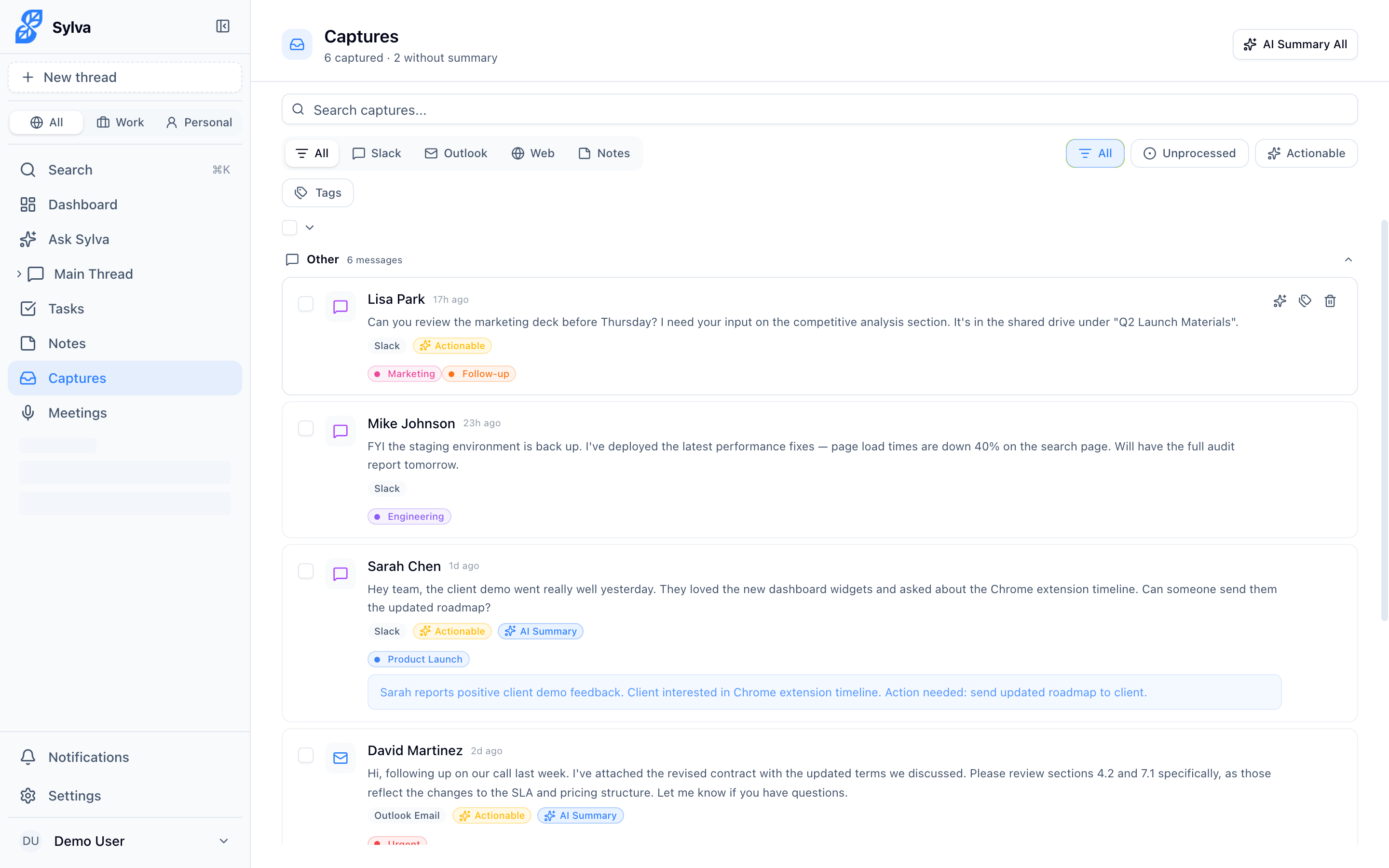
Here is an overview of the Captures page where all your captured content is displayed:
Installing the Extension
- Install the Sylva Capture extension from the Chrome Web Store
- When it opens for the first time, you'll see the Settings page with a Memory Saver onboarding banner
- Recommended: Click "Open Chrome Performance Settings" and add
slack.com,outlook.office.com,outlook.office365.com, andoutlook.live.comto Chrome's "Always keep these sites active" list — this prevents Chrome from suspending capture tabs - Sign in with your Sylva email and password
- Choose which sources to enable (Slack, Outlook, or both)
Extension Authentication
When you sign in to the extension, it authenticates against the /api/captures/auth endpoint using your Sylva email and password. This endpoint validates your credentials and returns a session token that the extension stores locally and uses for all subsequent capture syncs.
The extension shares the same API infrastructure as the Intake System — both use the /api/captures endpoint to submit captured content. However, they use different authentication mechanisms:
- Chrome Extension — Authenticates via
/api/captures/authwith your Sylva user credentials (email and password). The returned session token is sent with each sync request. - Email Intake — You can also forward or send emails directly to your Sylva intake address. These are processed through the same capture pipeline as extension captures, giving you an alternative input method that works from any email client — even on devices where the extension isn't installed.
- Intake System API keys — Authenticate via API keys generated in Settings > Integrations. These are designed for server-to-server or automated integrations rather than interactive browser sessions.
All three paths feed into the same capture processing pipeline, so content submitted through any mechanism appears on your Captures page and is processed identically by Sylva's AI.
Other Ways to Push Data into Sylva
The Chrome extension is the most common way to get external content into Sylva, but it's not the only one. The Intake API provides alternative paths for situations where the extension isn't available or isn't the right fit:
- REST endpoint — Send content directly to the
/api/capturesendpoint from any HTTP client, script, or automation tool. Authenticate with an API key from Settings > Integrations. This is useful for piping in data from internal tools, CRMs, or custom workflows. - Email intake — Forward or send emails to your Sylva intake address. Every Sylva account has a unique intake email — find yours in Settings > Integrations. Anything you send there enters the same capture pipeline as extension content.
- GitHub webhooks — Connect a GitHub repository to Sylva so that events like pull request comments, issue updates, and code reviews are captured automatically. Configure the webhook URL and secret in Settings > Integrations.
All of these feed into the same processing pipeline as the Chrome extension — content appears on your Captures page and receives the same AI summarization, task extraction, and search indexing.
Connecting Your Sources
The extension only captures from sources you explicitly enable. Nothing runs until you turn it on.
Slack
- Click the extension icon and go to Settings (or right-click the icon and choose Options)
- Toggle Slack on
- Your browser will ask permission to access slack.com — click Allow
- That's it. The extension now captures Slack messages as you read them in your browser
Slack settings you can customize:
- Capture your own messages — Off by default. Turn on if you want your sent messages included
- Capture bot messages — Off by default. Turn on to capture automated messages
- Channel filter — Choose between two modes:
- "Capture all except these" (default) — Captures from all channels except the ones you list
- "Only capture these" — Only captures from the channels you list, ignoring everything else
- Channel list — Comma-separated list of channel names. Supports wildcards:
eng-*matches all channels starting with "eng-",*-standupmatches all channels ending with "-standup"
Outlook
- In the extension settings, toggle Outlook on
- Your browser will ask permission to access Outlook sites — click Allow
- The extension captures emails and calendar events based on your chosen capture modes
Supported Outlook domains: The extension works with outlook.office.com, outlook.office365.com (corporate), and outlook.live.com (personal).
Outlook settings you can customize:
- Email capture mode — Choose between:
- Capture selected emails (default) — A "Send to Sylva" button appears when reading emails. Click it to capture the email manually
- Capture all emails — Emails are captured automatically as you read them
- Calendar capture mode — Choose between:
- Capture selected events (default) — Click the "Send Event to Sylva" button to capture a calendar event
- Capture events automatically — Calendar events are captured automatically when you click to view them
- Show capture button — Toggle the "Send to Sylva" button on or off (only shown in manual email mode)
- Ignored folders — Folders to skip when in auto email mode (defaults to "Junk, Spam"). Supports wildcards:
Newsletter*matches all folders starting with "Newsletter"
How Capture Works
The extension works passively in the background. As you browse Slack or Outlook normally:
- Slack: When new messages appear in a channel or DM you're viewing, they're captured. Threaded conversations are kept together — the original message appears at the top with all replies grouped beneath it, so you get the full context of a discussion
- Outlook emails: Depending on your email capture mode — either automatically when you read an email, or manually by clicking the "Send to Sylva" button
- Outlook calendar: Depending on your calendar capture mode — either automatically when you click on an event, or manually by clicking the "Send Event to Sylva" button
- Web pages: Right-click any page or selected text and choose "Send to Sylva" to capture it manually
Captures are queued locally on your device and synced to Sylva on a configurable interval. You can set the Sync interval in the extension settings to every 1 minute (default), every 2 minutes, or every 5 minutes. If you're offline, captures are stored locally and sync when you're back online.
Quick Notes
The extension popup includes a Quick Note box where you can type a thought and send it directly to Sylva — no need to open the app. Think of it as a fast way to jot something down while you're browsing.
Quick Capture
When you're away from the extension — on your phone, in a different browser, or anywhere you can't right-click and send — use the Quick Capture page at /capture to manually send content into Sylva. Enter a title (optional), the content you want to remember, and optionally attach a URL. Choose a Work or Personal context and hit save. The capture is submitted to the same pipeline as extension captures, so it shows up on your Captures page and gets the same AI processing.
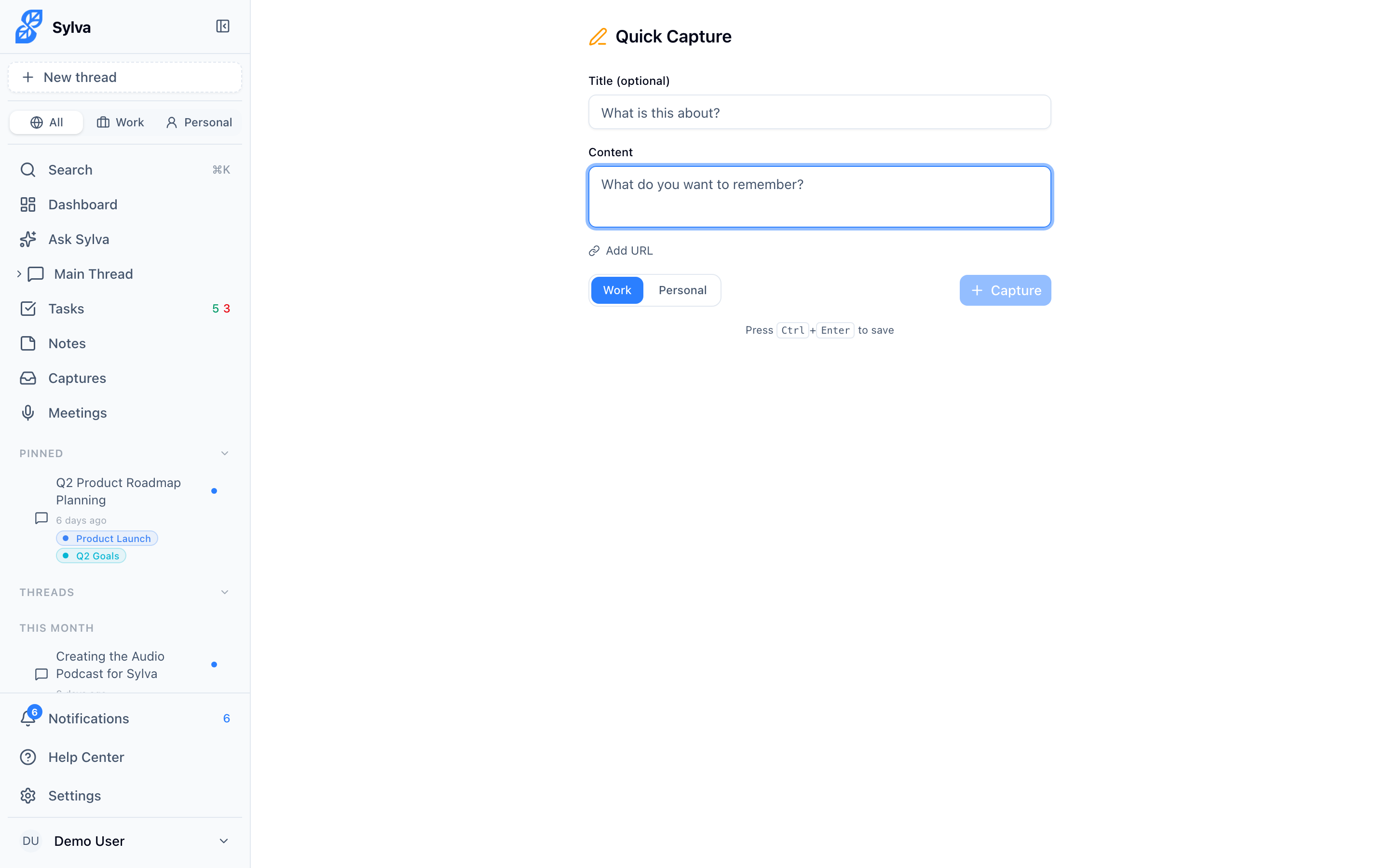
You can access Quick Capture from the app shortcut on your home screen or by navigating directly to /capture. Press Ctrl+Enter (or Cmd+Enter on Mac) to save quickly without reaching for the button.
Sharing Files via the PWA
If you've installed Sylva as a Progressive Web App on your phone or desktop, you can share files directly into Sylva using your device's native share sheet — the same menu you use to share photos, PDFs, or text to any other app.
When you share a file to Sylva, a share screen appears where you choose what to do with it:
- Ask Sylva — Sends the file straight into your Main Thread conversation. Sylva's AI analyzes the file inline — extracting text from PDFs, describing images, reading documents — so you can ask follow-up questions about it immediately.
- Save to Captures — Stores the file as a capture with a title and optional notes, processed through the same pipeline as extension captures.
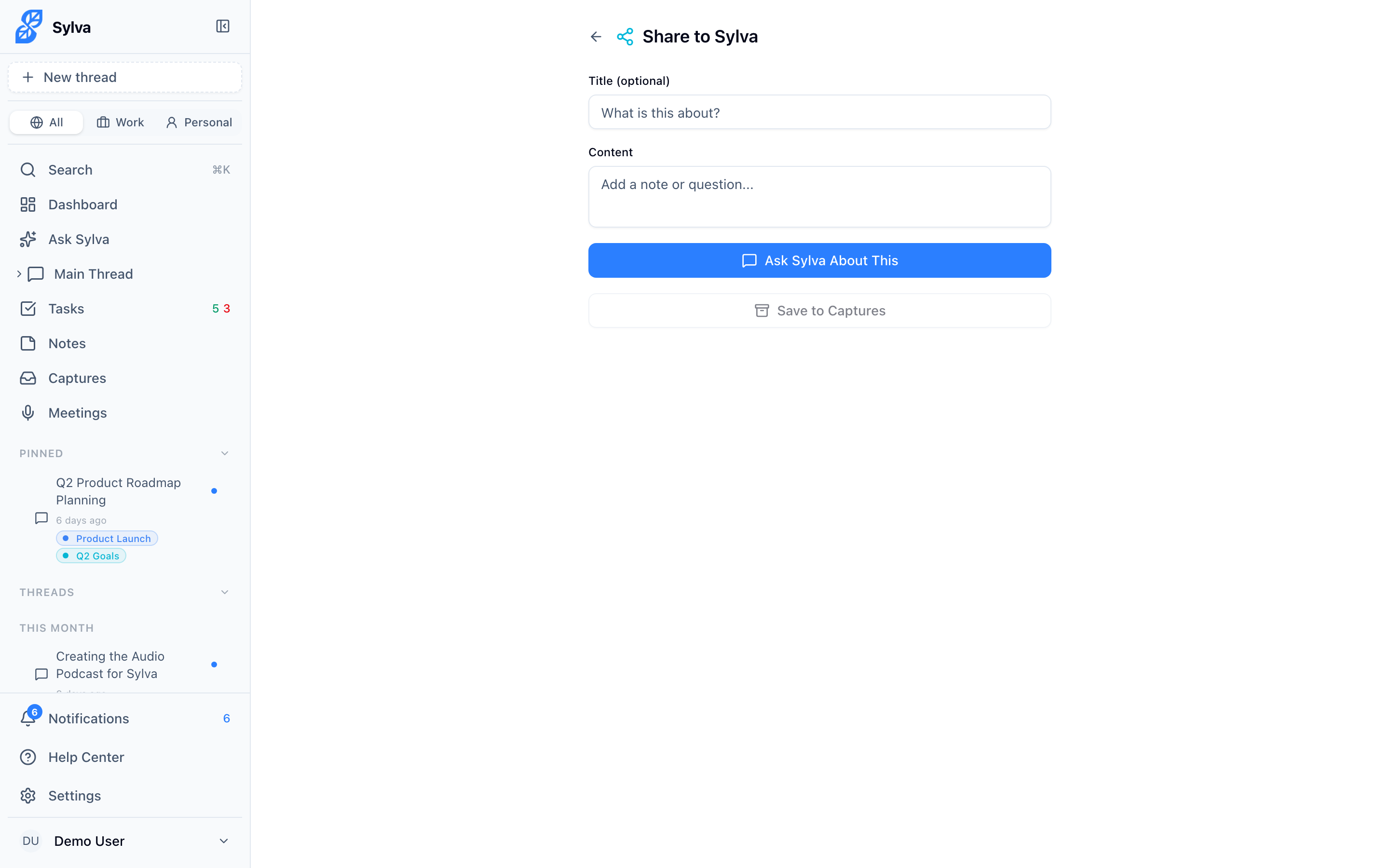
Supported file types include images (JPEG, PNG, GIF, WebP, SVG), PDFs, and plain text files. You can share multiple files at once — review and remove individual files on the share screen before choosing an action.
This is especially useful on mobile. Screenshot a whiteboard, share it to Sylva, and ask "What are the action items from this photo?" — all without opening the app first.
Pausing Capture
Need to stop capturing temporarily? Click the extension icon and toggle Pause on. All capture stops until you unpause. When paused, the extension icon shows an orange badge so you can tell at a glance that capturing is off. This is useful during sensitive conversations or when you're browsing personal content.
The Captures Page
All your captured content lives on the Captures page in Sylva. This is where you can browse, search, and manage everything the extension has collected.
Filtering and searching:
- Source tabs — Filter by All, Slack, Outlook, Web, or Notes to see captures from a specific source

- Status filters — Show All, Unprocessed (not yet analyzed by AI), or Actionable (flagged as needing your response)
- Tag filter — Click the tag filter button to show only captures with specific tags
- Search — Type keywords to find specific captures by title, sender, or content

AI Summaries:
You can generate AI summaries for all your captures at once using the bulk summary action.

Tagging captures:
Hover over any capture card to reveal action buttons. Click the tag icon to open a popover where you can toggle tags on or off. Tags appear as colored badges on each capture card.
Browsing captures:
- Slack thread messages are grouped together — you'll see the original message as a header with all replies nested below it, keeping full conversations intact
- Each capture card shows the source icon, sender, time, and a summary (if AI has processed it)
- Captures are paginated so the page loads quickly even with thousands of items
Bulk actions:
Use the select-all checkbox to select multiple captures at once for bulk operations like deleting or triggering AI summaries.
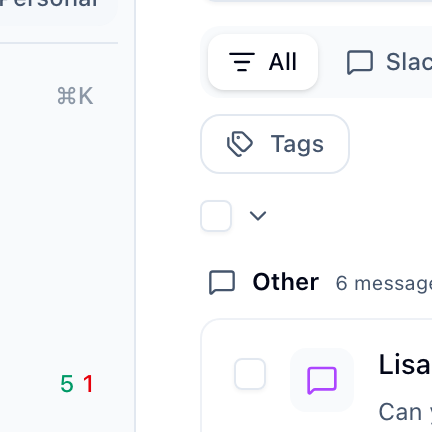
- Filter by source when selecting — for example, select all Slack captures at once
- With items selected, you can delete in bulk or trigger AI summaries for all unsummarized captures at once
What Sylva Does with Your Captures
Once captures arrive in Sylva, the AI processes them automatically:
- Summarizes each capture into a concise summary
- Flags actionable items — messages that need a response, emails with requests, etc.
- Extracts tasks — if someone asks you to do something in Slack or email, Sylva can create a task for you
- Generates embeddings — so your captures are searchable via Ask Sylva
Communications Digest
Every day, Sylva generates a Communications Digest in your Main Thread. This is a summary of everything captured in the last 24 hours, organized into:
- Needs Response — Messages and emails where someone is waiting on you
- Key Decisions — Important decisions made in your communications
- Action Items — Things you need to do based on your messages and emails
- FYI — Informational items worth knowing about
You can also trigger the digest manually from Settings > Agents using the Run Now button.
Daily Briefing Integration
Your morning Daily Briefing automatically includes information from your captures:
- Actionable communications — Important messages that need attention
- Unresponded @mentions — Slack messages where someone mentioned you and you haven't replied yet
Dashboard Widget
When the Chrome Extension is connected, your Dashboard shows a Capture Stats widget displaying how many items were captured and a breakdown by source:
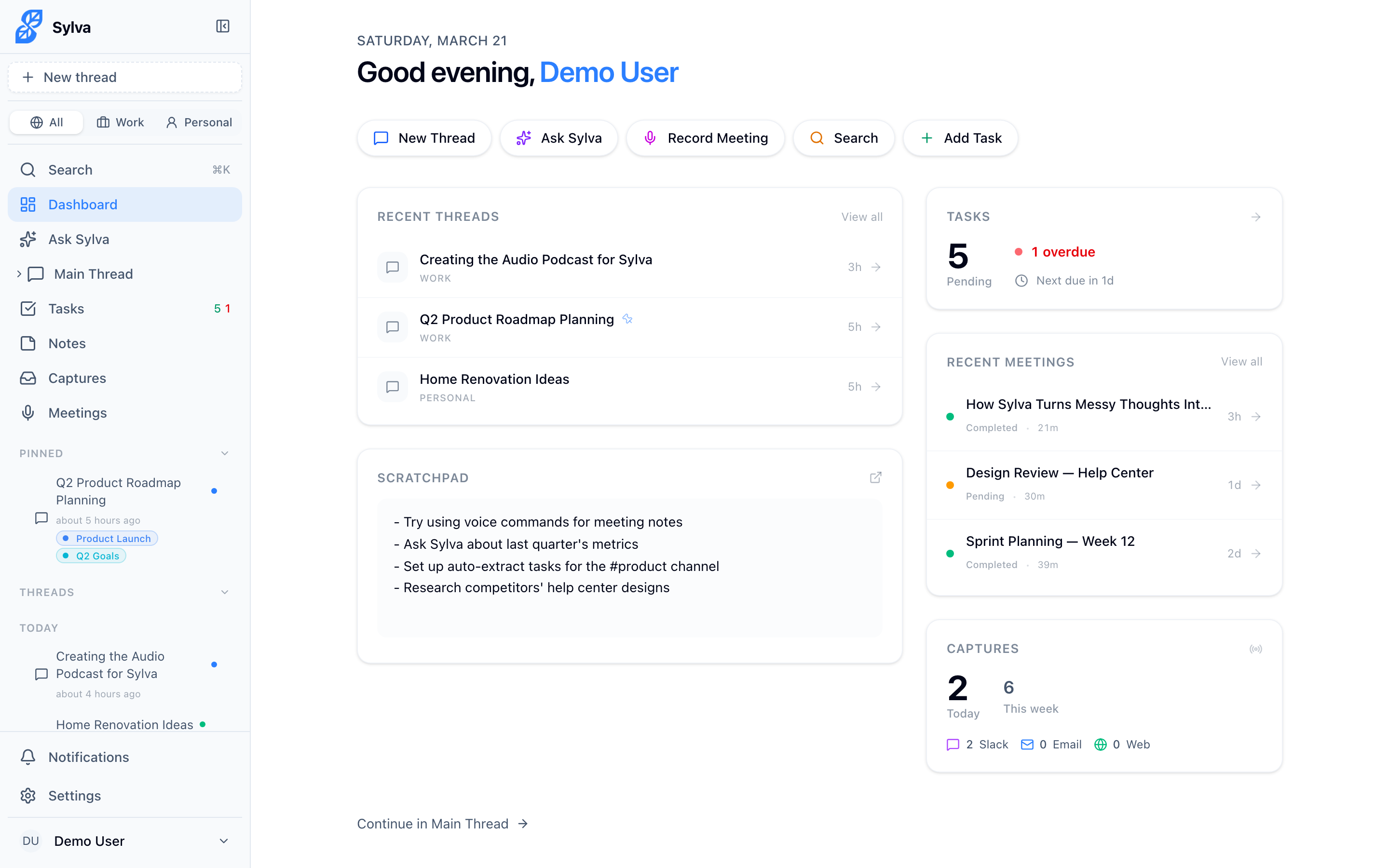
- How many items were captured today and this week
- A breakdown by source (Slack, Outlook Email, Outlook Calendar, Web, Notes)
- Quick access to your communications digest
Privacy & Permissions
- The extension only accesses sites you explicitly enable — Slack and Outlook permissions are requested separately, and only when you turn each one on
- You can revoke access at any time by disabling a source in the extension settings
- Captures are stored in your Sylva account — the same security and encryption that protects your threads and messages applies here
- The extension does not capture from sites you haven't granted it access to