Sylva can search the internet mid-conversation to bring in up-to-date information from the web.
Using Web Search
When web search is set to Toggle mode, you will see a globe icon next to the input bar. Click it to enable web search for your next message:
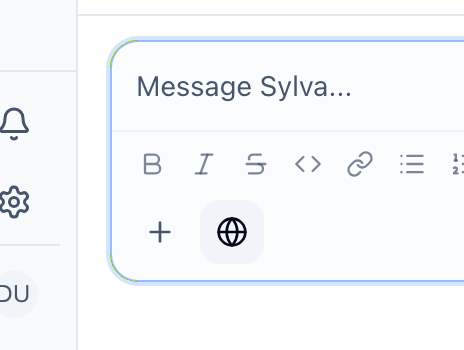
When web search is active, Sylva pulls in relevant results from the internet and weaves them naturally into its response.
Web Search Modes
Configure this in Settings > AI & Voice:
- Off — Web search is disabled entirely
- Toggle — A globe icon appears next to the input bar. Click it to enable web search for a specific message
- Auto — Sylva decides on its own when a web search would be helpful based on your question
Sharing Content Into Sylva
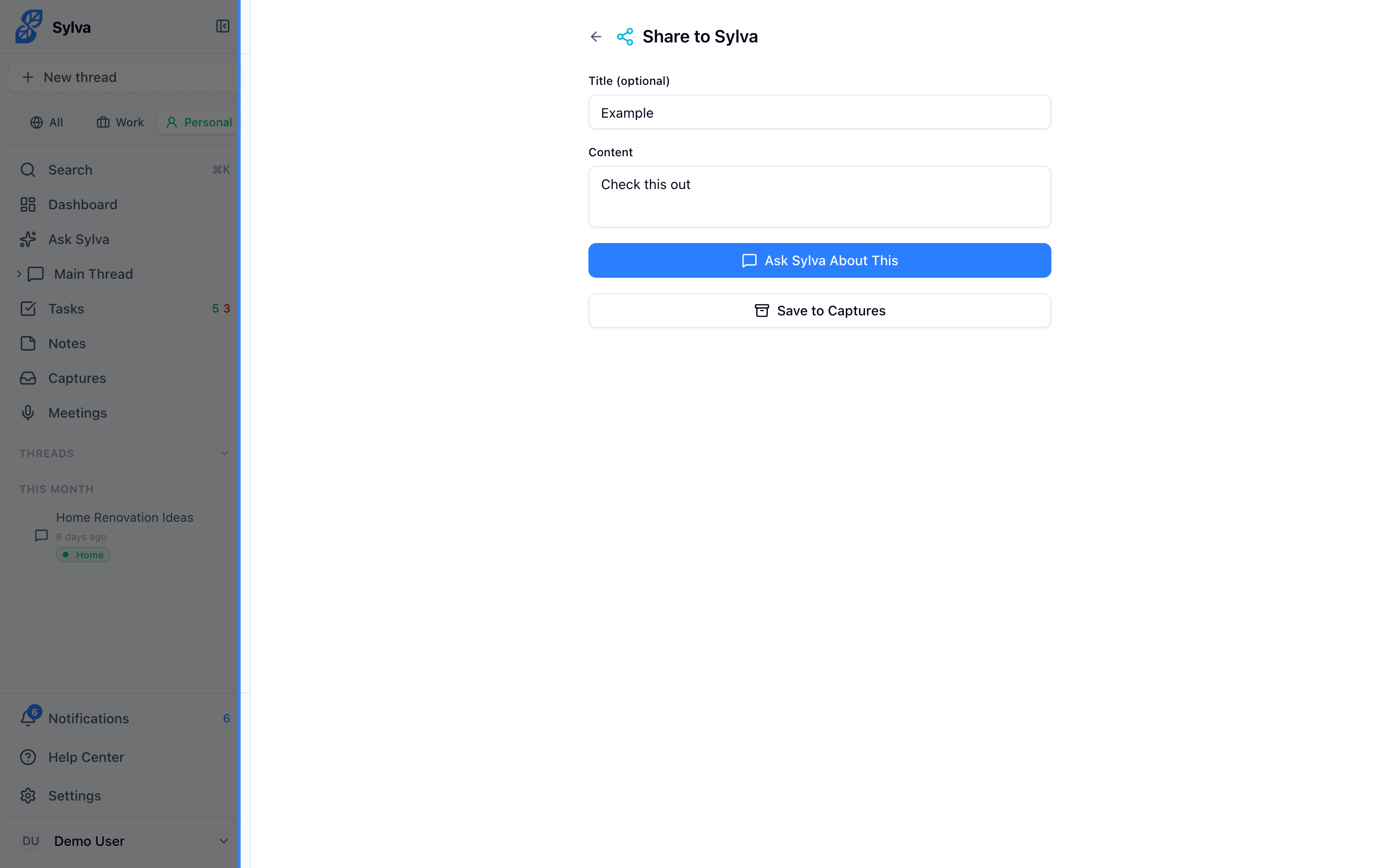
When you use your device's share sheet to send content to Sylva — a link from your browser, a snippet of text from another app, or a file — the share page gives you two distinct options:
- Ask Sylva About This — Opens the chat with your shared content pre-filled in the input, so you can immediately ask Sylva questions about it. This is the fastest way to get analysis, a summary, or answers about something you've found elsewhere.
- Save to Captures — Archives the shared content to your notes for later reference, without starting a conversation. Use this when you want to hang on to something but don't need to act on it right now.
Sharing Files
Sylva's PWA share target accepts images (JPEG, PNG, GIF, WebP, SVG), PDFs, and plain text files. When you share one or more files from another app:
- Your device's share sheet sends the files to Sylva
- The share page shows a preview of each file — thumbnails for images, file names for documents
- Choose Ask Sylva About This or Save to Captures
If you choose Ask Sylva About This, Sylva opens the chat with the files attached and pre-fills the input text with "What's in this?" — ready for you to send as-is or replace with your own question. If you shared custom text along with the files, that text appears in the input instead.

Sylva processes inline images and documents directly in the conversation — you can ask it to summarize a PDF, read a receipt, describe a photo, extract data from a screenshot, or anything else you'd ask a knowledgeable colleague who's looking at the same file.