Sylva's PWA share target lets you send content — text, URLs, images, PDFs — directly into Sylva from any app on your device, so you never lose a thought or reference while you're in the middle of something else.
Installing Sylva as an App
Before your device's share menu can show Sylva as a target, you need to install Sylva as a Progressive Web App (PWA). For full installation steps, see the Installing as an App article.
Once installed, Sylva registers itself as a share target with your operating system. You'll see it appear the next time you open a share sheet.
Sharing Content to Sylva
From any app, browser tab, or photo viewer on your device:
- Tap the Share button (or use your device's share gesture)
- Select Share to Sylva (labeled Sylva on some devices) from the share menu
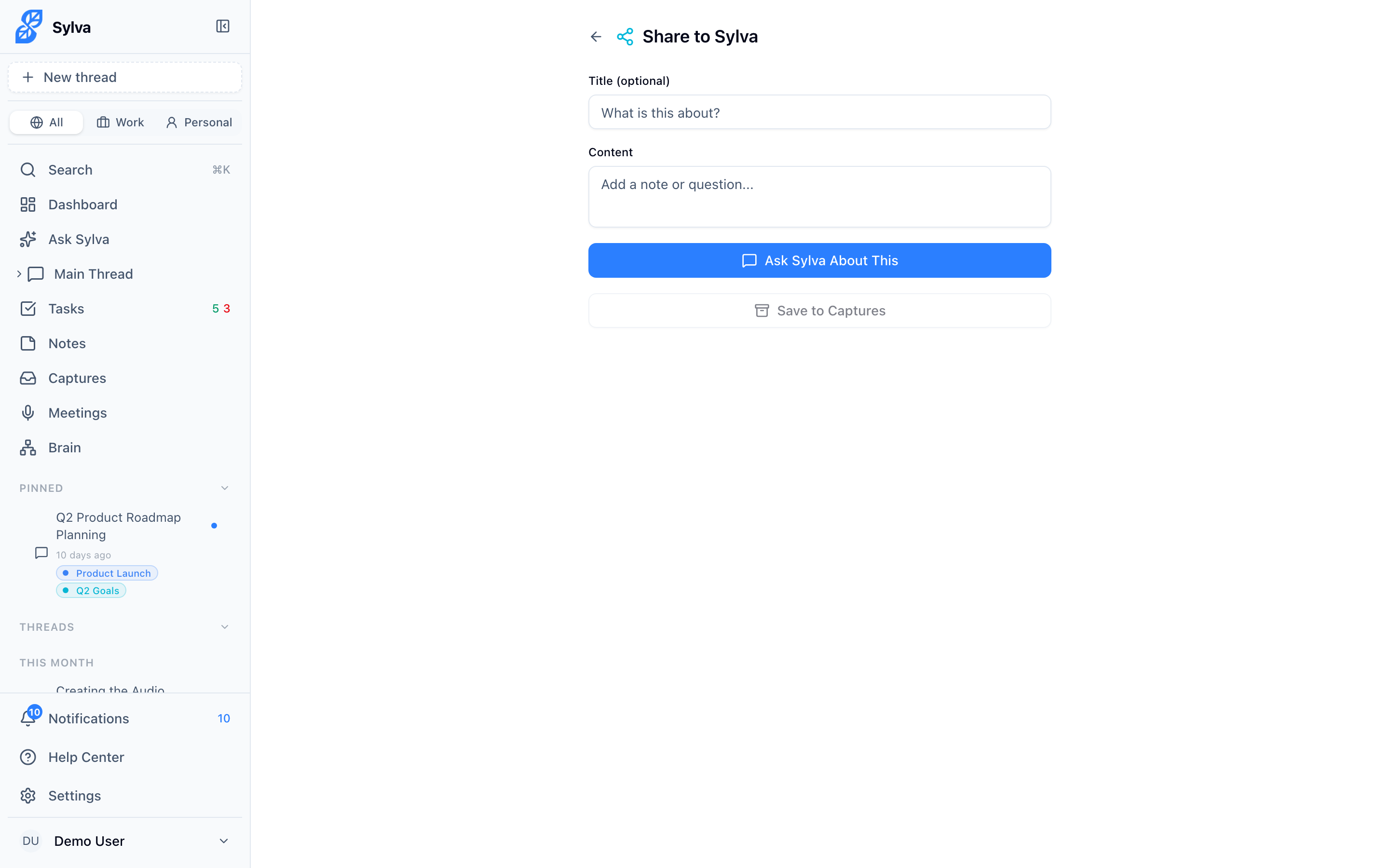
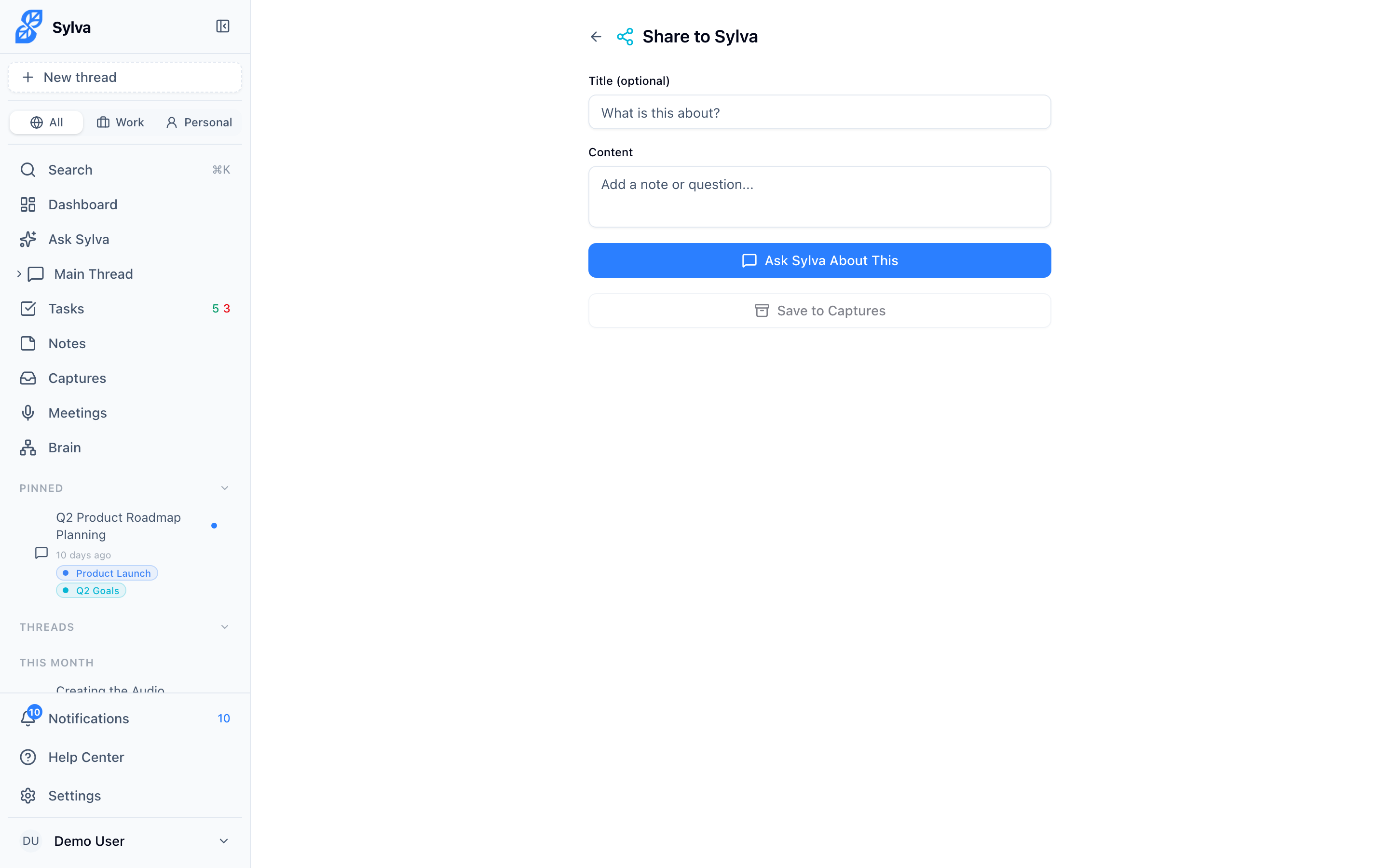
- Sylva opens with the shared content pre-filled on the Share page
- Review and edit the content — adjust the title, body text, or URL as needed
- Tap Save to capture it
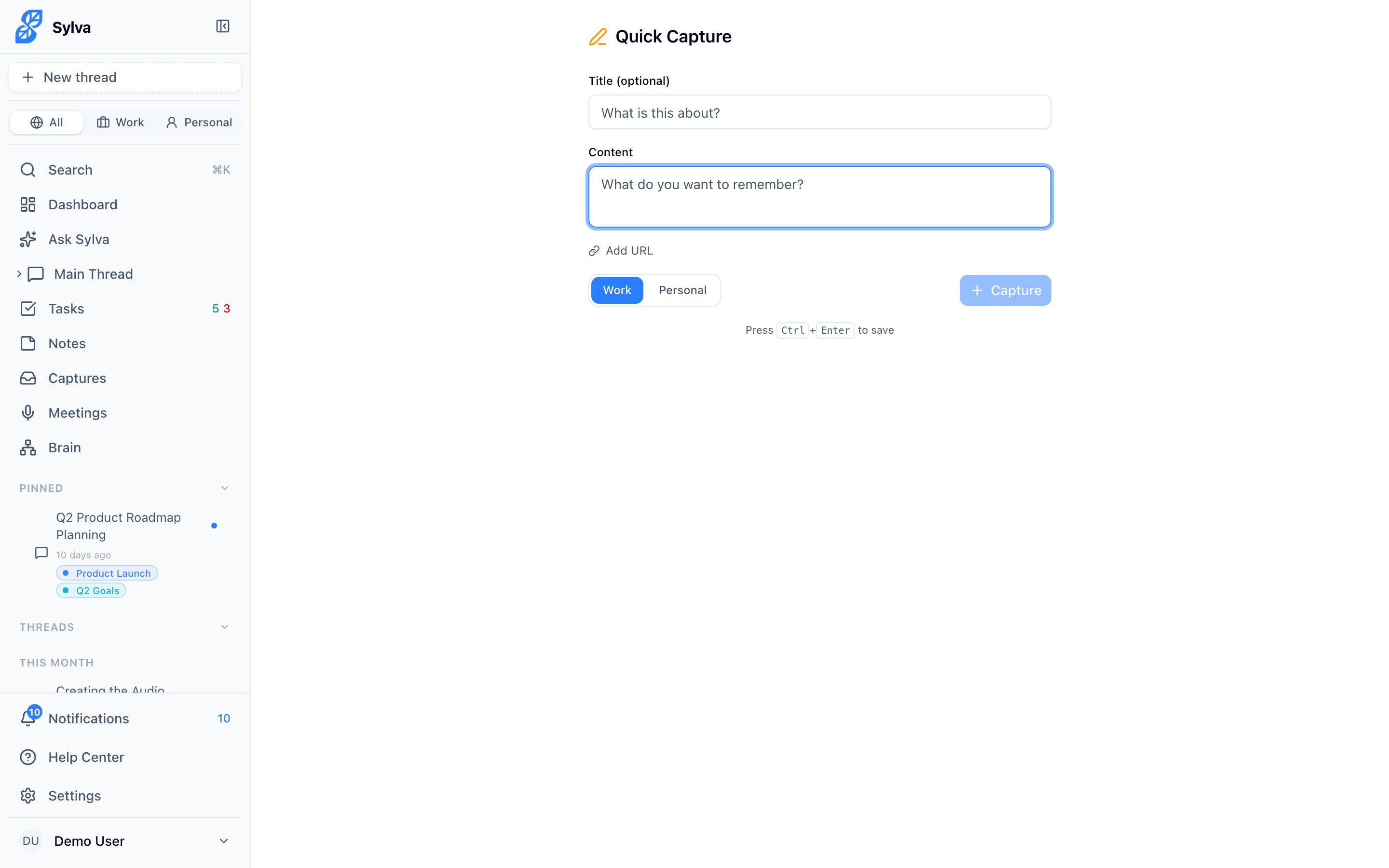
You can also press Ctrl+Enter (or Cmd+Enter on Mac) to save without reaching for the button.
What You Can Share
Sylva accepts several types of content through the share menu:
- Text and titles — Selected text, note content, or any plain text your app shares
- URLs — Web links from browsers, articles, social media posts, or any app that shares links
- Images — JPEG, PNG, GIF, WebP, and SVG files
- Documents — PDFs and plain text files (.txt)
When you share multiple items at once — for example, a link with a title and description — Sylva maps each piece into the appropriate field on the share page. When you share files, Sylva displays image previews and lets you remove individual files before saving.
How Sylva Stores Shared Content
When you save, Sylva creates a capture with its source set to share so you can distinguish shared items from manual captures, Chrome Extension captures, or meeting extracts. Any files you include are uploaded to secure cloud storage and linked in the capture's metadata — they won't bloat your local device.
Android vs. iOS
The share experience works on both platforms, with minor differences in how the operating system presents it:
- Android — Share to Sylva appears in the native share sheet across all apps. Android registers the share target automatically when you install the PWA
- iOS — Sylva appears in the Safari share sheet and in compatible apps that use the standard iOS share API. You may need to scroll the app row or tap More to find Sylva the first time, then reorder it for quicker access
Supported File Types
Sylva's share target explicitly accepts these MIME types and extensions:
image/*— JPEG (.jpg, .jpeg), PNG (.png), GIF (.gif), WebP (.webp), SVG (.svg)application/pdf— PDF documents (.pdf)text/plain— Plain text files (.txt)
If an app tries to share a file type outside this list, it either won't show Sylva in the share menu or the file will be ignored — your other shared text and URLs still come through.