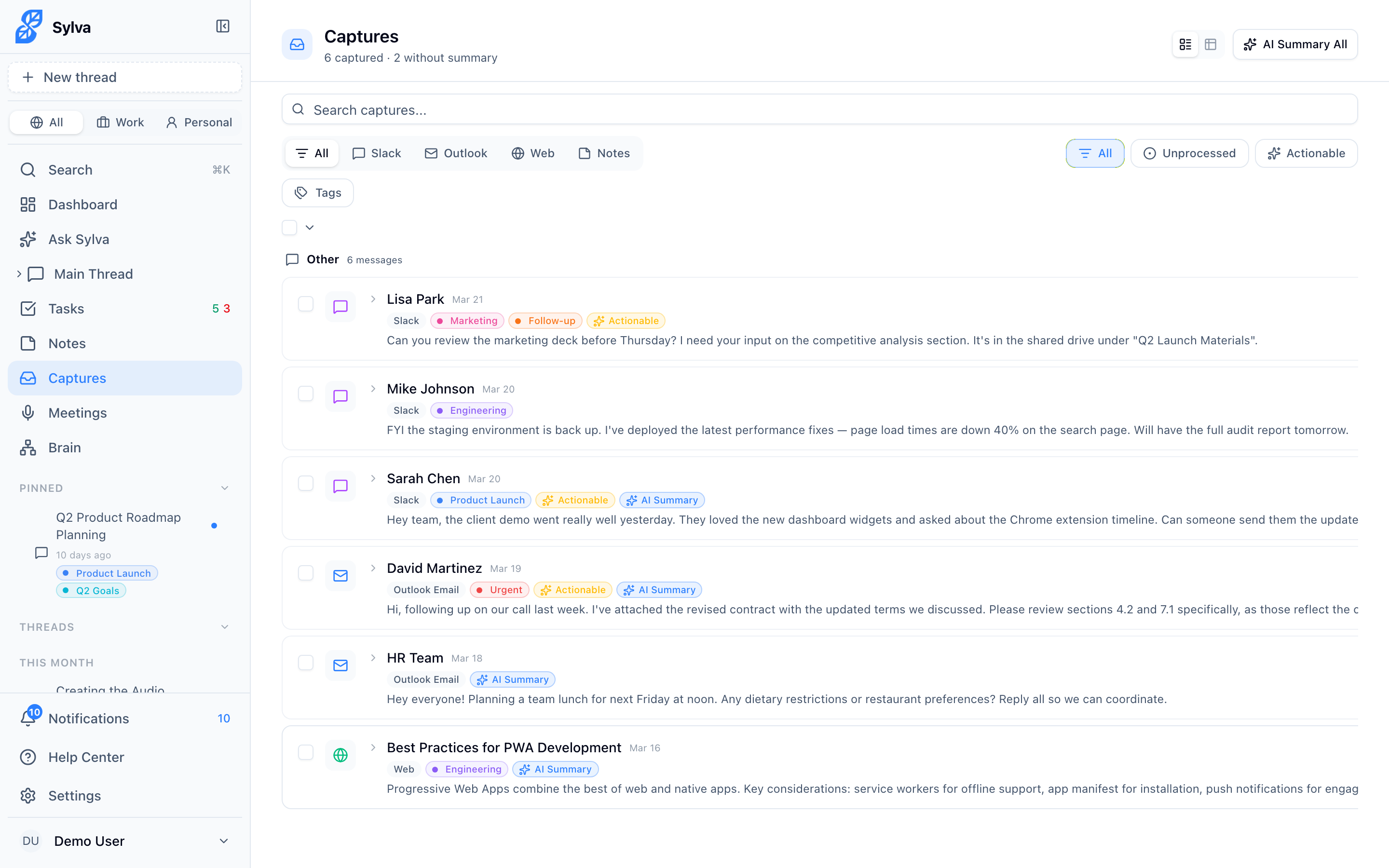
Captures are your inbox for everything worth remembering — quick notes, shared articles, emails, GitHub notifications, and content pulled from Slack or the web by the Chrome Extension.
Creating Captures
There are several ways to get content into Sylva:
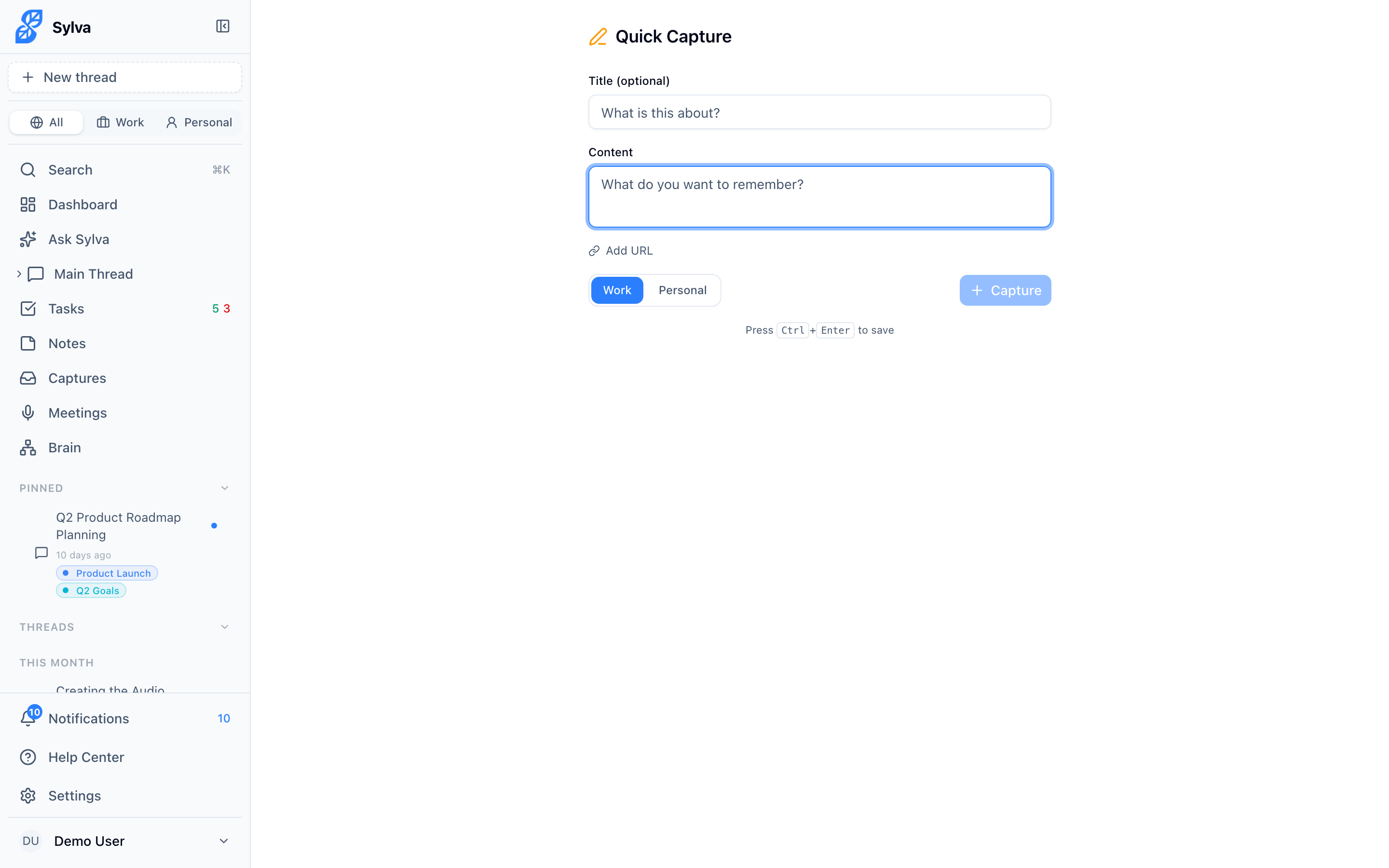
- Quick Capture — Open the Quick Capture page (tap the shortcut from your home screen or navigate to Capture in the app). Type your thought, optionally add a title and URL, pick a profile — Work is selected by default — and hit Save. Press Ctrl+Enter (or ⌘+Enter on Mac) to save without reaching for the button.
- Share from any app — On mobile, use your device's native share sheet to send a webpage, image, PDF, or text snippet directly to Sylva. Sylva registers as a share target, so it appears alongside your other apps. Shared content is saved with the source Shared.
- Chrome Extension — When the extension captures a Slack message, email thread, or webpage, it automatically creates a capture tied to that source.
- Email intake — Forward or send emails to your Sylva intake address. Each email becomes a capture with the source Email. This requires the Intake API to be enabled in Settings > Integrations.
- GitHub webhooks — Connect a GitHub repository through the Intake API and Sylva captures issues, pull request comments, and other events automatically with the source GitHub.
- Conversation — Tell Sylva something worth saving in chat — "Capture that the Q3 budget was approved at $240k" — and it creates a capture for you.
Card View and Table View
The Captures page offers two ways to look at your captures. Switch between them with the View Switcher in the top-right corner of the page.
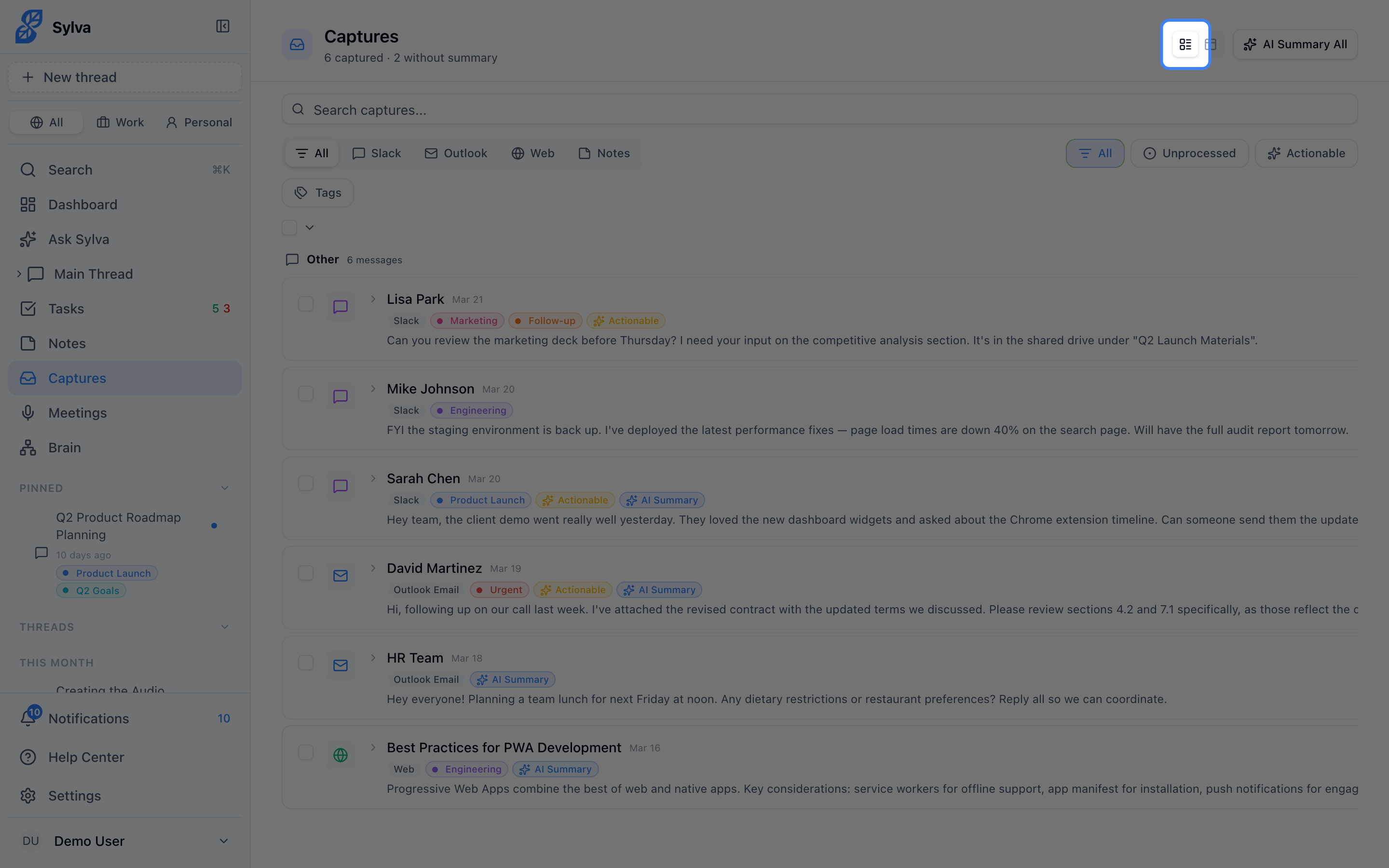
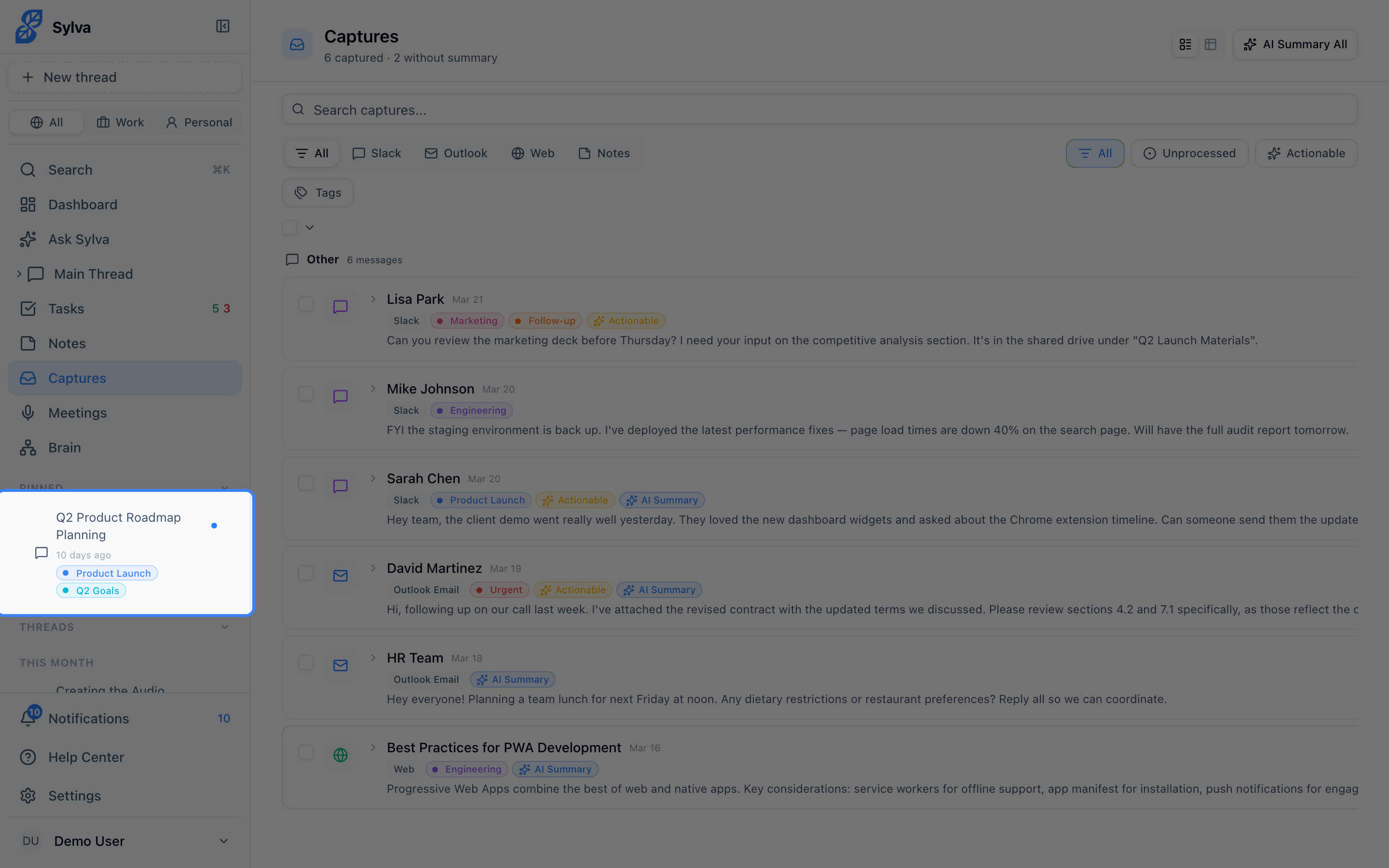
- Card view — The default view. Each capture appears as a visual card showing its source icon, content preview, tags, and a profile badge (shown when the capture isn't in your default profile). Card view is best for browsing and quick review — scanning recent captures and reading summaries.
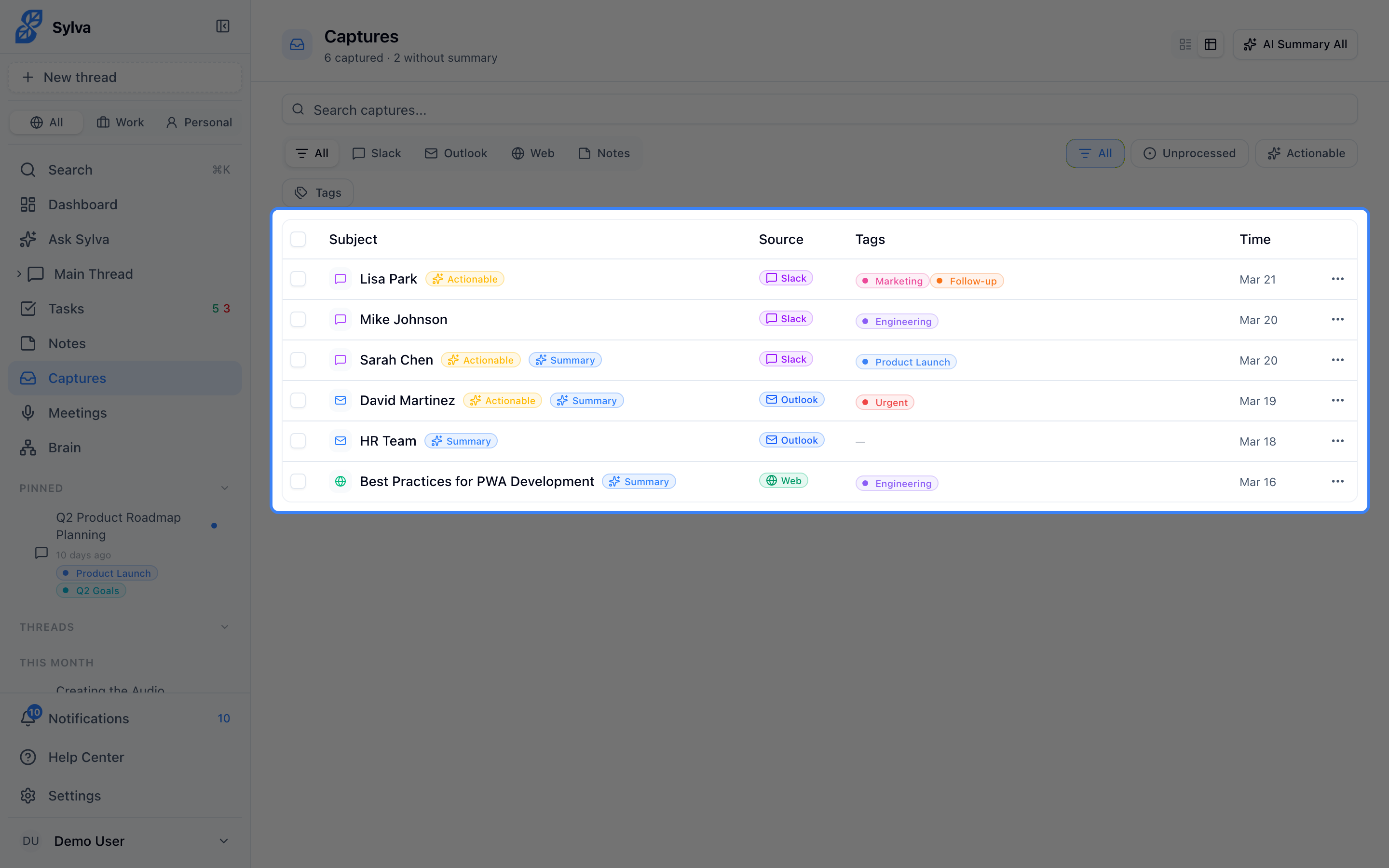
- Table view — A fixed-layout, spreadsheet-style list with sortable columns. Table view is built for working through captures in bulk — selecting many at once, deleting a batch, or running AI Summary All across a filtered set.
Table view includes several features designed for speed:
- Bulk selection — Check individual rows or use the header checkbox to select all visible captures. Bulk actions (delete, summarize) apply to your selection.
- Detail drawer — Click any row to open a side drawer with the full capture content, tags, and metadata — no need to navigate away from the list.
- Inline actions — Delete, summarize, or edit a capture directly from the row without opening the drawer.
Use card view when you want to browse and review at a glance. Switch to table view when you need to triage, filter down, and act on many captures at once.
Filtering by Source
As captures accumulate from different channels, filtering helps you find what you need. The Captures page includes a source filter with the following options:
- All — Every capture, regardless of source
- Manual — Captures you typed in Quick Capture
- Shared — Content sent to Sylva via your device's share sheet (shown with a cyan share icon)
- Slack — Messages captured by the Chrome Extension
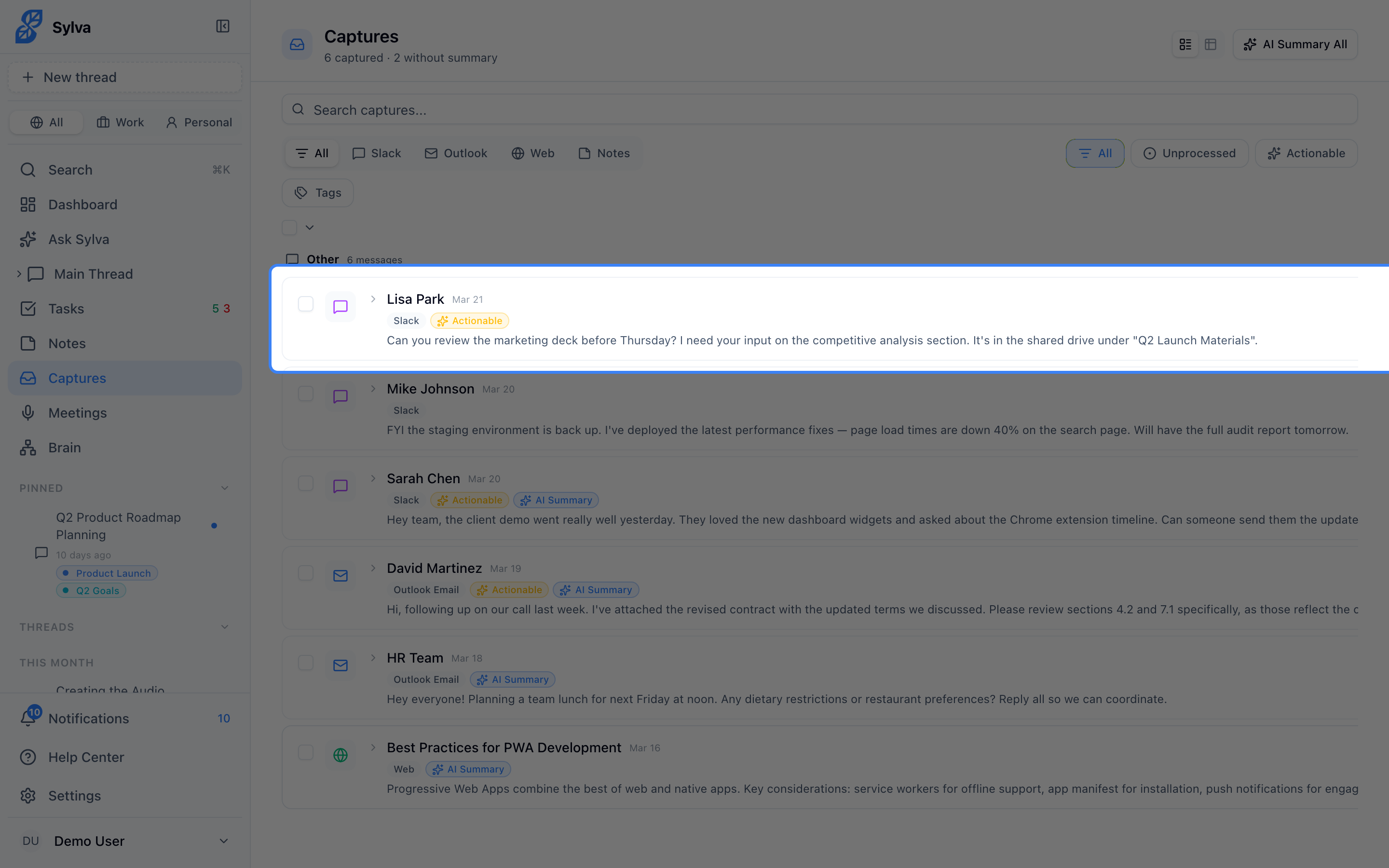
- Email — Forwarded emails from the Intake API (shown with a rose envelope icon)
- GitHub — Webhook events from connected repositories (shown with a gray GitHub icon)
- Web — Webpages clipped by the Chrome Extension
Profiles on Captures
Every capture belongs to one of your profiles — shown as a small badge on the card when it isn't your default profile. This works the same way profiles work everywhere else in Sylva: it keeps your professional and personal content separated when you want it to be, and combined when you view All profiles.
You set a capture's profile when you create it — Quick Capture and the Share form default to Work. There's no control on the card or in the table to move a capture to a different profile afterward.
Shared Captures and File Metadata
When you share images or files to Sylva through the share sheet, the resulting capture stores additional metadata:
- shared_files — References to the images or documents you shared (JPEG, PNG, GIF, WebP, SVG, PDF, and plain text files are all supported)
- file_count — The number of files attached to that capture
This metadata appears on the capture card so you can see at a glance whether a shared capture includes attachments and how many.
Email and GitHub Sources
Email and GitHub captures appear only when the Intake API is enabled. You can turn this on in Settings > Integrations. Once enabled:
- Email captures show the sender, subject line, and message body. They're marked with a rose-colored envelope icon so they stand out in your list.
- GitHub captures show the event type (issue opened, PR comment, etc.) and relevant details. They're marked with a gray GitHub icon.
If you don't use these integrations, the corresponding source filters won't appear — your filter list stays clean.