Automations let Sylva do repetitive work for you — reacting to events as they happen or running tasks on a schedule so nothing falls through the cracks.
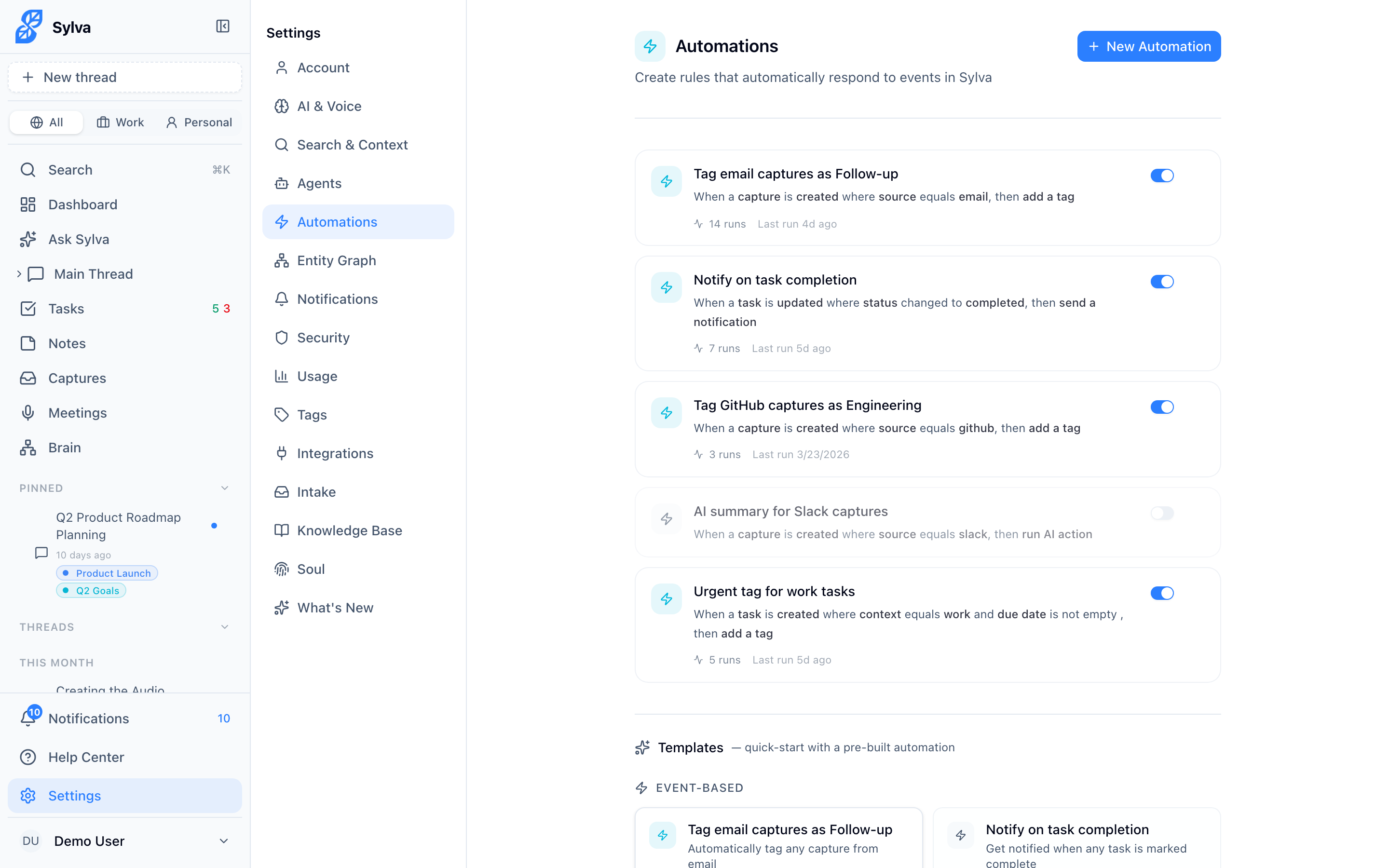
Event-Based vs Schedule-Based
Sylva supports two fundamentally different automation types. Choosing the right one depends on whether you need to react to something or proactively check on something.
| Event-based | Schedule-based | |
|---|---|---|
| Triggered by | Something happens (a capture arrives, a task is created, a meeting ends) | A recurring clock — hourly, daily, weekly, or custom cron |
| Runs | Immediately when the event fires | At the scheduled time, regardless of what happened |
| Best for | Real-time reactions — tagging, notifying, updating fields | Periodic reviews — summaries, digests, cleanup |
| Icon in UI | ⚡ Zap | 🕐 Clock |
You can mix both types freely. Most professionals end up with a few event-based automations handling incoming flow and one or two schedule-based automations for regular reviews.
Event-Based Templates
When you click New Automation and choose the event-based path, Sylva offers six starter templates. Each one is fully editable after creation — the template gives you a working starting point.
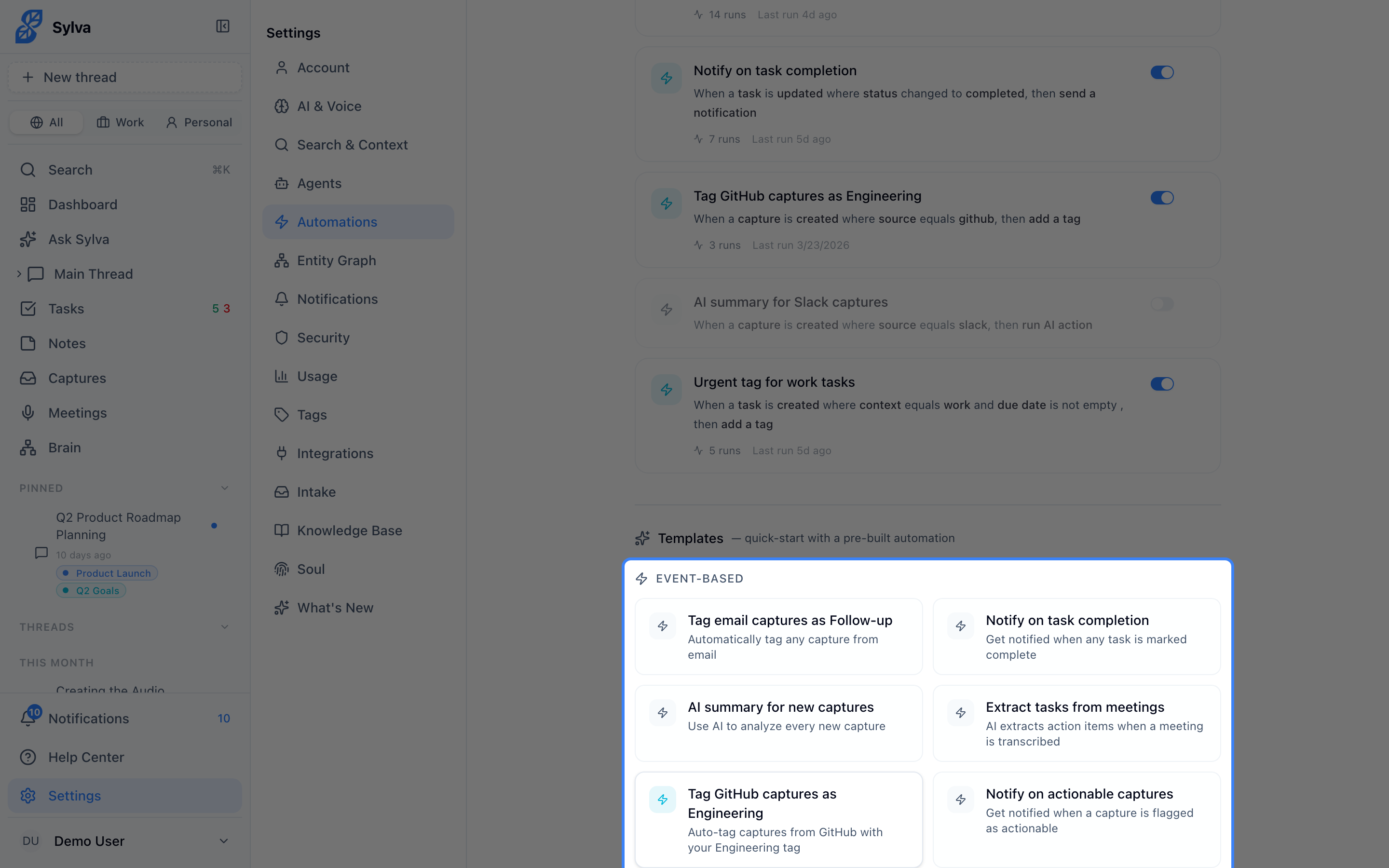
- Tag incoming captures — Automatically applies tags to new captures based on keywords, sender, or source channel. Use this to keep your capture inbox organized without manual sorting
- Notify on high-priority tasks — Sends you a notification whenever a task is created or updated with high priority. Useful when tasks come from meeting extractions or team members and you want immediate awareness
- Summarize new captures — Triggers AI summarization the moment a capture lands. Pairs well with the Chrome Extension — emails and Slack messages get summarized before you even open Sylva
- Auto-assign context — Sets the profile on new tasks, captures, or entities based on rules you define — source, keywords, or time of day
- Link entity to capture — When a capture mentions a known person or company, this automation attaches the relevant entity automatically so your relationship history stays connected
- Flag meeting action items — After a meeting transcript is processed, this flags any extracted tasks that mention deadlines within 48 hours, making sure urgent follow-ups don't get buried
Schedule-Based Templates
Schedule-based automations run on a timer. Click New Automation, choose the schedule path, and pick from six templates:
- Daily task summary — Every morning (you choose the time), Sylva compiles your open tasks, highlights anything overdue, and delivers a digest. A quick way to start your day with clarity
- Weekly review — Once a week, Sylva generates a summary of tasks completed, captures processed, meetings held, and entities updated. Think of it as an automated weekly retrospective
- Hourly capture digest — Batches your incoming captures into hourly summaries instead of processing them one by one. Reduces noise while keeping you informed
- Stale task finder — Runs on your chosen schedule to find tasks that haven't been updated in a configurable number of days, then notifies you or tags them for review
- Meeting prep brief — Runs each morning and pulls together context for today's meetings — related entities, recent captures from attendees, and open tasks tied to meeting topics
- End-of-day wrap-up — Fires in the evening to summarize what you accomplished, what moved forward, and what's still pending.
Schedule Operation Modes
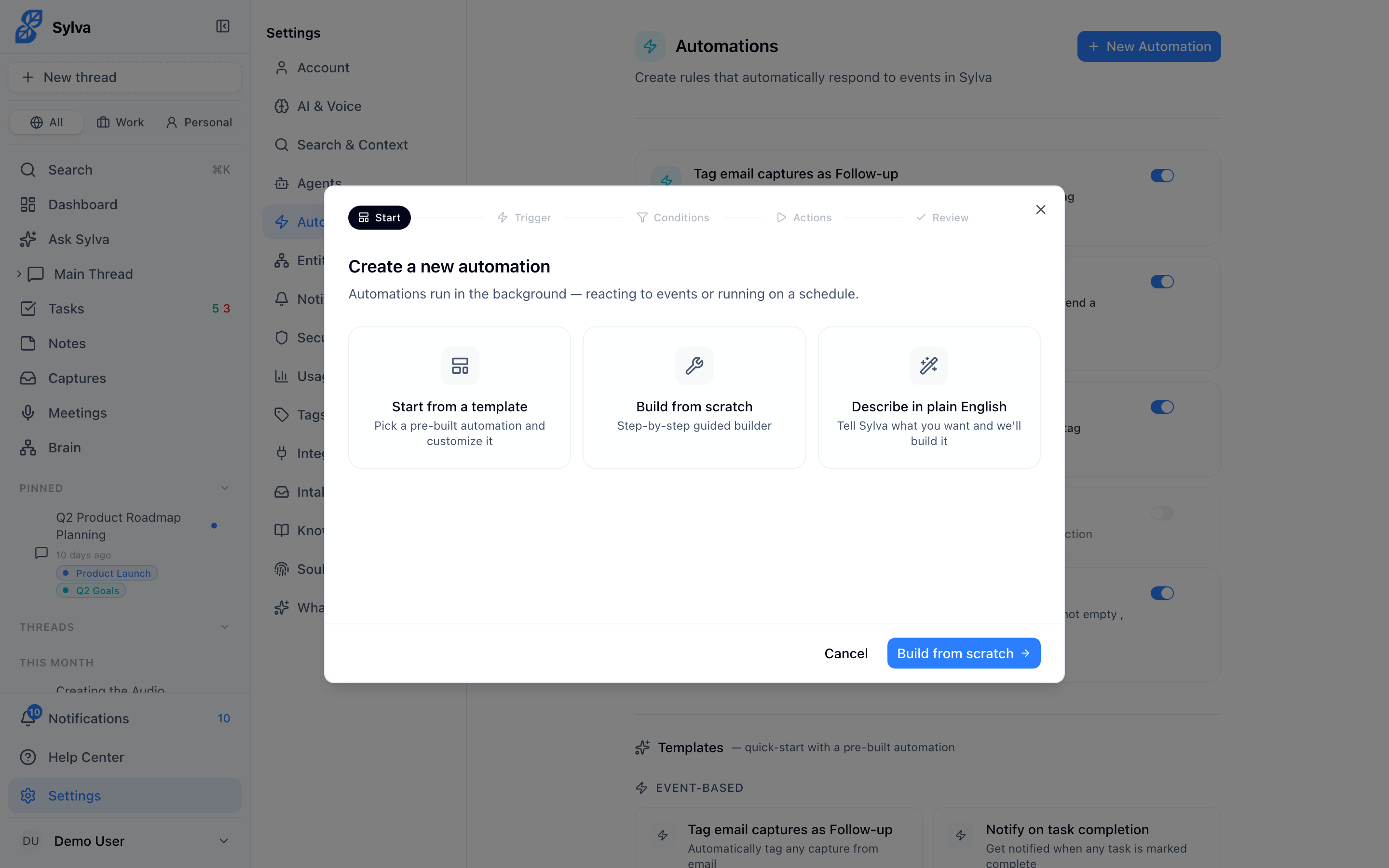
Every schedule-based automation uses one of four operation modes. You choose the mode when building the automation — it determines what Sylva actually does when the schedule fires.
- Remind me — Sends you a notification with a message you define. The simplest mode. Example: "Remind me every Friday at 3pm to submit my timesheet."
- Create something — Creates a task, capture, or note on schedule. Example: "Every Monday at 9am, create a task called 'Review weekly pipeline' with a due date of Friday."
- Find & update — Searches for existing items matching criteria you set, then applies changes. Example: "Every day at 6pm, find tasks tagged 'waiting' that are older than 7 days and change their status to 'needs-attention'."
- AI analysis — Runs an AI prompt against a dataset you specify (your tasks, captures, meetings, or entities) and delivers the result. Example: "Every Sunday at 7pm, analyze all captures from this week and give me the three most important themes."
Each mode has its own configuration fields that appear in the builder once you select it — you won't see irrelevant options.
Conditions — Filtering When an Automation Fires
Conditions let you narrow when an event-based automation runs. Without conditions, the automation fires on every matching event. With conditions, it only fires when the event data matches your rules.
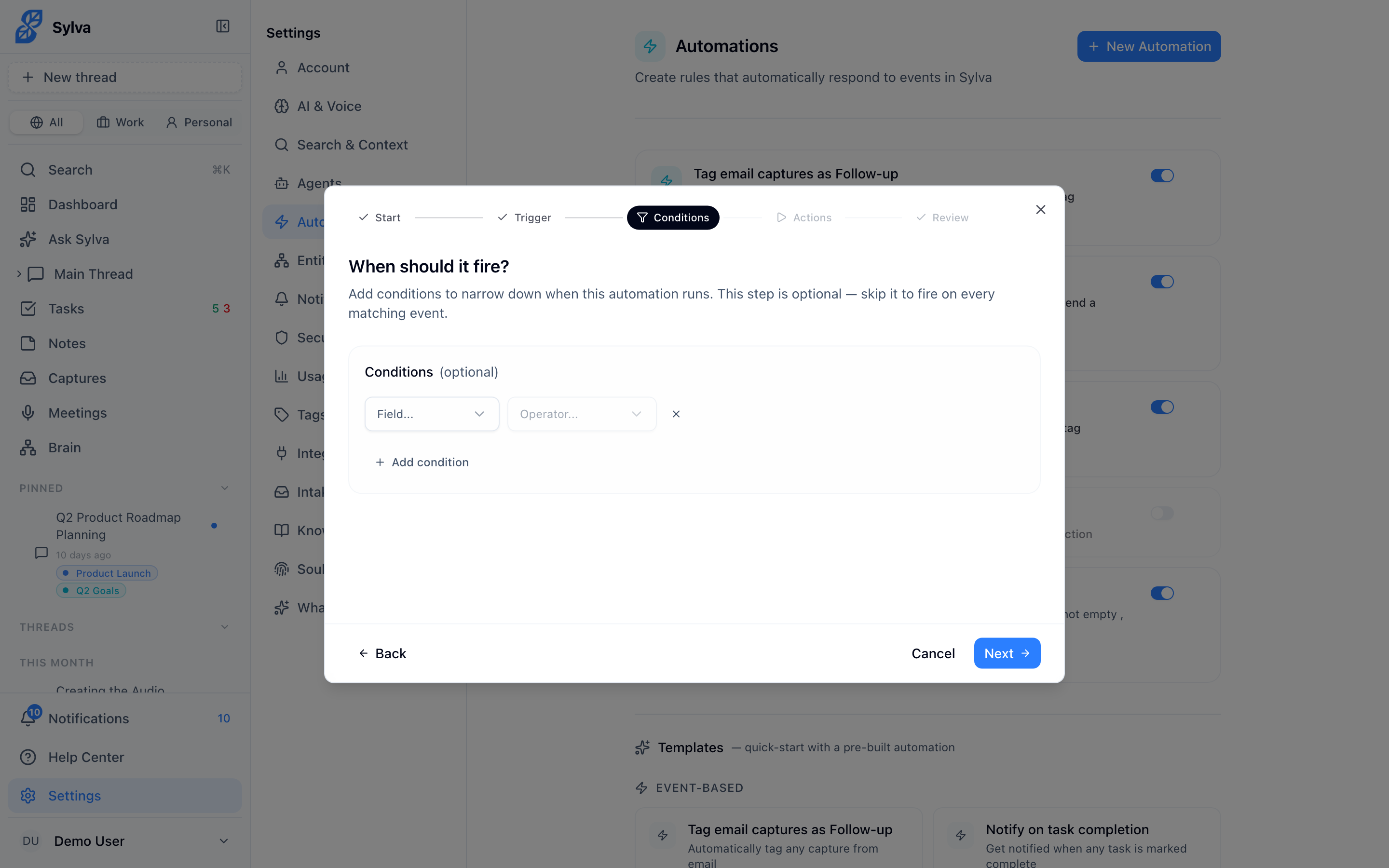
Add one or more condition rows in the builder. Each row has three parts:
-
Field — What to check. The available fields depend on the entity type you selected in the trigger:
- Tasks — status, context, long-term, content, due date, tags
- Captures — source, actionable, processed, context, title, tags
- Notes — title, framework, auto-generated, tags
- Meetings — title, status, context, tags
- Conversations — title, archived, pinned, context, tags
- Entities — name, type, active
-
Operator — How to compare. The operators adapt to the field type:
- Text fields: equals, does not equal, contains, starts with, is empty, is not empty
- Select fields: equals, does not equal, is one of, changed to, changed from
- Boolean fields: equals (true or false)
- Date fields: is before, is after, is empty, is not empty
- Tags: includes any of, includes all of, includes none of, is empty, is not empty
-
Value — What to compare against. The input adapts to the field type — select fields show a dropdown, date fields show a date picker, tag fields show a tag selector.
When you have two or more conditions, a logic toggle appears: AND (all must match) or OR (any can match). AND is the default and the most common choice.
Actions — What Happens When an Automation Fires
Every automation needs at least one action — that's what actually happens when it triggers. You can stack multiple actions on a single automation.
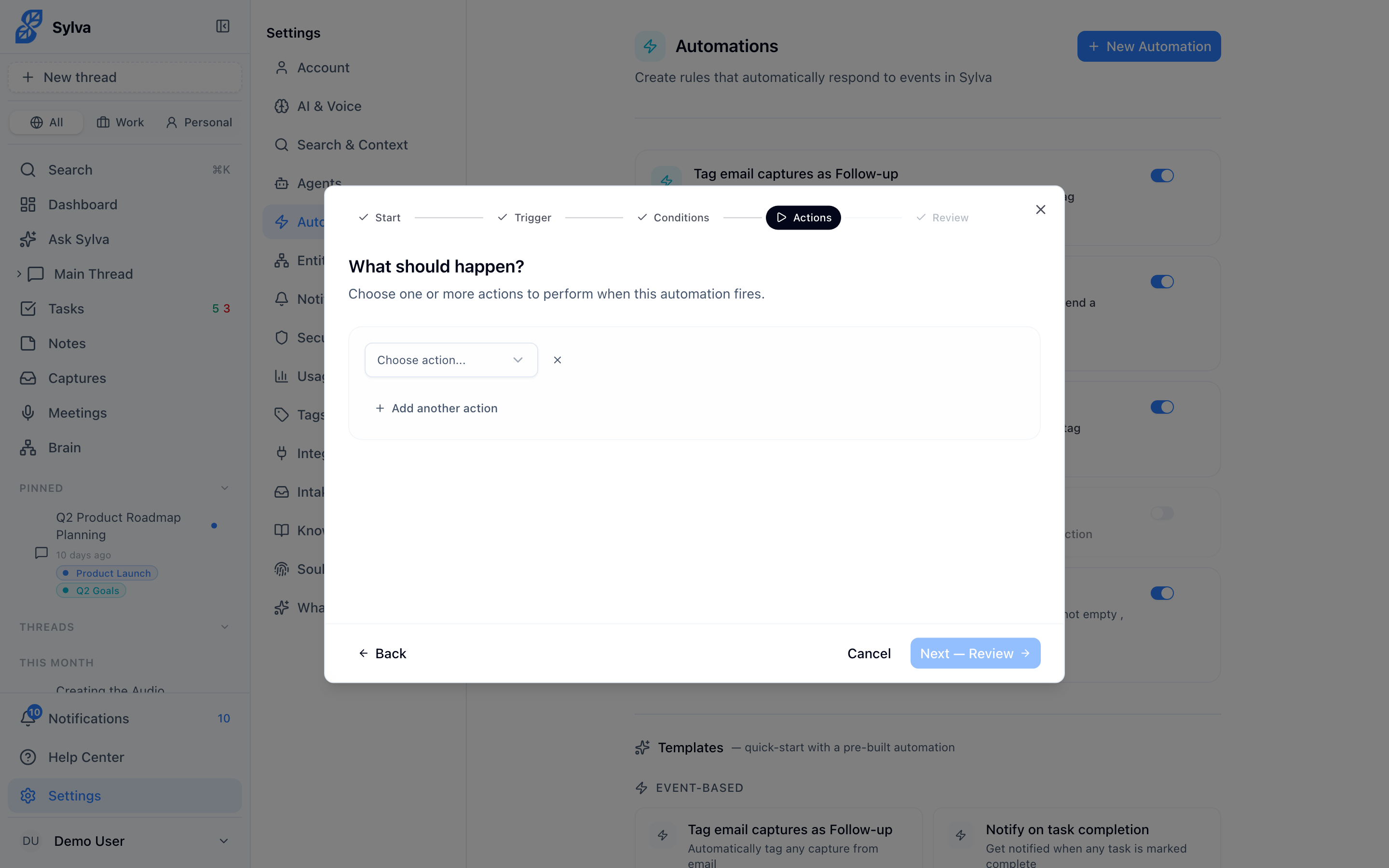
The available action types are:
- Send notification — Delivers a message through your chosen channels (in-app, push, email). The title field supports template variables like
{{capture.title}}or{{task.content}}so the notification includes context about what triggered it - Add tag — Applies a tag to the item that triggered the automation. Pick from your existing tags
- Remove tag — Removes a specific tag from the triggering item
- Create task — Creates a new task. The title supports template variables — for example,
Follow up: {{capture.title}}creates a task named after the capture that triggered it - Move to topic — Moves the triggering item into a specific topic for organization
- Update field — Changes a field value on the triggering item (covered in detail below)
- AI action — Runs an AI-powered operation on the triggering item (covered in detail below)
Actions run in order from top to bottom. If one action fails, the remaining actions still execute — a single failure doesn't block the rest.
AI Action Modes
The AI action is the most powerful action type. It runs Claude against the triggering item with a prompt you define. There are five modes:
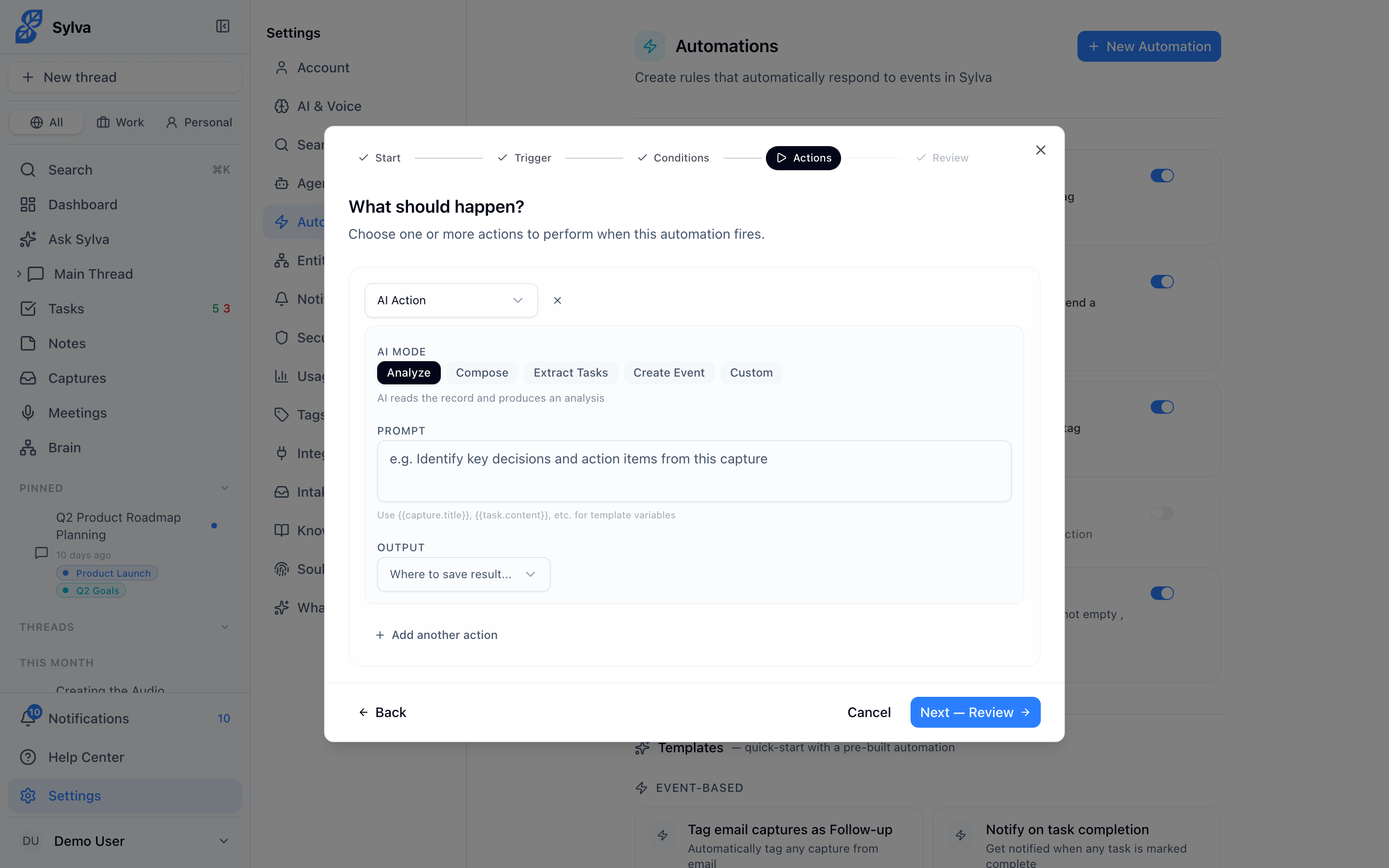
- Analyze — AI reads the item and produces an analysis. Example: "Identify key decisions and action items from this capture."
- Compose — AI writes new content based on the item. Example: "Write a brief summary of this meeting for the team."
- Extract tasks — AI finds action items in the item and creates tasks from them. Useful for processing meeting transcripts or long email captures automatically
- Create event — AI looks for mentioned dates and times and creates calendar events. Example: a capture that says "Let's meet next Tuesday at 2pm" becomes a calendar entry
- Custom — Freeform prompt with full flexibility. Example: "Classify this as urgent/normal/low priority and suggest next steps."
For analyze, compose, and custom modes, you also choose where the output goes: save as a note, send as a notification, or create as a task.
The prompt field supports template variables ({{capture.title}}, {{task.content}}, etc.) so the AI always has context about the specific item it's processing.
The set_field Action
Both event-based and schedule-based automations can include a set_field action — this updates a specific field on a task, capture, meeting, or entity when the automation runs.
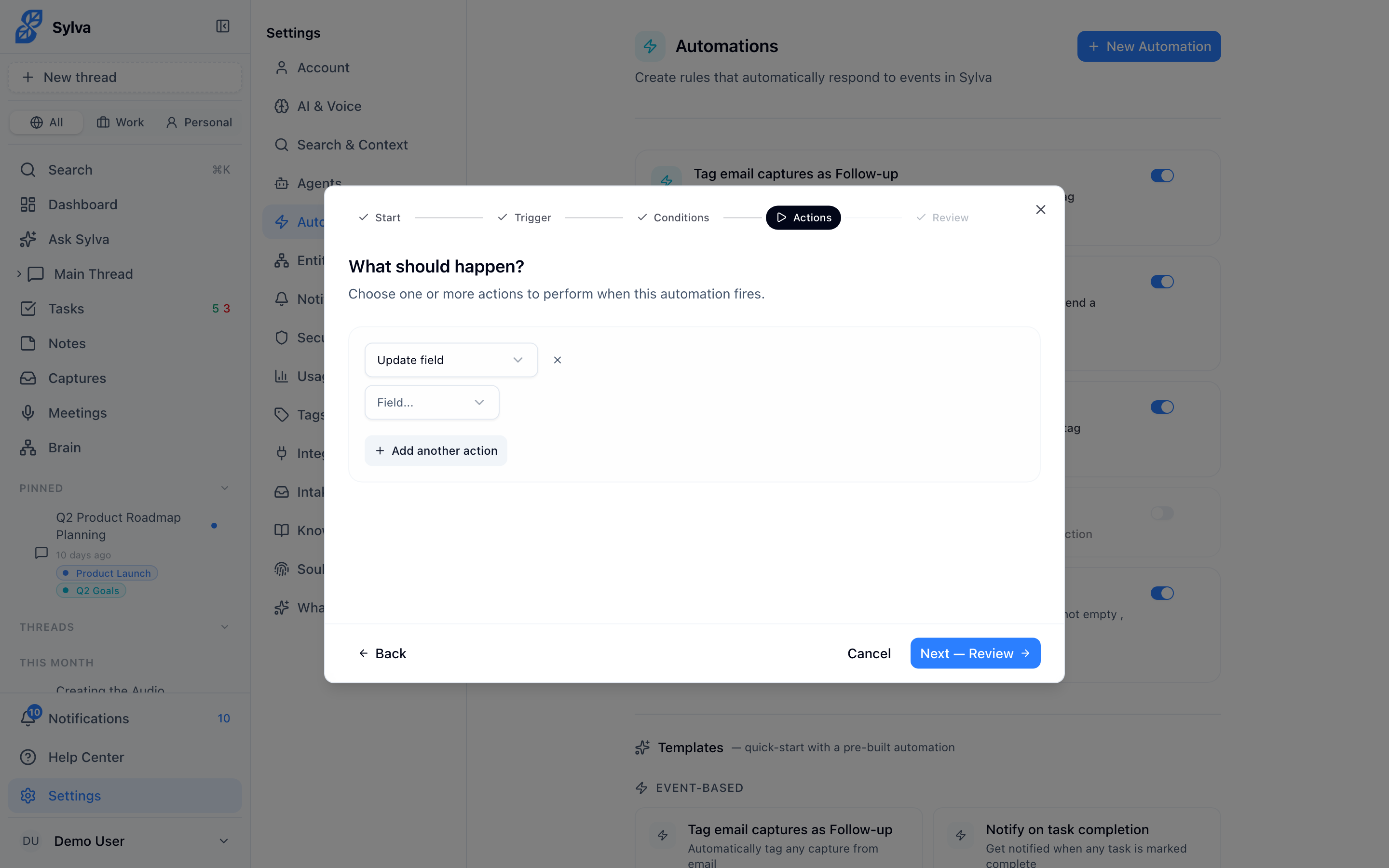
When you add a set_field action, the field dropdown adjusts based on the entity type you're targeting:
- Tasks — status, priority, due date, context, tags, long-term, assignee, description
- Captures — tags, context, summary, source label
- Meetings — tags, context, summary, status
- Entities (people/companies) — tags, context, relationship status, notes, custom fields
The value input also adapts — date fields show a date picker, status fields show valid options, and tag fields let you add or remove from the existing set. This prevents you from accidentally setting a field to an invalid value.
Notification Channels
Each automation has its own notification settings — you control exactly how you hear about it.
- In-app — A notification appears in Sylva's notification panel. Enabled by default for all automations
- Push — A push notification sent to your phone or desktop (requires push notifications to be enabled in Settings > Notifications). Best for time-sensitive automations
- Email — Sends an email digest to your account email. Best for schedule-based automations where you want a record outside of Sylva
Toggle each channel independently per automation. A daily task summary might warrant an email, while a tag-on-capture automation only needs an in-app badge.
Automation History and Retrying Failed Runs
Every automation keeps a run history. Open it by clicking the history icon on any automation card.
The history panel shows each run with its timestamp, status (success, failed, or skipped), and a summary of what happened. For failed runs, Sylva displays the error reason — common causes include deleted entities, permission changes on integrations, or temporary API issues.
To retry a failed run, click the Retry button next to it. Sylva re-executes the automation with the same trigger data. If the underlying issue is resolved (e.g., an integration was reconnected), the retry typically succeeds. You can retry as many times as needed.
Practical Examples
Here are three schedule-based automations that Sylva users commonly set up:
Daily task summary at 8am — Operation mode: AI analysis. Prompt: "Summarize my open tasks, flag anything overdue, and suggest my top 3 priorities for today." Notification channels: email + push. This lands in your inbox before your first meeting.
Weekly review every Friday at 5pm — Operation mode: AI analysis. Prompt: "Review everything I completed this week — tasks, meetings, captures. Highlight wins, note anything that slipped, and suggest focus areas for next week." Notification channel: email. Print it, share it with your manager, or keep it for your own records.
Hourly capture digest during work hours — Operation mode: Remind me. Schedule: every hour from 9am–6pm, weekdays. Message: a compiled summary of captures received in the last hour. Notification channel: in-app only. Keeps you informed without constant interruptions.