Sylva gives you two complementary ways to capture information quickly — Scratchpad for longer-form writing and thinking, and Quick Capture for grabbing a quick note, link, or snippet that Sylva's AI automatically processes and organizes for you.
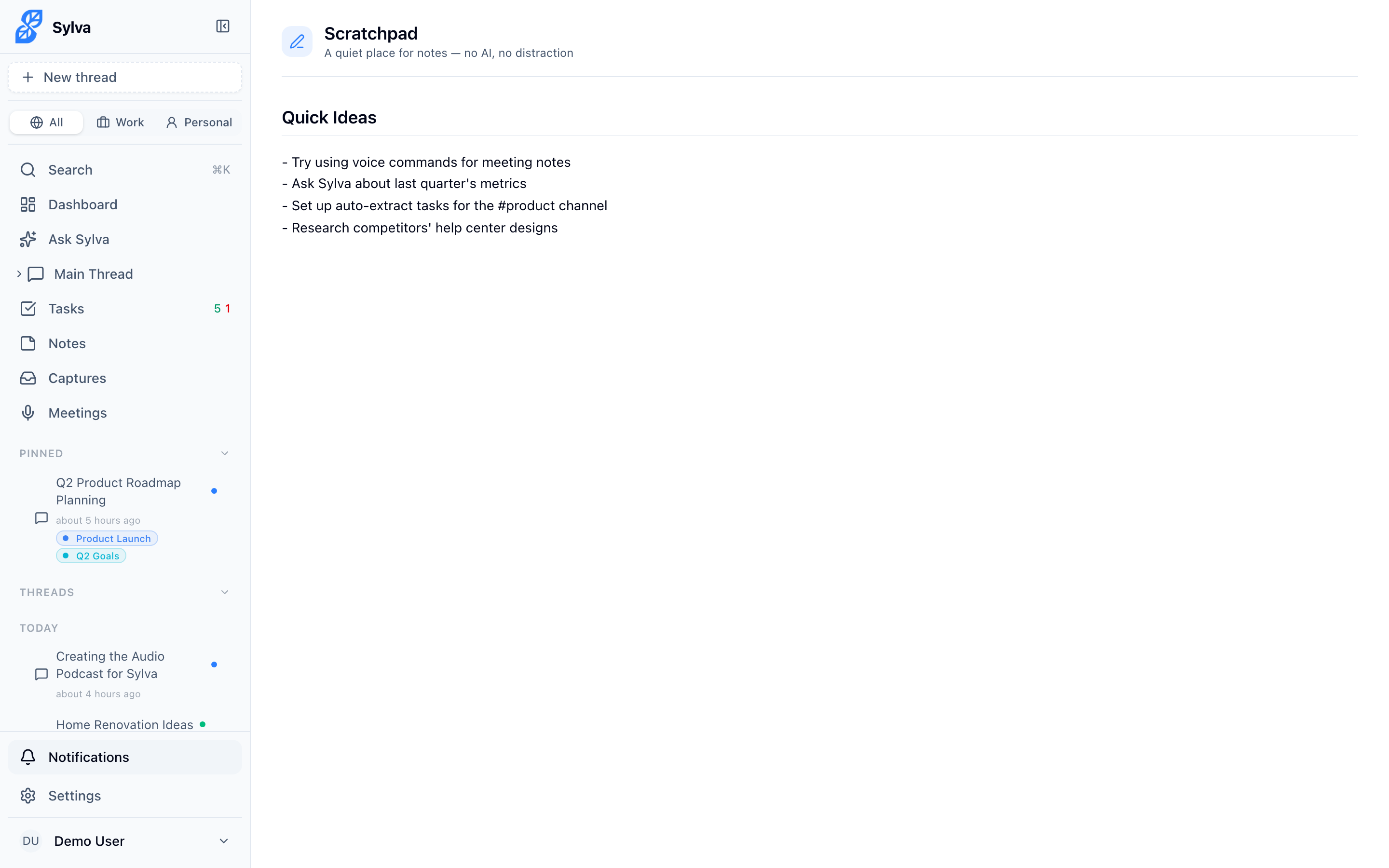
Scratchpad vs. Quick Capture
Both tools get thoughts out of your head fast, but they serve different purposes:
- Scratchpad — A persistent notepad for longer-form writing, brainstorming, and working through ideas. Think of it as your thinking space. Notes stay editable and pinnable, and you can revisit and refine them over time. Use this when you need to draft, organize, or develop thoughts — meeting prep, project brainstorms, running lists you update throughout the week.
- Quick Capture — A lightweight form optimized for speed. Drop in a thought, link, or snippet, hit save, and move on. Sylva's AI automatically processes each capture — extracting meaning, making it searchable, and feeding it into your Knowledge Base. Use this when you want to capture something quickly and let Sylva handle the organizing. On mobile, Quick Capture is especially handy — it's a faster alternative to the Scratchpad when you need to jot something down on the go without opening a full editor.
The key difference: Scratchpad is where you write and think. Quick Capture is where you grab and go, trusting Sylva to do the rest. If you're at your desk fleshing out an idea, reach for the Scratchpad. If you're on your phone and need to save a thought before it disappears — a name someone mentioned, a link to read later, a quick reminder to yourself — Quick Capture gets you in and out in seconds.
Getting Started with Scratchpad
- Access it from the Dashboard widget or press Cmd/Ctrl + Shift + S
- Write freely — it's always there when you need it
- Your scratchpad content is searchable via Ask Sylva, so nothing gets lost
- Pin important scratchpad notes to keep them visible
Click anywhere in the Scratchpad to start typing your note:
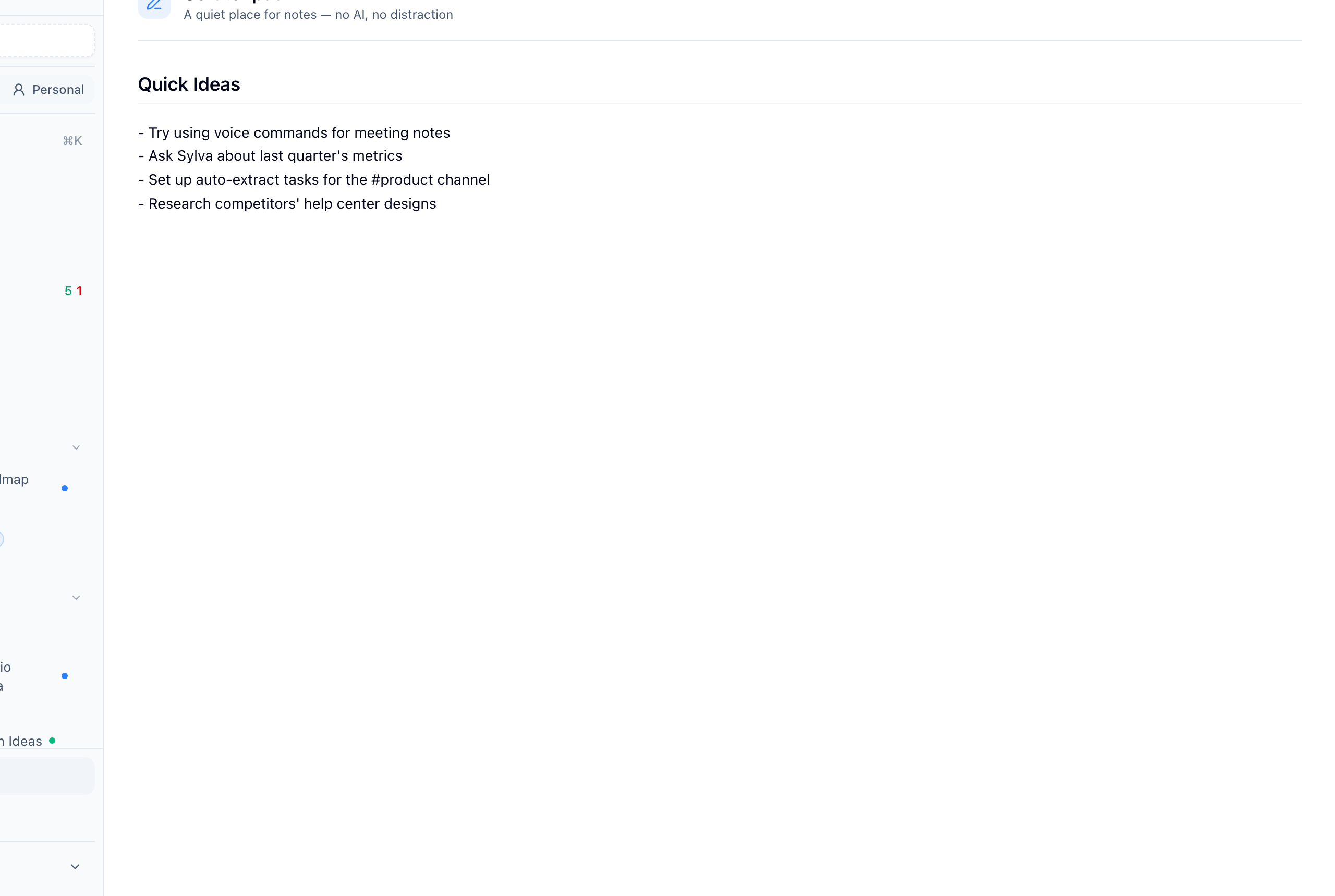
Dashboard Access
You can also reach the Scratchpad directly from the Dashboard without navigating away from your home screen.
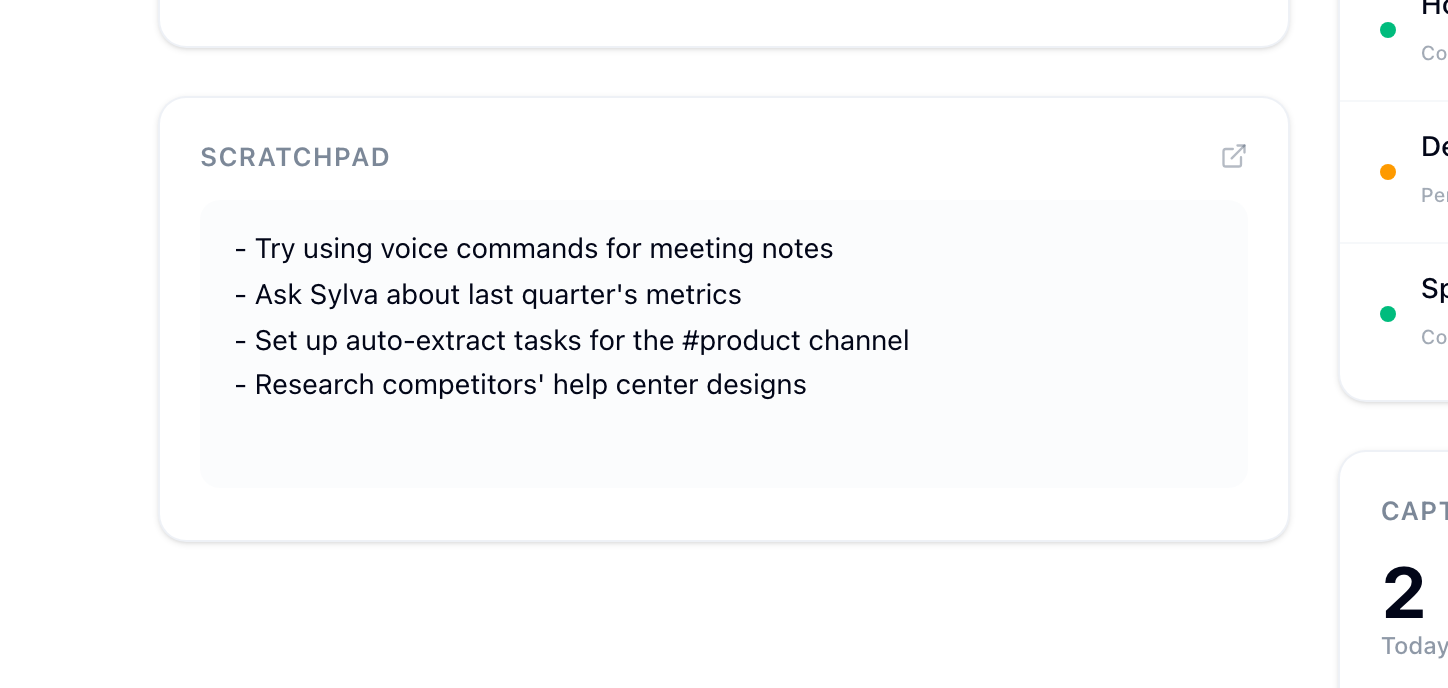
Quick Capture
Quick Capture is a lightweight, focused form for grabbing a thought, link, or snippet before it slips away. It's faster than opening a chat or creating a note — you fill in what matters and move on.
When you need to jot something down fast — especially on mobile — Quick Capture is an excellent alternative to the Scratchpad. Where the Scratchpad is built for writing and refining ideas over time, Quick Capture is designed for rapid-fire note-taking — capture the thought, save it, and let Sylva's AI handle the rest. No formatting, no editing, no friction.
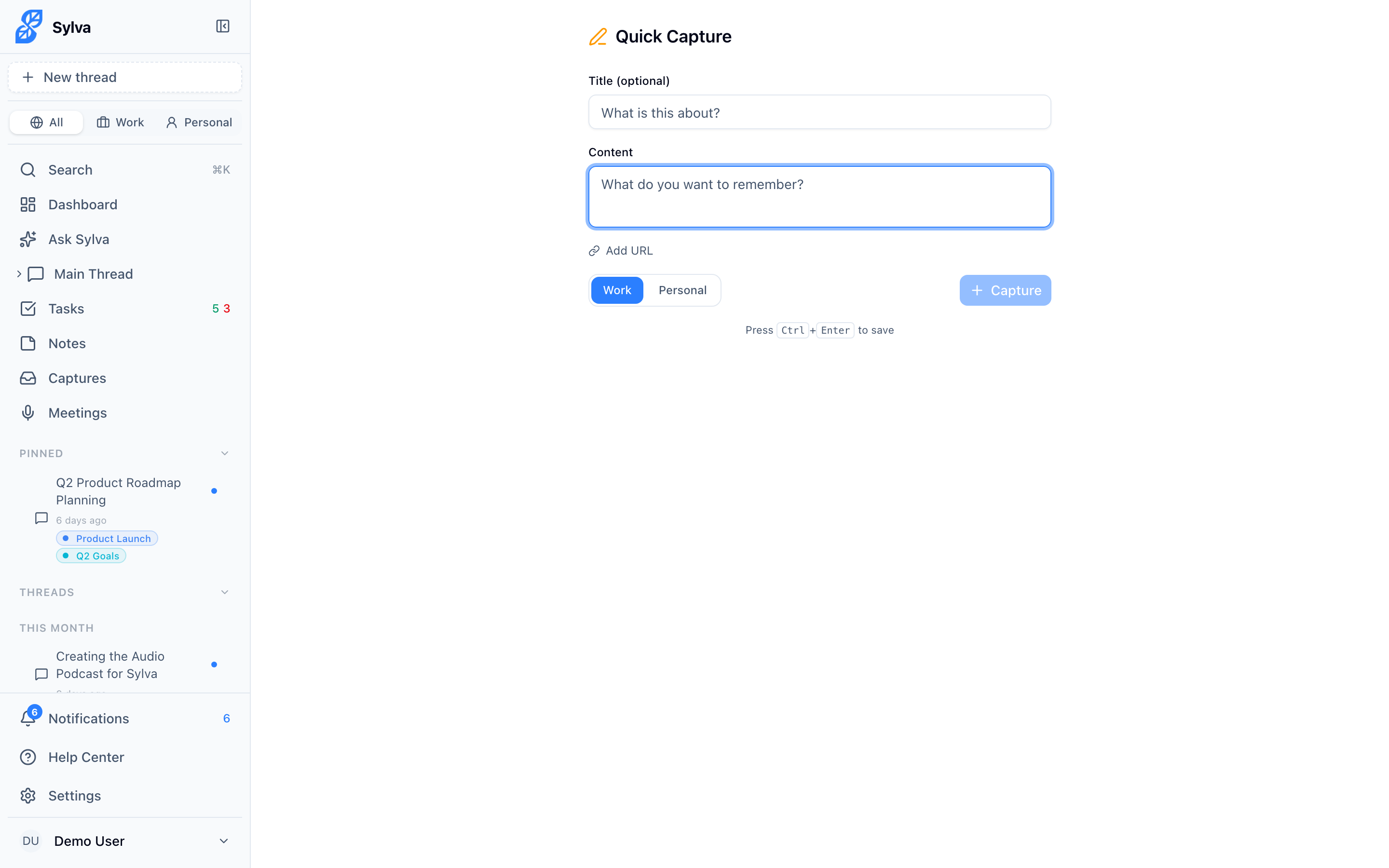
To save a capture:
- Go to the Quick Capture page (available from the app shortcut menu or by navigating to /capture)
- Add a Title if you want — this is optional but helps when scanning captures later
- Type your thought, snippet, or note in the Content field — this is the only required field
- Click Add URL to attach a source link if the capture relates to a webpage or resource
- Pick a profile from the buttons next to the Save button to keep the capture organized with the rest of your content — Work is selected by default
- Click Save to store the capture
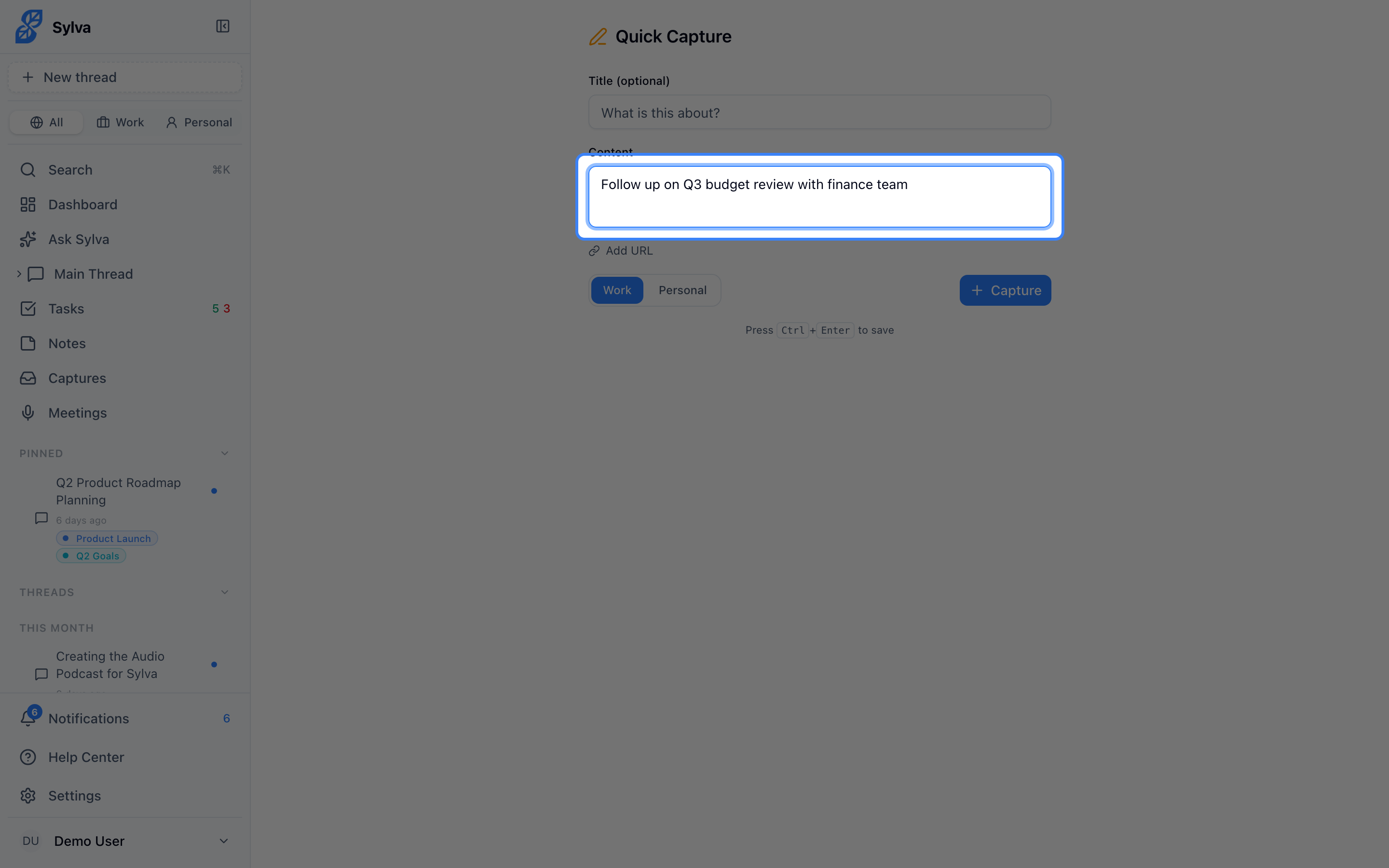
The Content field auto-focuses when you open the page, so you can start typing immediately.
Use Ctrl+Enter (or Cmd+Enter on Mac) to save without reaching for the button. This keyboard shortcut works from any field on the form — ideal for rapid-fire capturing when you're processing a backlog of ideas.
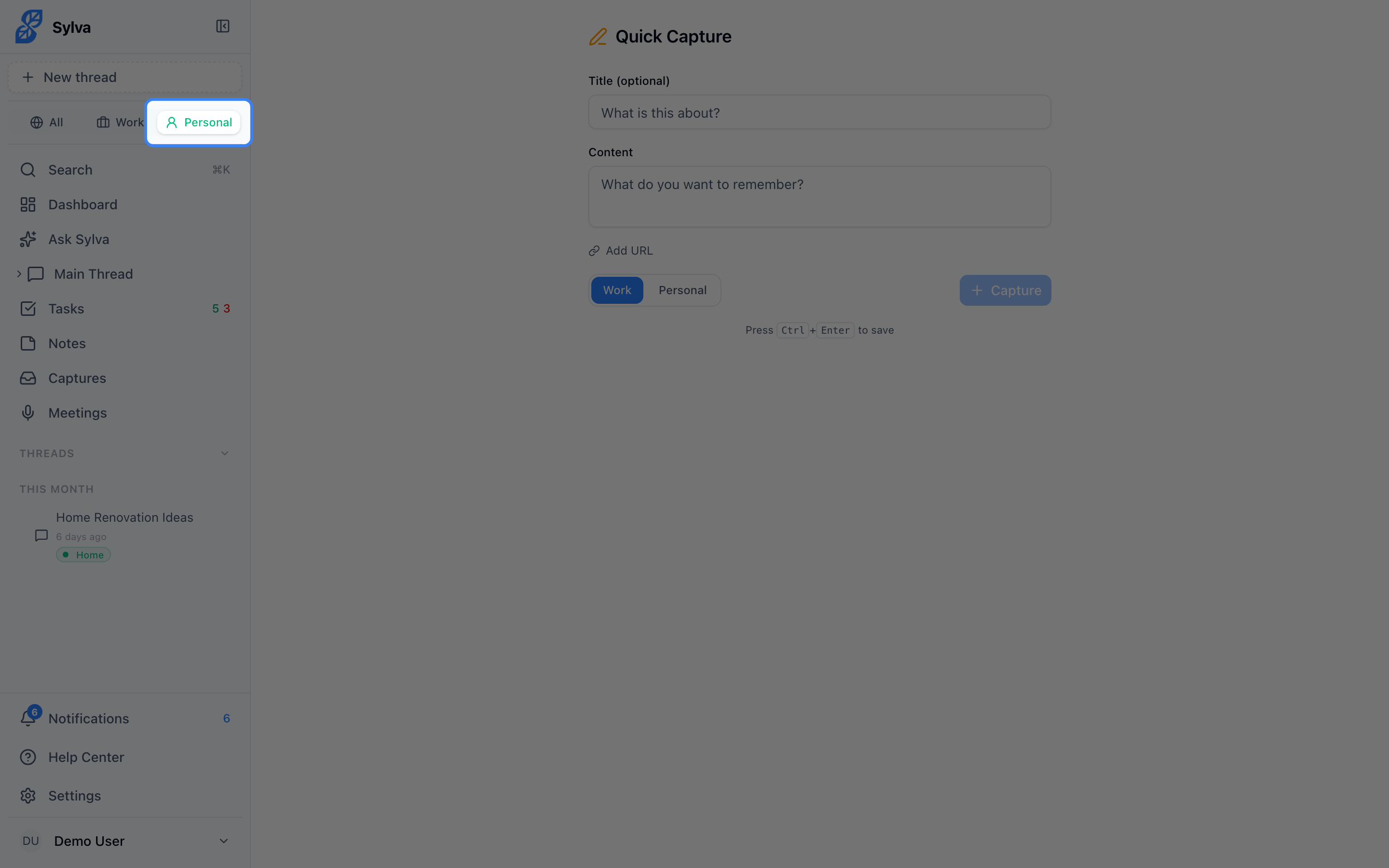
After saving, the form resets automatically so you can capture another item right away.
Sharing Content into Sylva
If you've installed Sylva as a PWA (Progressive Web App) on your device, you can send content directly from other apps using your system's Share menu. When you share a link, article, text snippet, image, or PDF from a browser, read-later app, or any app that supports the Share API, Sylva appears as a share target.
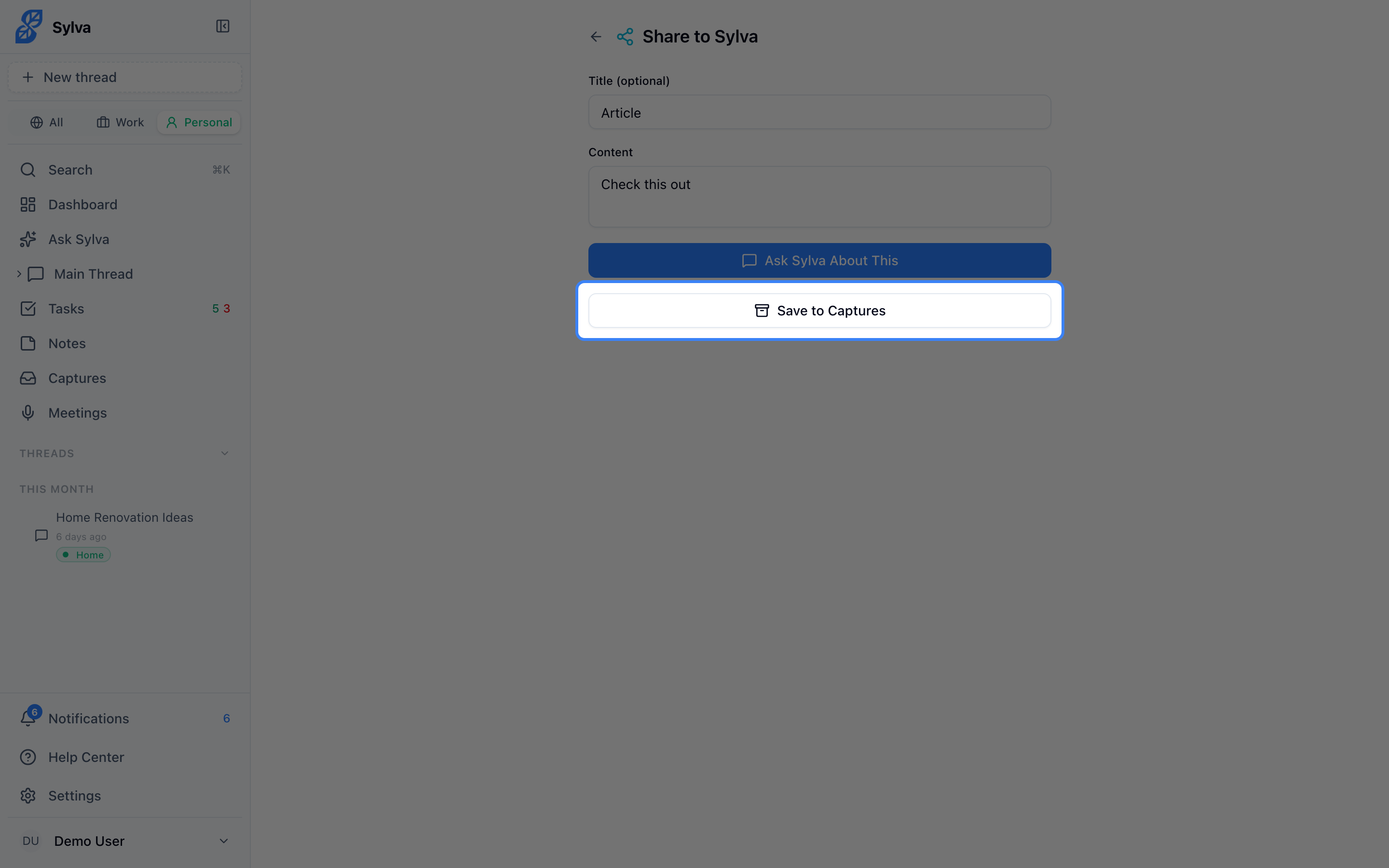
Shared content arrives on the /share page — a dedicated review screen where you decide what to do with it before anything gets saved or sent.
The Share Page
The share page has three sections:
- Title — Pre-filled from whatever you shared (the page title, file name, or a summary like "3 shared files"). You can edit this to something more meaningful before taking action.
- Content — Pre-filled with the shared text and/or URL. If you shared files without any text, Sylva populates this with the file names. Edit freely — this is what Sylva uses as context.
- File previews — When you share images, PDFs, or text files, they appear as visual thumbnails below the content field. Images display as previews; other file types show an icon with the file name.
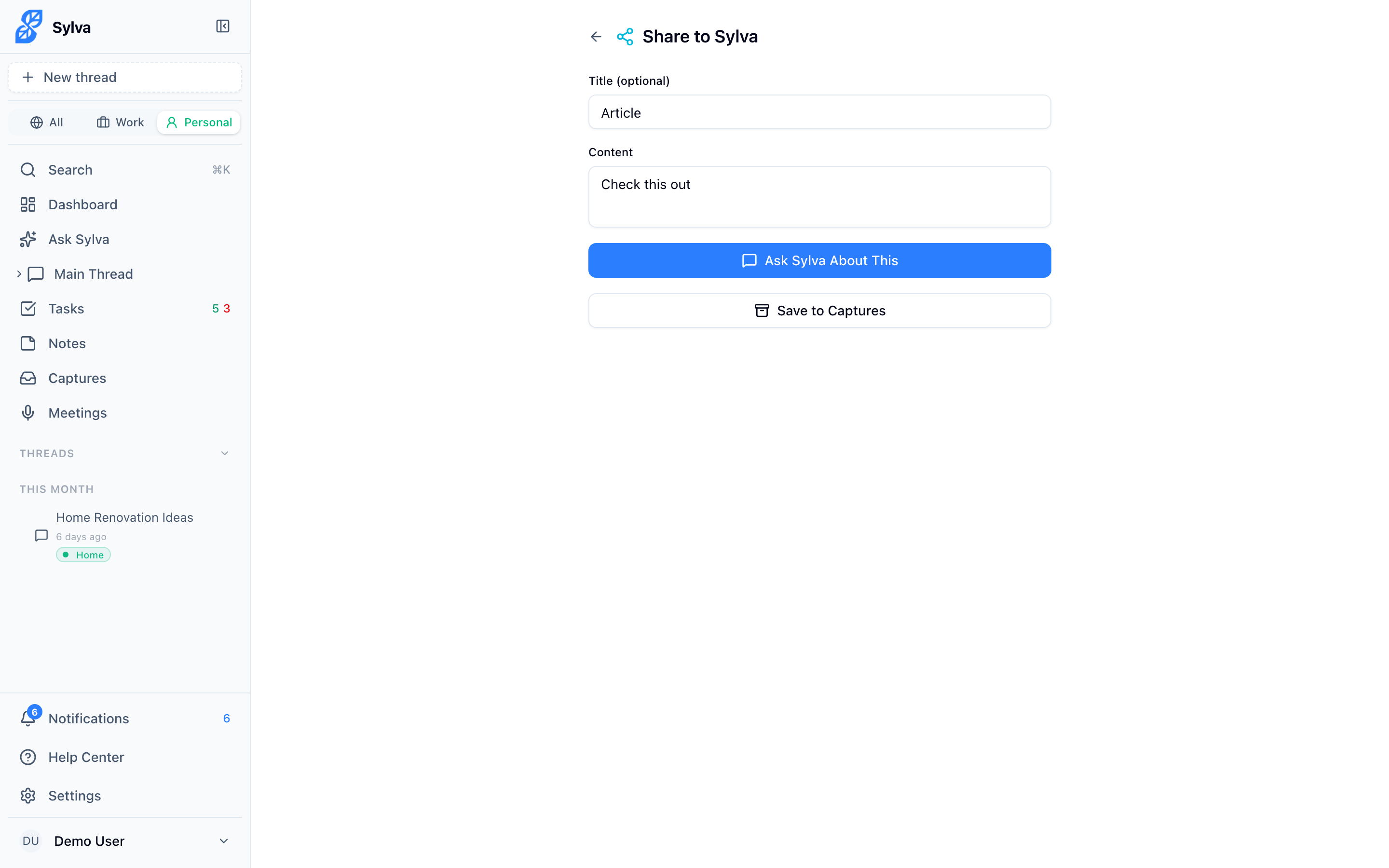
To remove a file you don't want to include, hover over its preview thumbnail and click the X button that appears in the corner. The file is removed immediately — no confirmation step.

Ask Sylva About This
Ask Sylva About This is the primary action on the share page. It takes everything you've shared — text, URLs, and files — and hands it directly to Sylva's AI for conversation.
When you click Ask Sylva About This, Sylva redirects you to your Chat with the shared content pre-filled in the input field and any files loaded as attachments. You land ready to ask questions, request a summary, or have Sylva analyze what you shared.
This is especially useful when you want to go beyond capturing — for example, sharing a PDF from another app and immediately asking Sylva "What are the key takeaways from this document?" or sharing a screenshot and asking "What's the status of this project based on this chart?"
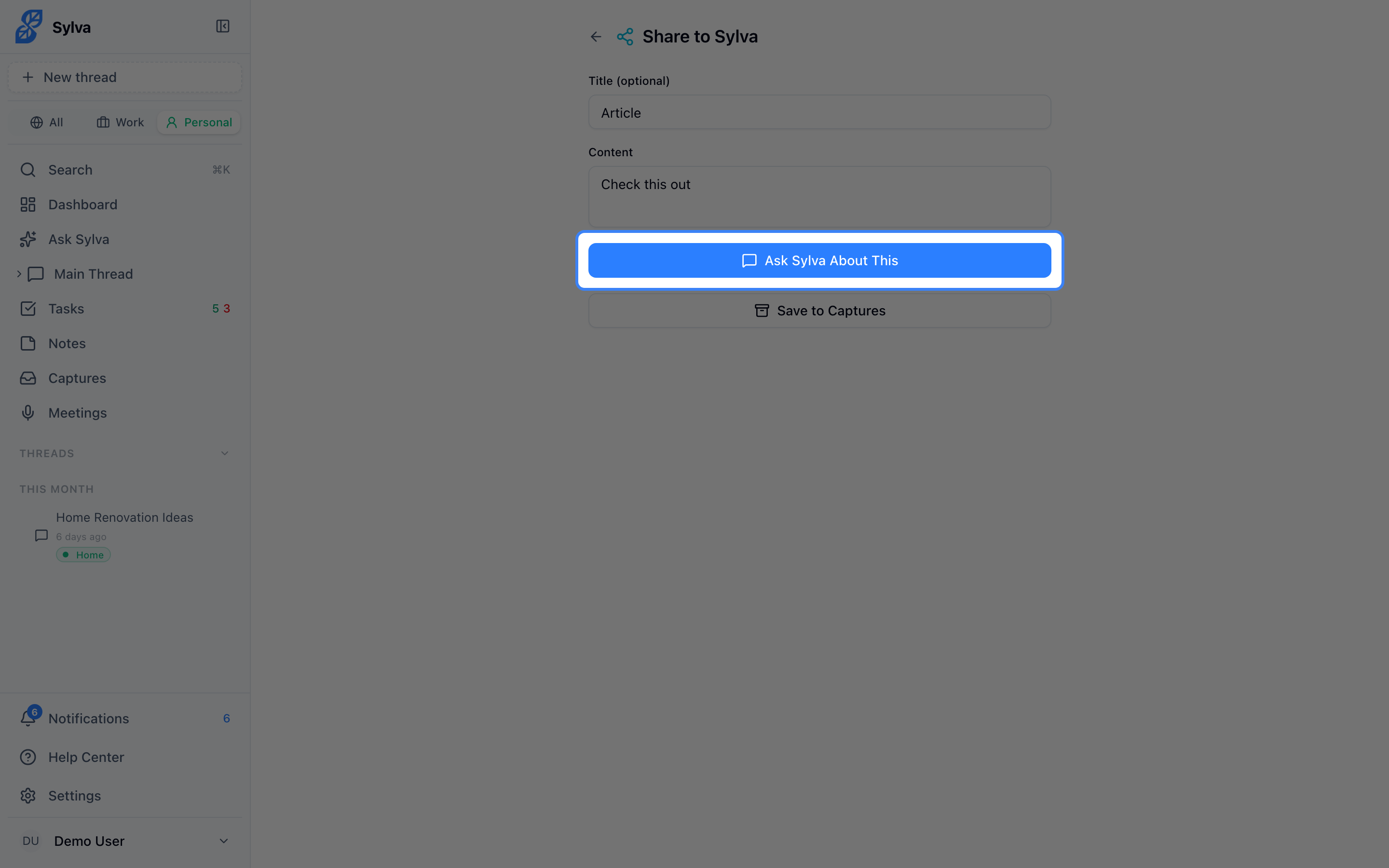
Save to Captures
Save to Captures is the secondary action on the share page. It stores the shared content as a capture record — the same way Quick Capture works — so it flows into your Knowledge Base and becomes searchable through Ask Sylva.
When you click Save to Captures, Sylva uploads any attached files to storage and saves everything — title, content, and file metadata — as a capture record. This is the right choice when you want to save something for later without starting a conversation about it now.
The share page supports images (JPEG, PNG, GIF, WebP, SVG), PDFs, and plain text files. This makes it a versatile inbox — screenshot a whiteboard from your phone's camera roll, share a PDF from your email app, or forward a text snippet from a messaging app, all through the same flow.
Email Attachments
When you forward an email with attachments to one of your intake addresses, Sylva creates the email body as the primary capture and each attachment as a separate child capture underneath it. This means every PDF, image, or document attached to the email gets its own capture record — individually searchable, individually processable by Sylva's AI.
In your capture list, emails with attachments show a disclosure arrow next to the parent capture. Click the arrow to expand the entry and reveal the child captures (one per attachment). Click it again to collapse them back. This keeps your capture list clean while giving you full access to each attachment when you need it.

How Captures Flow into Your Knowledge
Captures don't stay isolated. Once saved, they feed into two places:
- Scratchpad — Your captures appear alongside your other notes, giving you a single stream of everything you've jotted down. Pin important captures to keep them visible.
- Knowledge Base — Sylva's AI processes your captures and makes them searchable through Ask Sylva. This means a link you shared from your phone at lunch is retrievable by context or keyword later that afternoon.
This makes Quick Capture a reliable inbox for raw material — you don't need to decide where something belongs when you capture it. Sylva organizes and surfaces it for you.