Sylva gives you two distinct paths for getting emails into your workspace — the Outlook Chrome extension for real-time capture and email intake addresses for forwarding — so you can choose the method that fits your workflow or use both together.
Two Capture Paths
It helps to understand the difference between the two approaches before setting them up:
- Outlook integration (Chrome extension) — Captures emails directly from Outlook in your browser. You can trigger captures manually or let Sylva's auto-capture handle it. Best when you're actively working in Outlook and want to selectively grab important threads
- Email intake (forwarding address) — Sylva generates unique email addresses you can forward messages to. The forwarded email appears as a capture automatically. Best for rules-based workflows, mobile forwarding, or capturing from email clients the extension doesn't cover
Both paths produce the same result — a capture in Sylva that the AI can extract tasks, contacts, and insights from. Use one or both depending on how you work.
Outlook Integration via Chrome Extension
The Sylva Chrome extension works inside Outlook on the web (outlook.office.com and outlook.live.com). Once installed, you can capture emails in two ways:
- Manual capture — Open an email in Outlook, then click the Sylva extension icon to capture it
- Auto-capture — Enable auto-capture in the extension settings and Sylva captures emails as you read them, without any extra clicks
Captured emails retain their subject, sender, recipients, and body content. Sylva's AI processes each capture to identify action items, key contacts, and relevant context.
Email Intake Addresses
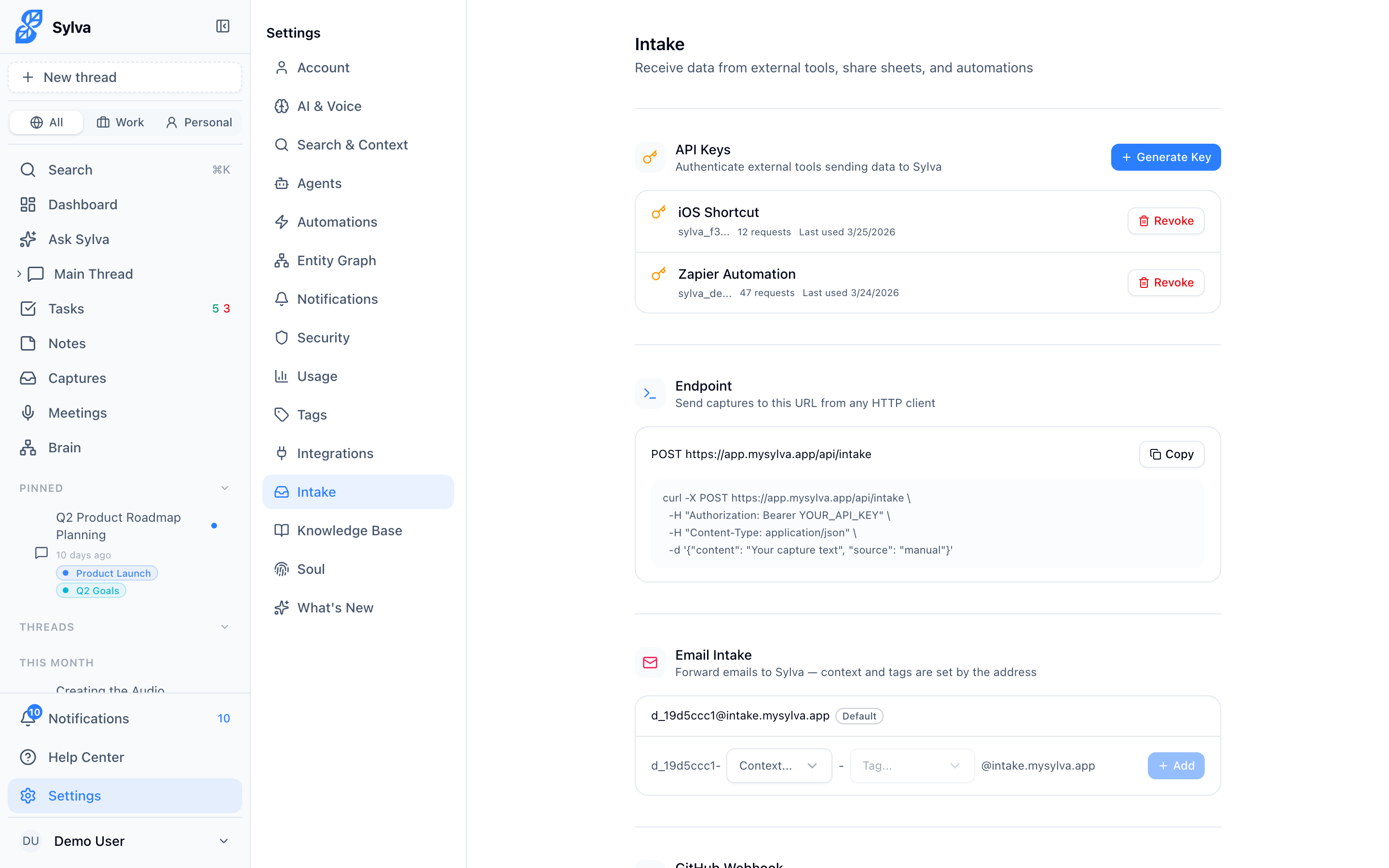
Email intake works by giving you dedicated Sylva email addresses you can forward messages to. Go to Settings > Intake to manage your addresses.
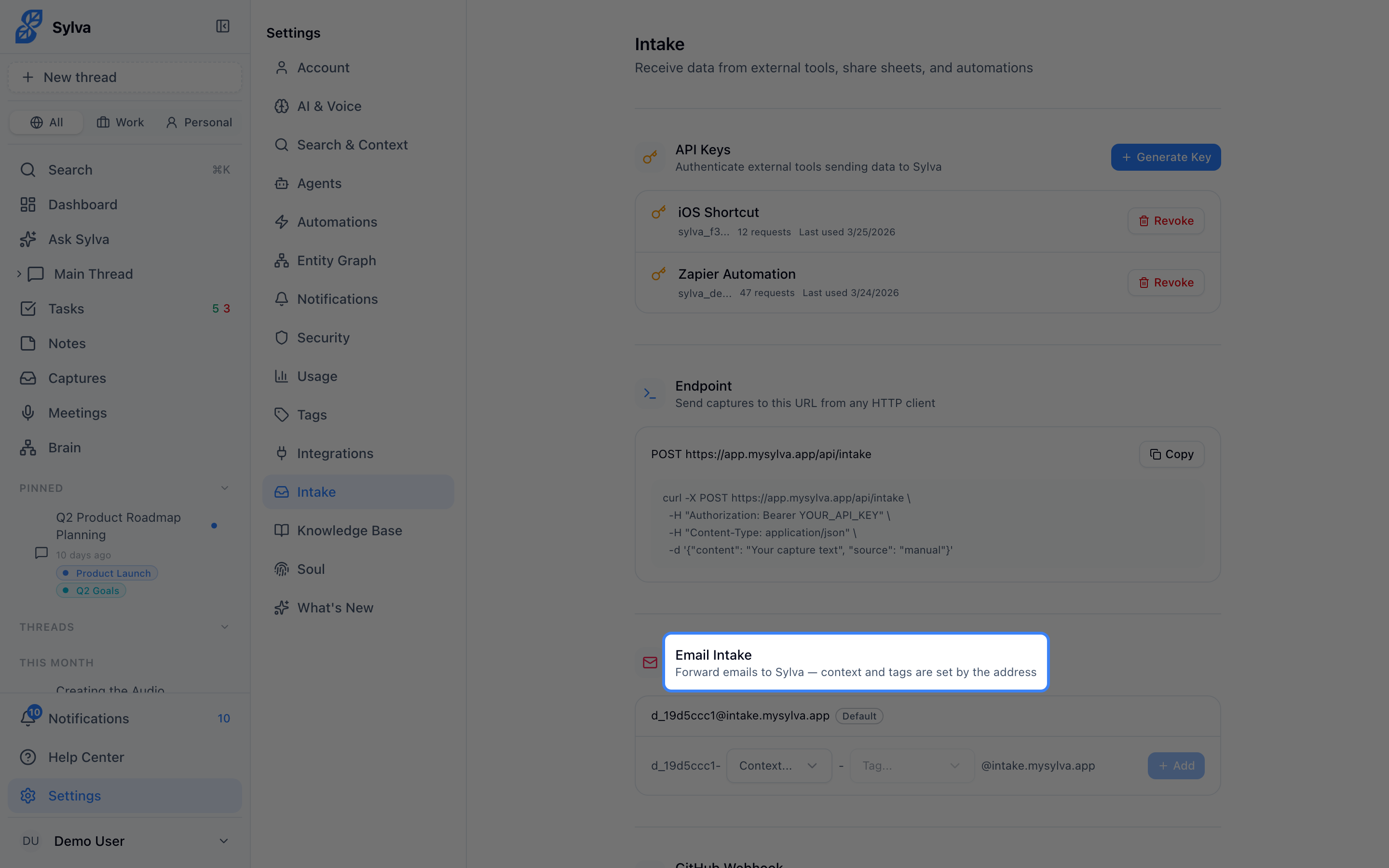
When you set up email intake, Sylva creates a Default address automatically. Any email forwarded to this address lands in your captures without a specific context or tag.
Adding Context-Specific Addresses
The real power of email intake is creating addresses that automatically apply a context and tag to every email they receive. This means you can set up forwarding rules in your email client and have captures pre-organized without lifting a finger.
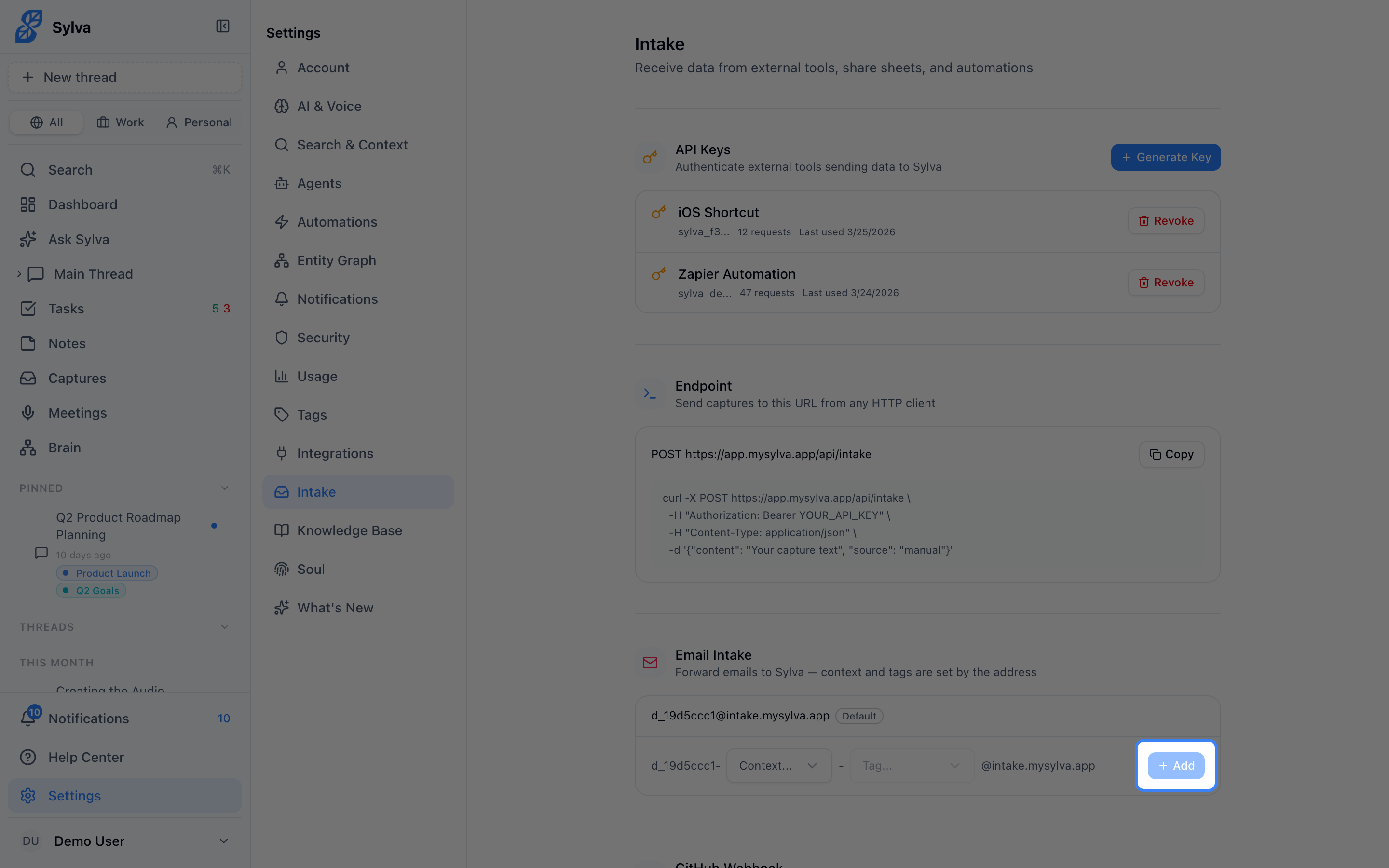
- Go to Settings > Intake and find the Email Intake section
- Click Add Address
- Choose a context — Work or Personal
- Optionally select a tag from the dropdown — the list filters to show tags that match your chosen context
- Save the new address
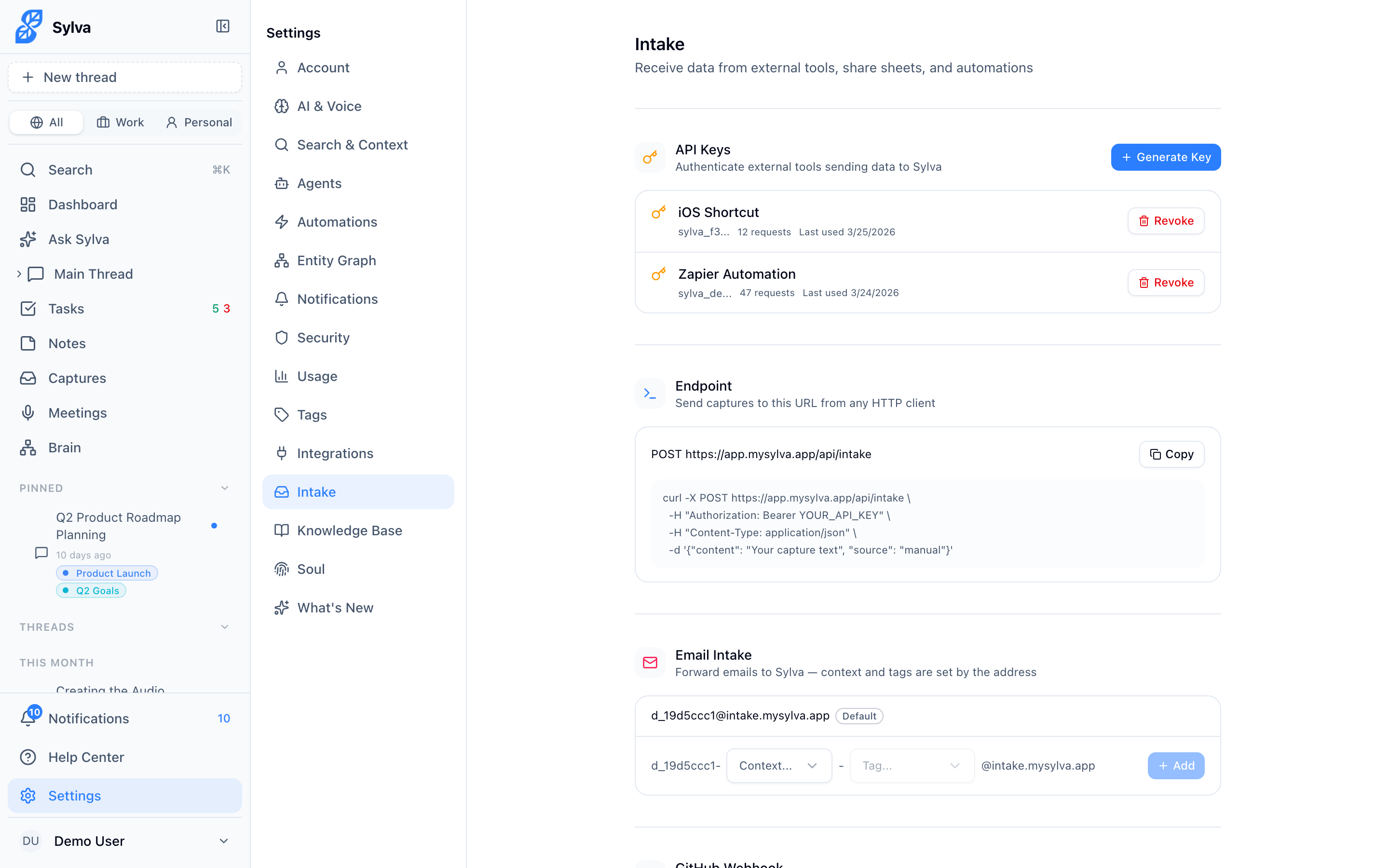
Sylva generates a unique email address for each context-and-tag combination. Each configured address appears below your default address with its context and tag displayed as badges.
Setting Up Forwarding Rules
Once you have your intake addresses, create forwarding rules in Outlook (or any email client) to route messages automatically. For example:
- Forward emails from your manager to your Work-tagged intake address
- Forward newsletters to a Personal address with a "Reading" tag
- Forward all emails from a specific project alias to a Work address tagged with the project name
The forwarding rule does the routing; Sylva does the organizing.
Removing an Intake Address
To remove a configured address, hover over it in the Email Intake list and click the delete button that appears. The default address cannot be removed — it's always available as a fallback.
Which Method Should You Use?
There's no wrong answer — they complement each other:
- Use the Chrome extension when you're browsing Outlook and want to capture specific emails on the spot
- Use intake addresses when you want hands-off, rule-based capture that works even when you're on your phone or not in Outlook
- Use both for full coverage — the extension for ad-hoc captures, intake addresses for automated ones