Sylva has a built-in meeting recording and transcription system so you can capture, search, and act on everything discussed. You can either record audio directly in Sylva or import an existing transcript file.
Here is an overview of the Meetings page where all your recordings are listed:
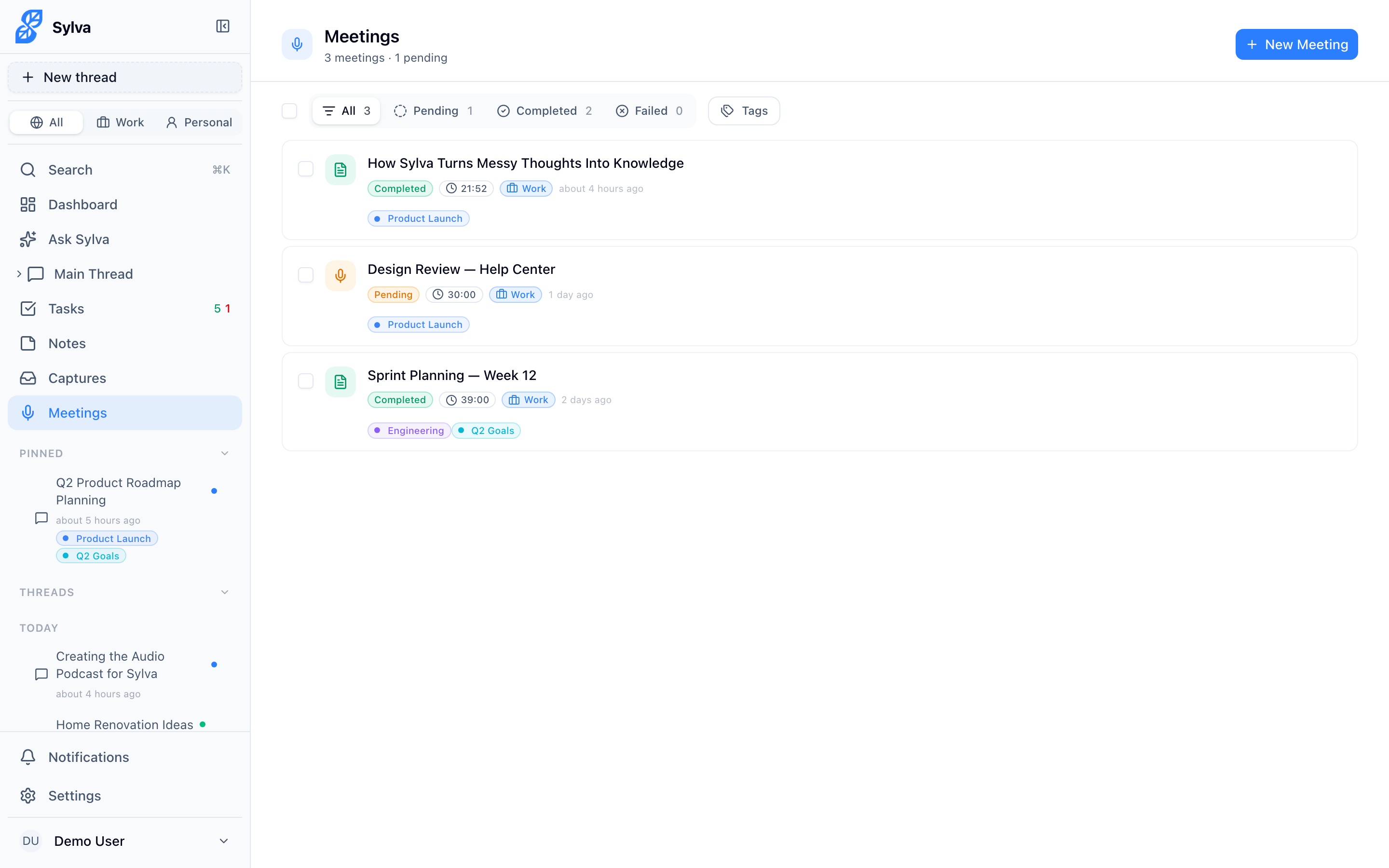
Getting a Meeting Into Sylva
There are three ways to create a meeting in Sylva:
- Record live — Click New Meeting to capture audio in real time (see Recording a Meeting below)
- Upload audio — Click Upload > Audio to upload a pre-recorded audio file for transcription
- Import a transcript — Click Upload > Transcript to import a transcript file directly, skipping the recording and transcription steps entirely
The Upload button on the Meetings page is a dropdown with two options: Audio and Transcript.
Importing a Transcript
If you already have a transcript from Zoom, Microsoft Teams, or another tool, you can import it directly without uploading any audio.
- On the Meetings page, click Upload > Transcript
- Drop or browse for your transcript file — Sylva accepts .vtt (WebVTT) and .txt files in WebVTT format
- Give the meeting a title
- Set the Meeting date and Start time to when the meeting really happened. Both start as today and right now, so change them if you are importing an older meeting. If the file name holds a clear date, such as the ones Zoom gives saved transcripts (for example
2026-09-18 13:09(GMT-4:00)), Sylva fills both in for you and tells you so. Check them before you save - Optionally pick a profile and link to a thread
- Click Import
Sylva parses the file and automatically:
- Creates transcript segments with timestamps from the file
- Identifies speakers in the order they appear and populates the Speaker Manager panel with their names
- Indexes the transcript for search and Ask AI, with the speaker's name on every line, so an excerpt in chat shows who said it. If you rename a speaker later, Sylva refreshes the saved text and search copy to use the new name
- Writes the AI summary, unless you have turned Auto-summarize & enrich off
- Sets the meeting status to completed — no transcription step needed
The WebVTT format is the standard used by Zoom cloud recordings, Microsoft Teams, and many other meeting platforms. A typical VTT file looks like this:
WEBVTT

1
00:00:01.000 --> 00:00:05.500
Jane Smith: Let's start with the project update.

2
00:00:06.000 --> 00:00:12.000
John Doe: Sure, we finished the backend work last week.
Sylva reads the speaker name before the colon on each line and uses it as the display name in the Speaker Manager. Speakers appear in the panel in the order they first speak in the transcript.
After importing, you can use all the same features as a recorded meeting — Ask AI, Extract Tasks, download transcripts, rename speakers, and search within the transcript.
Uploading Audio
To import a recording you already have, click Upload > Audio, choose the file, and give it a title. Like a transcript import, the form has Meeting date and Start time fields that start as today and right now. Set them to when the meeting really happened before you click Upload. If the file name holds a clear date, such as Zoom's GMT20260921-140012_Recording, Sylva fills them in for you. A name with no clear date, or two dates, is left for you to set. A recording you make live in Sylva is dated when you start it, so there is nothing to set.
The Meeting Date and Start Time
Every meeting has a date and a start time, shown next to the title at the top of the meeting. This is when the meeting happened, not when it was added to Sylva. When you import a meeting and its title holds a clear date, such as Zoom's 2026 09 18 13:09, Sylva fills in the date and start time for you, and you can change them. Sylva uses it everywhere: the order of your Meetings list, the Calendar, project pages, and chat.
In chat, Sylva knows the date of each meeting. If you import a meeting from two weeks ago with the right date, you can ask "What did we discuss in the meeting two weeks ago?" or "When was the budget review meeting?" and Sylva answers with the right day. If you leave the date as today, Sylva treats the meeting as having just happened.
To fix a meeting that has the wrong date:
- Open the meeting
- Click the date next to the title
- Choose the right Meeting date and Start time
- Click Save date
Sylva refreshes how it searches that meeting so chat uses the new date. A meeting can't be dated in the future.
Recording a Meeting
To start a new recording, click the New Meeting button from the Dashboard or sidebar.
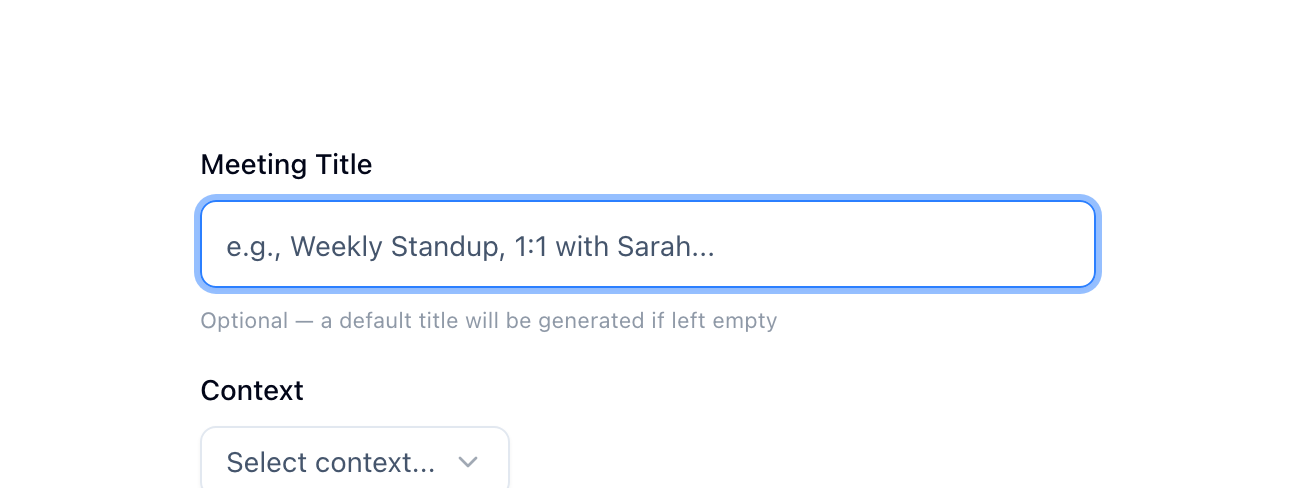
- Optionally give your meeting a title — if you leave it blank, Sylva defaults to "Untitled"
- Optionally set a Context — pick from your profiles — to keep the recording organized with the rest of your content. Sylva defaults to the profile you have selected in the sidebar, or Personal if you're on All profiles; you can change it before recording

- Optionally pick a Thread to link the meeting to straight away. It starts empty and you can skip it or clear it; recording works the same either way. You can still link or change threads later from the meeting page
- Choose your audio source from the dropdown (see Choosing an Audio Source below)
- Click Start Recording — your browser captures the audio from your selected source
- During the recording, you'll see a dual-button control layout — a Pause button and a Stop button side by side
- Use Pause and Resume as needed throughout the meeting (see Pause & Resume Recording below)
- Click Stop when the meeting ends. If you want to fix the transcript before Sylva writes a summary, switch Auto-summarize & enrich off first (see Summaries below)
- The audio uploads directly to cloud storage using a signed URL — this keeps the transfer fast and efficient, even for large files
While you record, Sylva continuously backs up audio chunks to your browser's local storage (IndexedDB). This means your recording is protected from the moment you hit Start Recording — even if your browser crashes, your laptop dies, or your internet drops, the audio is safe on your device and can be recovered later.
Troubleshooting: Sylva Can't Hear the Microphone
Before you press Start Recording, the New Meeting page has a Check your microphone box. Tap Test microphone and say something. The bars move when Sylva can hear you.
If the microphone is blocked, or your phone reports the microphone as muted or disconnected and no sound arrives for 2 seconds, Sylva shows the steps for your device with a Try again button. If you do not answer the permission box, Sylva shows what to look for after 6 seconds. The steps are also below.
Android (Sylva on your home screen runs inside Chrome, so Chrome's settings are the ones that count; they do not appear in the Sylva app's own settings)
- Open the Chrome app (not Sylva). Tap the three dots, then Settings, then Site settings, then Microphone.
- Tap app.mysylva.app and set Microphone to Allow. If it already says Allowed, tap Delete & reset instead. An old permission can look right and still not work.
- Open your phone's Settings, then Apps, then Chrome, then Permissions, then Microphone. Choose Allow only while using the app.
- Swipe Sylva away to close it, then open it again and tap Test microphone or Start Recording. Your phone asks for the microphone again. Tap Allow.
iPhone
- Tap Try again. When your iPhone asks to use the microphone, tap Allow.
- If you tapped Don't Allow, swipe Sylva away to close it, open it again, and tap Try again. Your iPhone asks again.
- Using Sylva in Safari? Tap the aA button next to the address, tap Website Settings, and set Microphone to Allow.
- Still blocked? Open Settings, then Safari, then Microphone (on newer iPhones: Settings, Apps, Safari, Microphone). Choose Ask or Allow.
Computer
- Click the lock or sliders icon at the left of the address bar. Set Microphone to Allow. If it is already on Allow, turn it off and on again, then reload the page.
- On a Mac, also open System Settings, then Privacy & Security, then Microphone, and turn on the switch next to your browser. Quit and reopen the browser if macOS asks.
- Click Try again.
If the bars still do not move, check that the microphone is not muted and that no other app, such as a phone call or another video app, is using it. More detail is in Recording won't start.
Audio Upload and Conversion
When you stop a recording or upload a file, Sylva converts the audio to WebM/Opus format directly in your browser before sending it to cloud storage. This client-side conversion produces significantly smaller files while maintaining the audio quality you need for accurate transcription — a raw WAV file that might be hundreds of megabytes becomes a fraction of that size in WebM/Opus.
Audio uploaded in MP3, M4A, WAV, and other supported formats goes through the same conversion pipeline automatically. Sylva uses the browser's WebCodecs API for this conversion, so on browsers that support WebCodecs (Chrome 94+, Edge 94+, and other Chromium-based browsers), the encoding runs natively and efficiently — there's no noticeable delay before the upload begins. The encoding happens entirely on your device, so the original file never leaves your browser — only the compressed WebM/Opus version is uploaded. This saves storage space and speeds up the transfer, especially on slower connections.
The conversion uses a fixed bitrate of 13 kbps — specifically optimized for speech clarity at the smallest possible file size. At this bitrate, spoken words remain clear and intelligible for both playback and transcription, while producing files around 1 MB per 10 minutes of audio. This fixed encoding rate applies to all audio that passes through the conversion pipeline, regardless of the source format or original quality.
During the upload, a multi-stage progress bar shows exactly where things stand with labeled phases so you always know what Sylva is doing:
- Converting audio to web format — Your browser encodes the audio into WebM/Opus at the fixed 13 kbps speech-optimized bitrate. This stage appears only when conversion is needed — if you're already recording in WebM/Opus natively, Sylva skips it. The progress bar displays the label "Converting audio to web format" during this phase. This is the most CPU-intensive step, but it runs entirely on your device
- Uploading — The progress bar switches to an "Uploading" label as the converted file transfers to cloud storage via a signed URL. On slower connections, this stage can take a while for longer recordings — the progress bar shows the percentage so you know how much remains
- Saving — Sylva creates the meeting record, generates access URLs, and kicks off transcription. This final step is usually fast, but on congested networks the API calls may take a few extra seconds

The progress bar advances through each stage in sequence, so you always know whether Sylva is still converting, actively uploading, or finishing up. You can navigate away from the page during the upload stage — Sylva completes the transfer in the background — but avoid closing the browser tab during the Converting audio to web format stage, since that processing happens locally.
Recording Quality
The Recording quality setting in Settings > AI & Voice controls the bitrate Sylva uses when encoding audio to WebM/Opus. A higher bitrate produces richer audio but creates larger files that consume more of your storage quota.

There are three options:
- Low (13 kbps) — Uses approximately 1 MB per 10 minutes. Use this if storage is limited — it's optimized for voice and produces clear, intelligible speech recordings while keeping files tiny. This is the same 13 kbps bitrate used by the automatic conversion pipeline for uploaded files
- Standard (32 kbps) — Uses approximately 2.5 MB per 10 minutes. This is the best choice for typical voice notes and meetings — a good balance of clarity and file size
- High (128 kbps) — Uses approximately 10 MB per 10 minutes. Choose this for music, multi-speaker panels, or recordings where you need the highest transcription accuracy
The bitrate you choose applies to live recordings. Uploaded files that go through the conversion pipeline always use the fixed 13 kbps speech-optimized bitrate, regardless of this setting. If you're working within a tight storage quota, switching from High to Low can extend your available recording time by roughly 10×.
Storage Quota
Your recordings are stored in a shared audio storage quota. By default, each user has 200 MB of audio storage. The admin can adjust this limit per user from Settings > Admin — available options range from 50 MB to 1 GB, or unlimited.

When you approach your quota, keep an eye on file sizes — the Recording Quality section above gives you a sense of how much space each recording consumes. If you reach your quota, delete old meetings from the Meetings page to free space before recording or uploading new audio. Open the menu on a meeting and click Delete, or open the meeting and click Delete there. Sylva has no way to delete only the audio: deleting a meeting permanently removes the meeting, its transcript and its audio file, so download anything you want to keep first. Tasks you extracted from a meeting are not deleted with it. They stay in your Tasks list with their text, status and due date, but they no longer point to a meeting.
Choosing an Audio Source
Before you start recording, you can select which audio input Sylva uses. Click the audio source dropdown to choose from:
- Default microphone — Uses whatever microphone your operating system has set as the default. This is the pre-selected option
- Specific audio device — Pick a particular microphone, headset, or USB audio interface connected to your computer
- System audio (share tab/computer audio) — Captures audio playing through your computer, which is useful for recording remote meetings where participants are on a browser-based call

Microphone Picker
The audio source dropdown appears on the New Meeting page before you start recording. Sylva uses the browser's getUserMedia API to enumerate your audio input devices, so every connected microphone, headset, and USB audio interface appears as a separate option. Select the one you want and Sylva routes that device's audio into the recording.
Device persistence — Sylva stores your selected device ID and audio source type (microphone vs. system audio) in your browser's localStorage. The next time you start a new recording, the dropdown automatically restores your previous selection. If the previously selected device is no longer available (e.g., you unplugged a USB headset), Sylva falls back to the default microphone and updates the stored preference accordingly.
System Audio Capture
When you select System Audio, Sylva uses the browser's getDisplayMedia API to capture audio from your computer rather than from a microphone. After you click Start Recording, your browser opens its own sharing picker — a system dialog asking which tab, window, or screen to share. You must check the "Share audio" checkbox at the bottom of this browser dialog for Sylva to receive any audio. If you skip this checkbox, no audio is captured and your recording will be silent.
System audio capture is ideal for recording remote meetings running in another browser tab (Google Meet, Zoom Web, Microsoft Teams) without needing to use a microphone at all. Keep in mind that system audio captures only what your computer plays — it won't include your own voice unless the remote meeting app loops your audio back through the speakers.
Pause & Resume Recording
The Pause button appears alongside the Stop button as soon as a recording is active. Hit Pause any time you need to temporarily stop capturing audio — during a coffee break, a sidebar conversation, or an interruption that doesn't belong in the transcript.
When you pause:
- The recording status indicator switches from a red pulse to a steady amber indicator, giving you an immediate visual cue that recording is paused — not stopped
- The audio waveform stops animating and holds still, reinforcing that no audio is being captured
- The Pause button switches to a Play button — click it to resume recording from exactly where you left off
- The Stop button remains available, so you can end the meeting directly from a paused state without resuming first

Paused time is excluded from the total recording duration. Sylva tracks only the time you're actively capturing audio, so your meeting length stays accurate. If you record for 30 minutes, pause for 10 minutes, then record for another 20 minutes, your meeting duration shows as 50 minutes — not 60. This keeps your duration meaningful and your transcript tightly focused on the actual conversation.
You can pause and resume as many times as you need during a single recording session. Each resumed segment picks up seamlessly — the final audio and transcript read as one continuous recording with the paused gaps removed.
Summaries: Auto-Summarize, Edit First, Regenerate
Sylva writes a meeting's AI Summary from its transcript. By default it does this on its own as soon as the transcript is ready. If you would rather clean up the transcript first, for example to give speakers real names instead of Speaker 1 and Speaker 2, turn that off:
- On the New Meeting page, switch Auto-summarize & enrich off. The label under it reads "Turn off to review transcript before summarizing"
- Record or upload as usual. Sylva transcribes the meeting but does not write a summary
- Open the meeting, fix any wrong words in the transcript, and rename the speakers in the Speaker Manager
- Click Summarize & Enrich at the top of the meeting. Sylva writes the summary from the transcript as it is now
The switch is saved to your account, so it stays off until you switch it back on. The same setting is under Settings > AI & Voice. It also applies to transcripts you import.
Regenerate summary
If you edit the transcript or rename speakers after a summary was written, the summary does not change on its own. Open the AI Summary tab and click Regenerate summary. Sylva asks "Replace the current summary?" and, if you confirm, writes a new one from the current transcript, including your edits and speaker names. You can do this at any time once the meeting has a transcript. While Sylva works, the AI Summary tab shows "Regenerating…" above your current summary, and you can leave the page or reload; it keeps going and the new summary appears when it is ready. If your connection drops, the tab says "Still working on it" and checks again. If the new summary fails, your earlier one stays in place and the tab says so.
Action items you already turned into tasks stay as tasks. A regenerated summary may list some of them again.