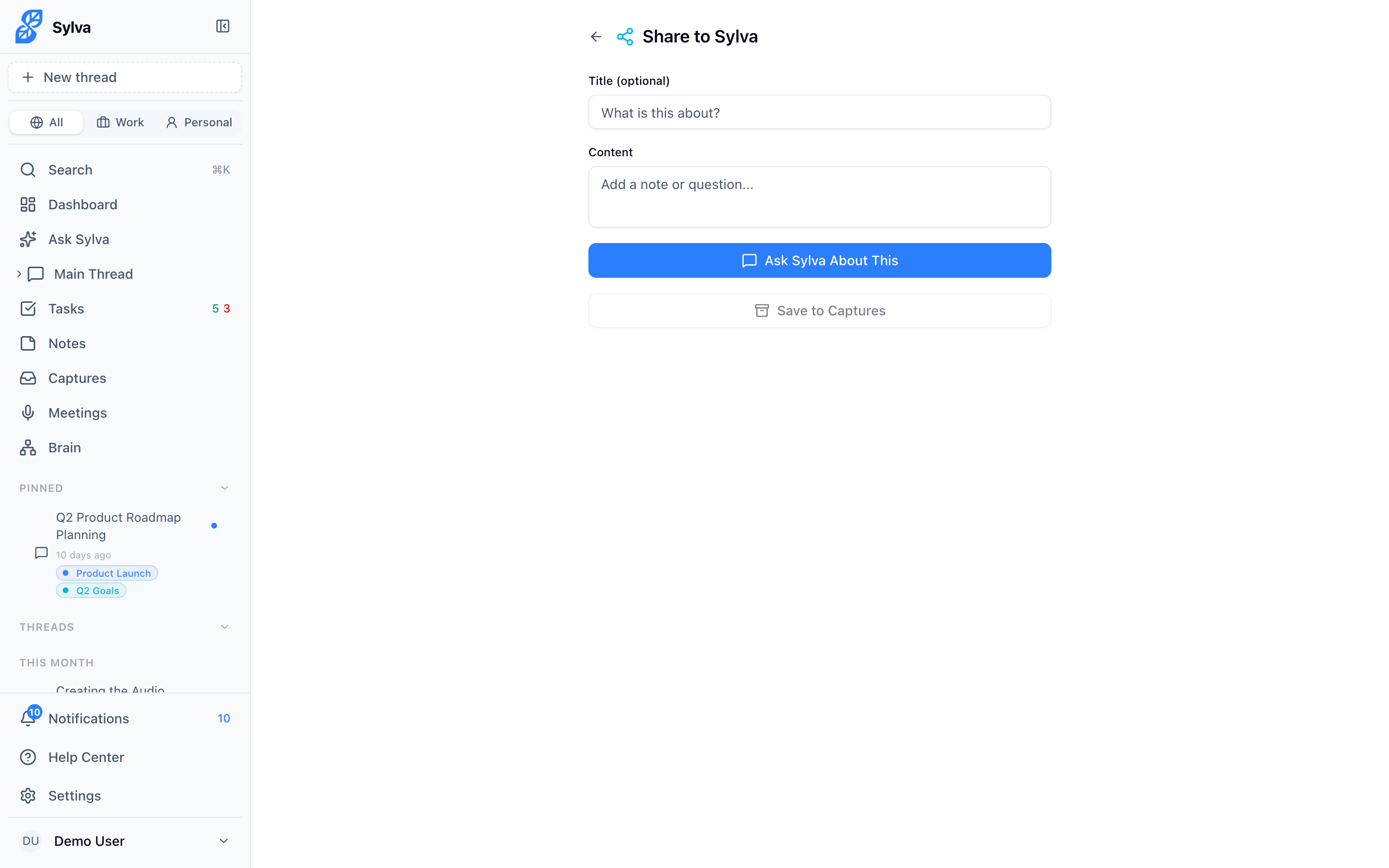
Sylva registers as a share target on Android and supported browsers, so you can send text, images, and files straight from any app into a Sylva conversation — no copy-pasting or downloading required.
How Sharing Works
When you tap Share in any app — your browser, photo gallery, file manager, email client — Sylva appears as an option in your device's share sheet. Select it, and Sylva opens with your shared content ready to go.
Here's what happens depending on what you share:
- Text — The shared text appears pre-filled in the chat input box
- Images — The image attaches to the chat input as a file, ready for Sylva's AI to analyze visually
- Files — Documents attach to the chat input the same way they would if you added them manually in a conversation
Why Shared Content Doesn't Auto-Send
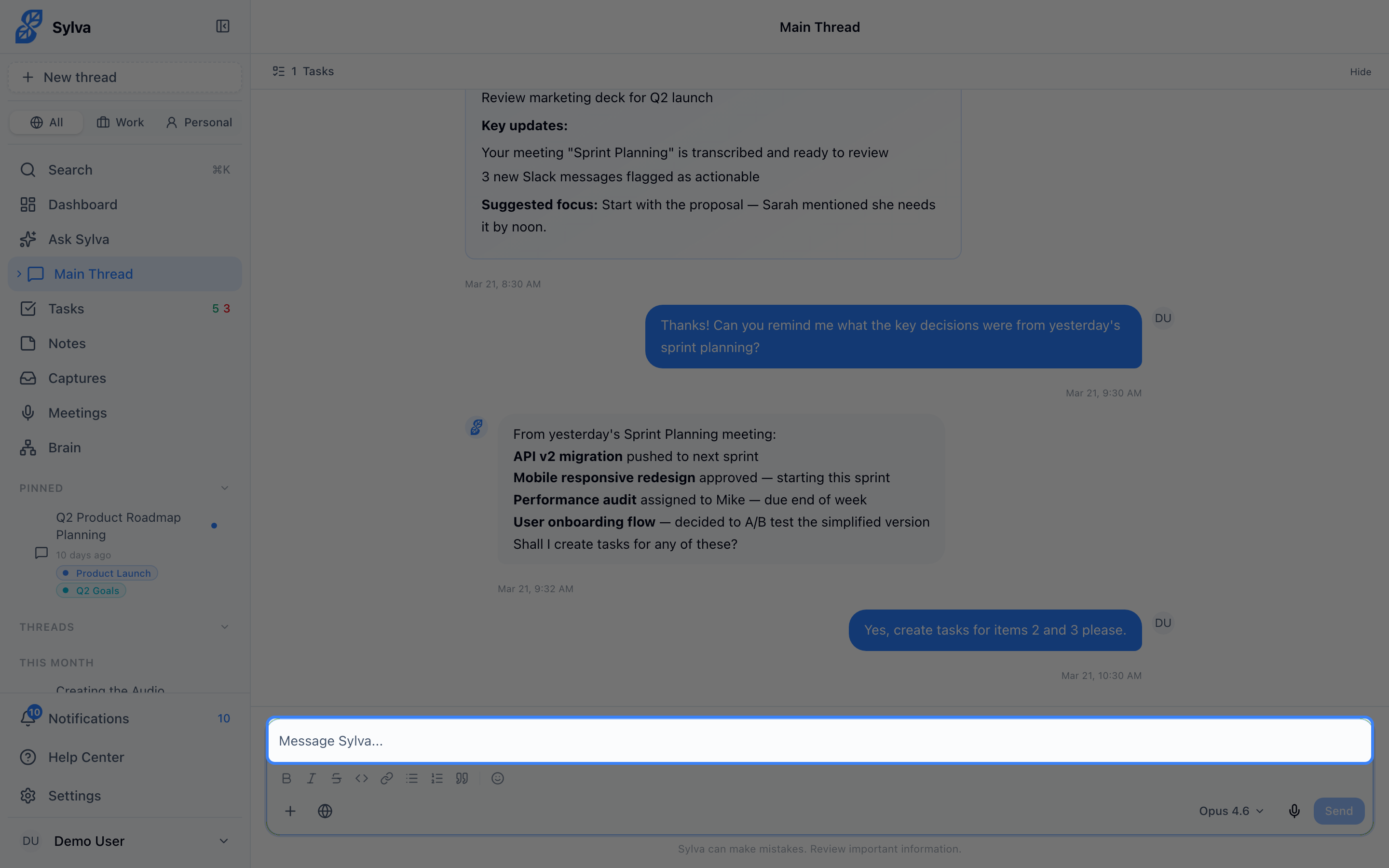
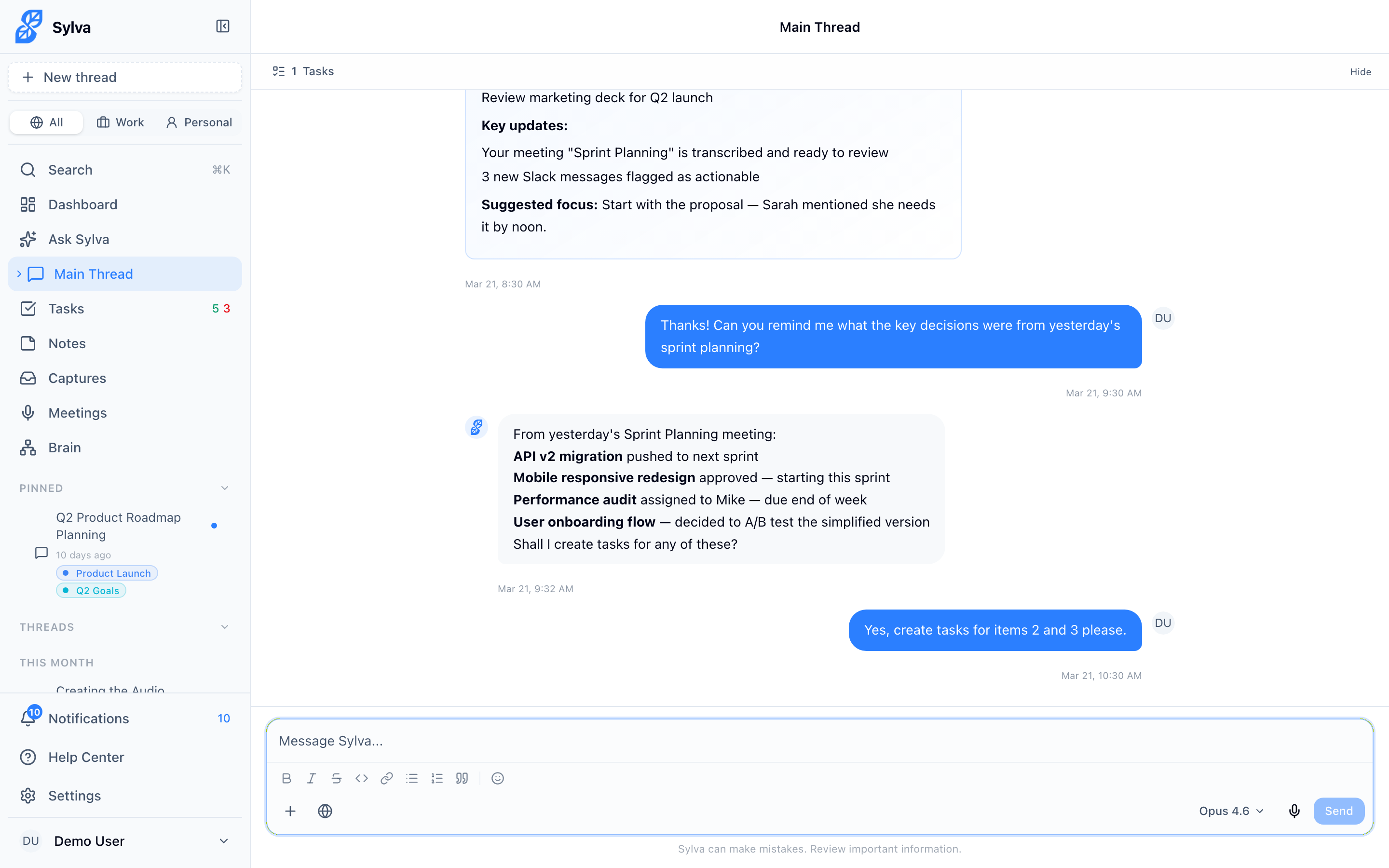
Shared content lands in the input box but does not send automatically. You always need to tap Send yourself. This is intentional — when you share images or files, Sylva needs to convert them to the right format for AI processing (base64 encoding for image analysis, document parsing for PDFs and Office files). Auto-sending could result in incomplete submissions where attachments haven't finished processing.
This also gives you a chance to add context before sending. For example, you might share a screenshot from another app and then type "What's the total in this invoice?" before hitting Send.
Supported File Types
Anything you can attach in a regular Sylva chat conversation works through the share target:
- Images — JPG, PNG, GIF, WebP (Sylva's AI can see and analyze these visually)
- Documents — PDFs, Word documents, Excel spreadsheets, PowerPoint presentations
- Text files — Plain text, CSV, Markdown, code files
If the file type is one Sylva can read directly — like a PDF — the AI processes the full content. For other document types, Sylva extracts the text and includes it in the conversation so the AI can work with it.
Offline Behavior
If you share something to Sylva while your device is offline, the content queues locally on your device. Once you reconnect, Sylva syncs the queued content and it appears in your chat input as expected. You won't lose anything — the share target works whether or not you have an active connection at the moment you share.
Availability
The share target feature relies on the Web Share Target API, which is currently supported on:
- Android — Chrome, Edge, and other Chromium-based browsers (when Sylva is installed as a PWA)
- Desktop — Chromium-based browsers with PWA installation
On iOS, the Web Share Target API is not yet supported by Safari. To get content into Sylva on iPhone or iPad, copy and paste text or use the file attachment button directly in the chat.