As you use Sylva, it builds a persistent knowledge graph of the people, projects, organizations, decisions, commitments, and concepts that come up in your conversations — so you never have to re-explain who someone is or what a project is about.
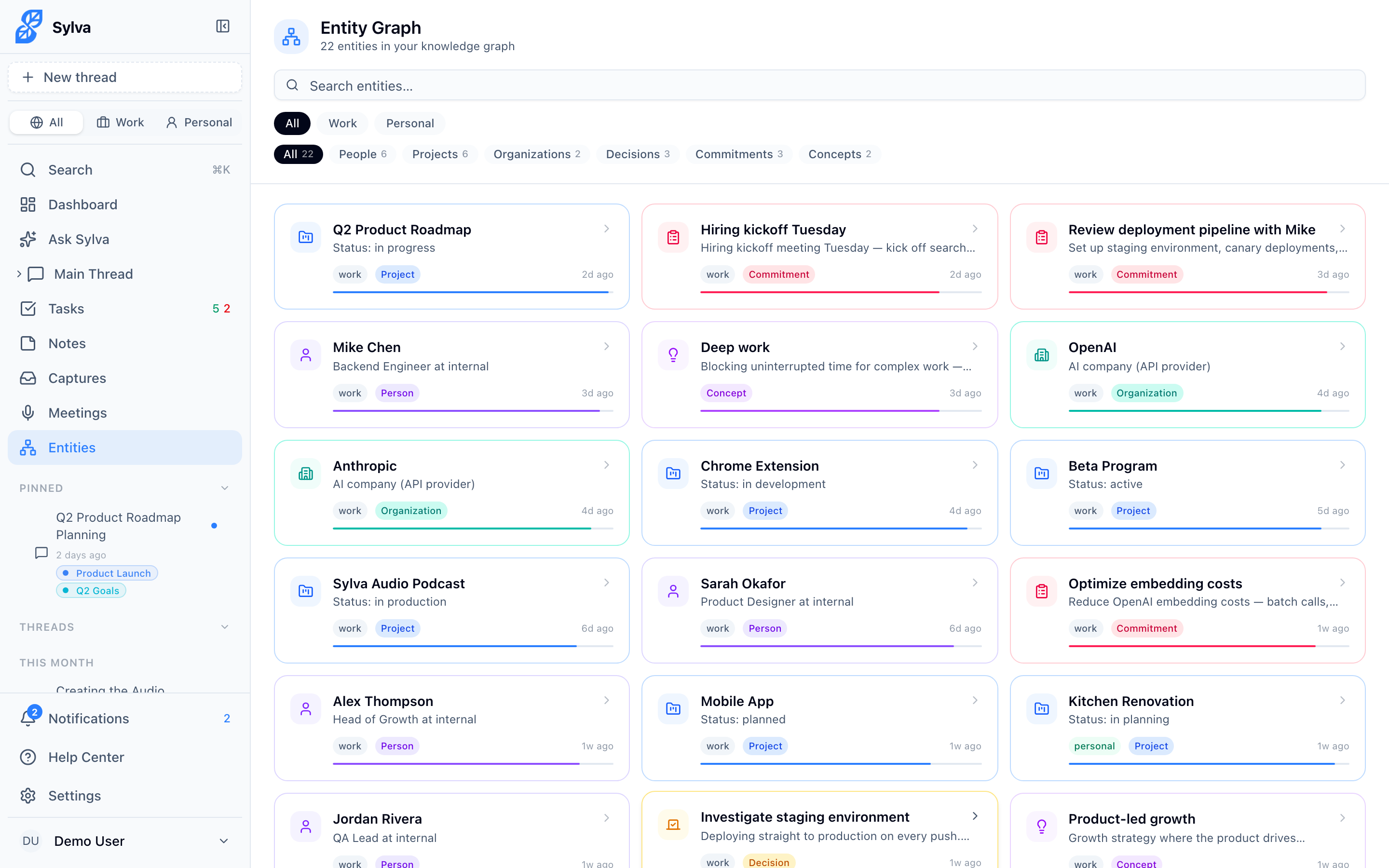
How Entities Are Extracted
Extraction happens automatically in the background. After each conversation, Sylva uses AI to identify entities in your messages and adds them to the graph — no action required on your part.
Each entity stores:
- Name and aliases — The canonical name plus variations Sylva has seen (e.g. "A. Chen" and "Alex Chen" resolve to the same person)
- Type — One of six types: Person, Project, Organization, Decision, Commitment, or Concept
- Attributes — Type-specific metadata: a person's role and organization, a project's status, a commitment's due date
- Confidence score — How strongly Sylva believes this entity is real and active, shown as a bar under each card. Confidence decays over time if an entity isn't mentioned, and resets upward when it is
- Context — Work, Personal, or Both — so your work and personal worlds stay separate
- Mention count — How many times this entity has come up across your conversations
Browsing the Entity Graph
Go to Entity Graph in the sidebar to see all extracted entities.
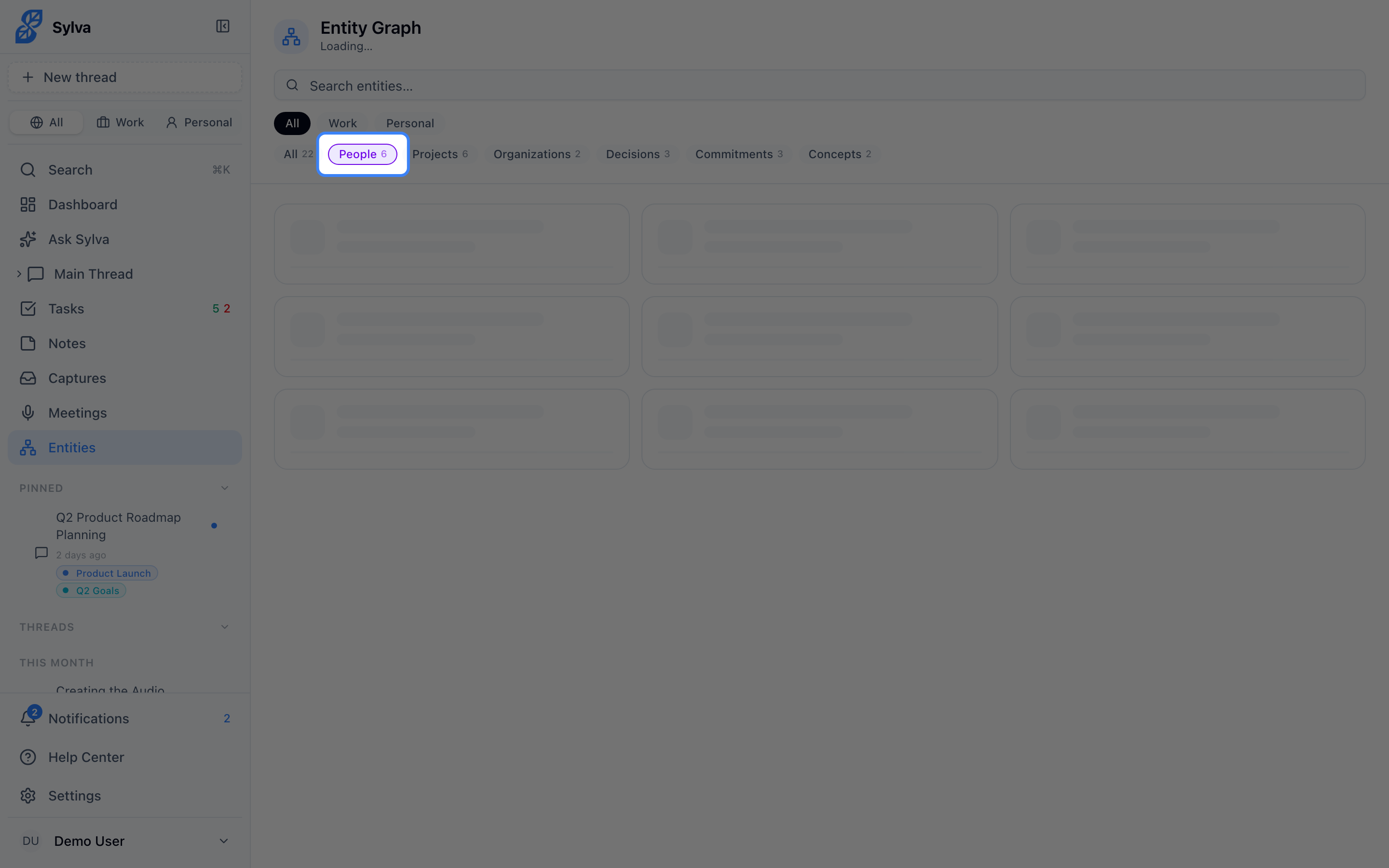
Filter by type using the chips at the top — All, People, Projects, Organizations, Decisions, Commitments, or Concepts. Each chip shows a count of matching entities.
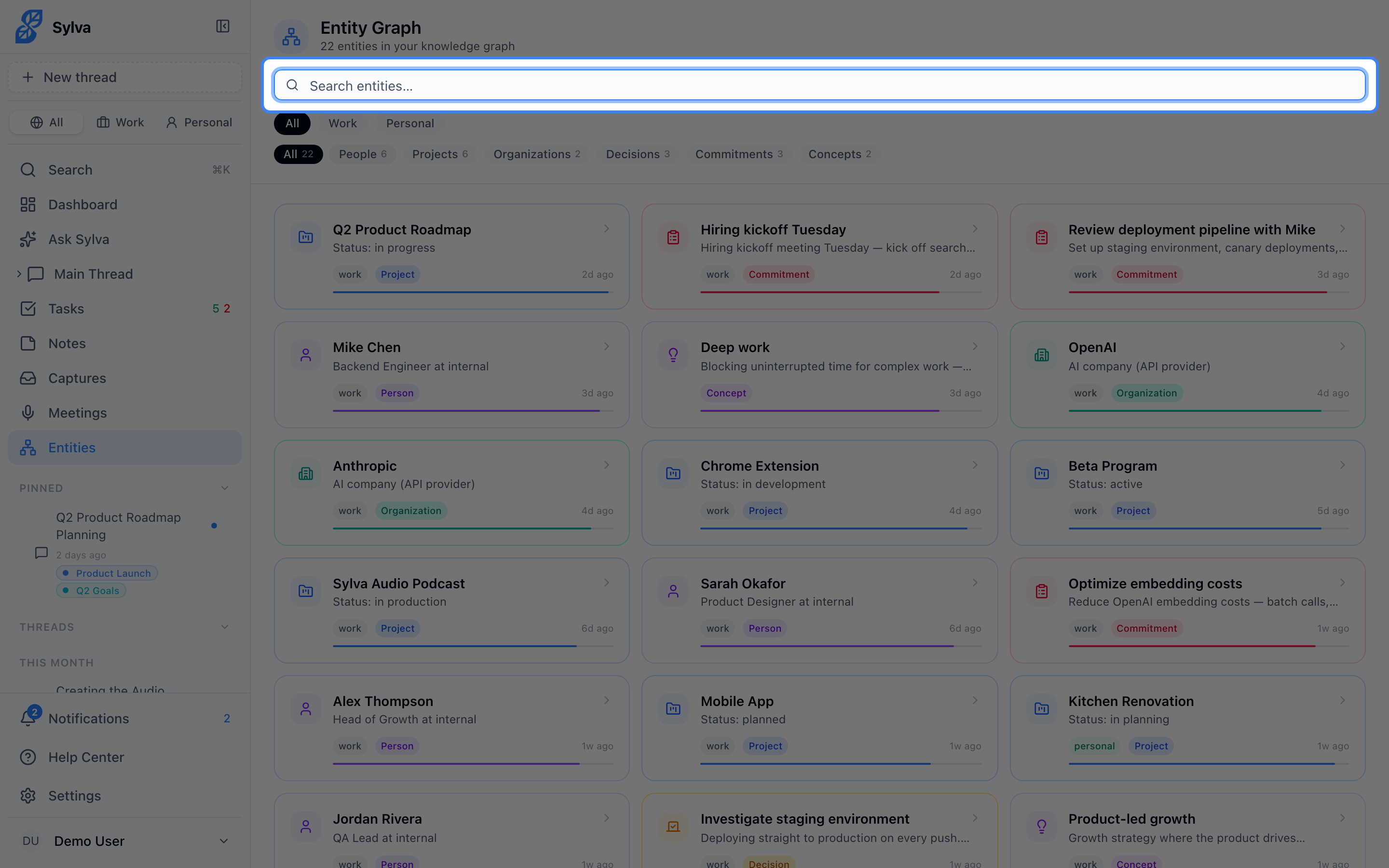
Search by name to find a specific entity quickly.
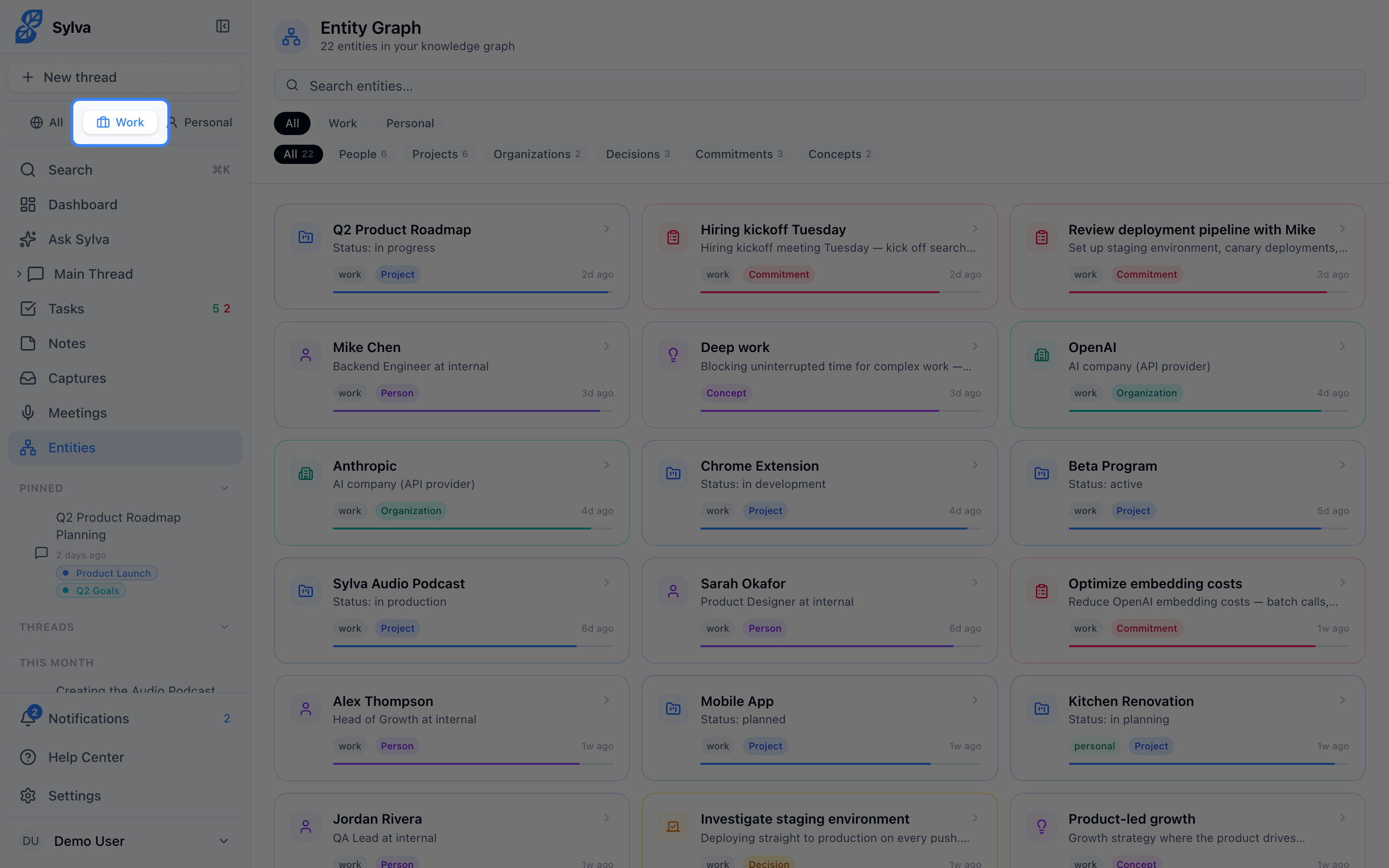
Filter by context — toggle between All, Work, and Personal to focus on one area.
Entities are sorted by most recently mentioned, so the people and projects you've been talking about most recently appear first.
Entity Detail
Click any entity card to open its detail page, which shows everything Sylva has learned about that entity across all your conversations.
The detail page has two columns:
- Left — Facts timeline — A chronological list of individual facts extracted about this entity, each linked to the conversation it came from. Click any fact's source icon to jump to that conversation
- Right — Relationships — Other entities this entity is connected to, with the relationship type and how recently the connection was observed
From the detail page you can:
- Edit the entity's name, aliases, and context
- Delete a fact — if Sylva got something wrong, remove that individual fact without deleting the whole entity
- Delete the entity — removes it and all associated facts and relationships
How Entity Context Enhances Conversations
When you're talking with Sylva in your main thread, Sylva automatically retrieves relevant entities from the graph and injects them into the conversation context. This means:
- You can refer to "the Q2 project" or "Sarah" without explaining who or what they are — Sylva already knows
- Sylva can surface commitments you made or decisions that were reached, without you having to search for them
- Context is scoped to the conversation — work conversations see work entities, personal conversations see personal entities
This happens silently in the background. You'll notice Sylva seems to remember things across conversations — that's the entity graph at work.
Merge Proposals
When Sylva detects two entities that are likely the same person or thing (based on name similarity and context), it generates a merge proposal and shows a banner at the top of the Entity Graph page.
For each proposal you can:
- Accept — the duplicate entity's facts and relationships are folded into the primary entity, and the duplicate is removed
- Reject — Sylva keeps both entities separate and won't suggest merging them again
Reviewing merge proposals periodically keeps your graph clean and ensures Sylva's context is accurate.
Confidence Decay and Maintenance
Sylva's background maintenance job runs daily and manages the health of your entity graph:
- Confidence decay — Entities that haven't been mentioned recently lose confidence over time
- Archival — Entities that fall below the confidence threshold and haven't been seen in 60+ days are archived (hidden from the graph but not deleted)
- Stale facts — Individual facts that appear outdated are flagged
You can trigger entity extraction manually from Settings if you want Sylva to process recent conversations immediately rather than waiting for the next automatic run.